Create with PrimeArt
Create an elegant wedding portrait
Turn two clear references into a refined wedding-style portrait with consistent light, believable formalwear and both identities preserved.
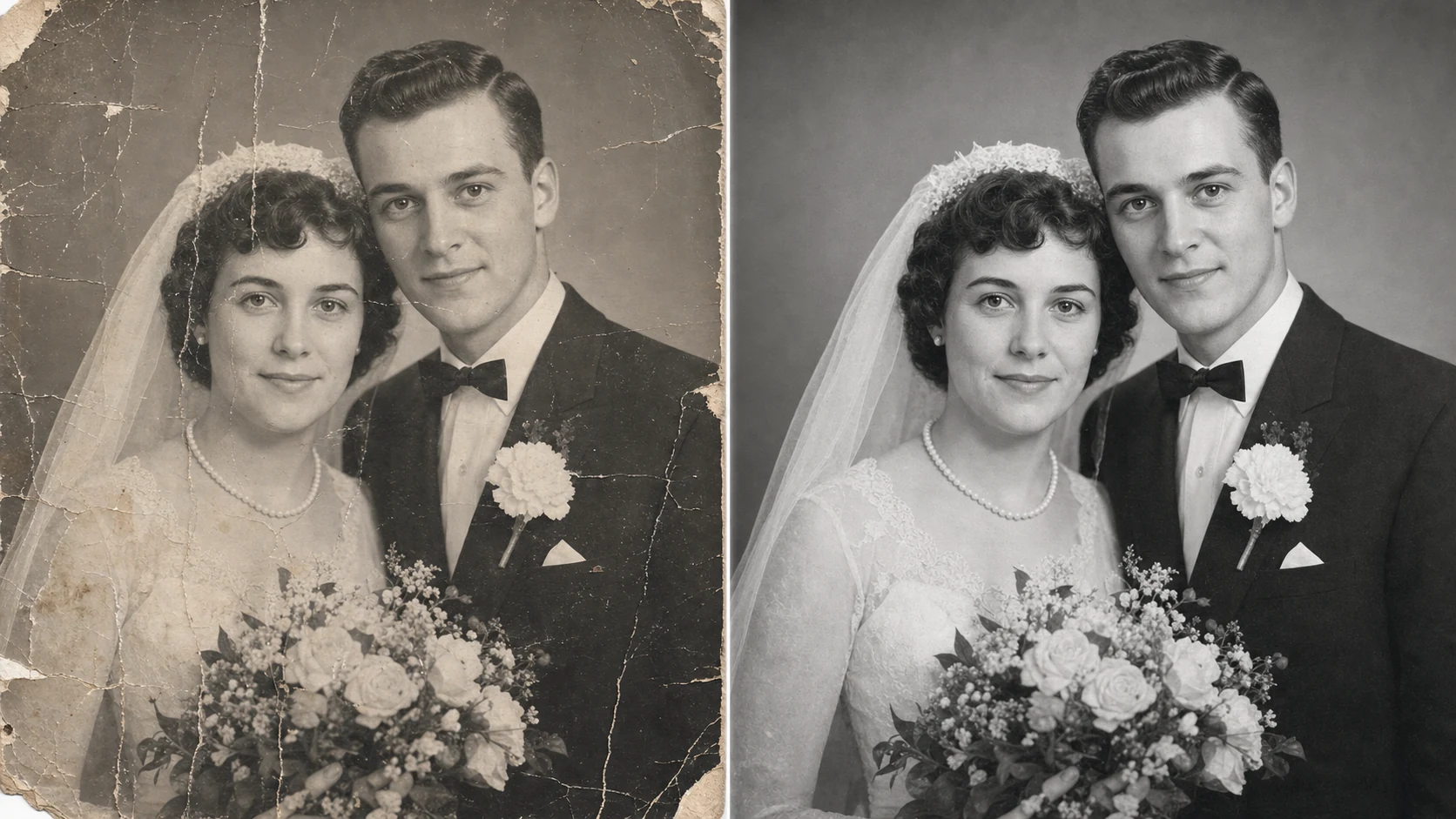
Example directions you can create
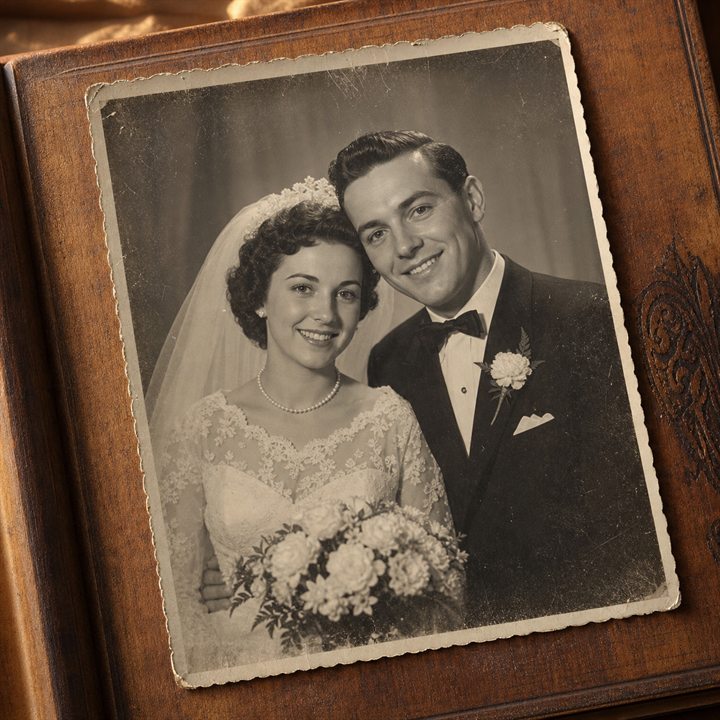
Restore wedding memory — Faithful restoration of a damaged historical wedding photo. 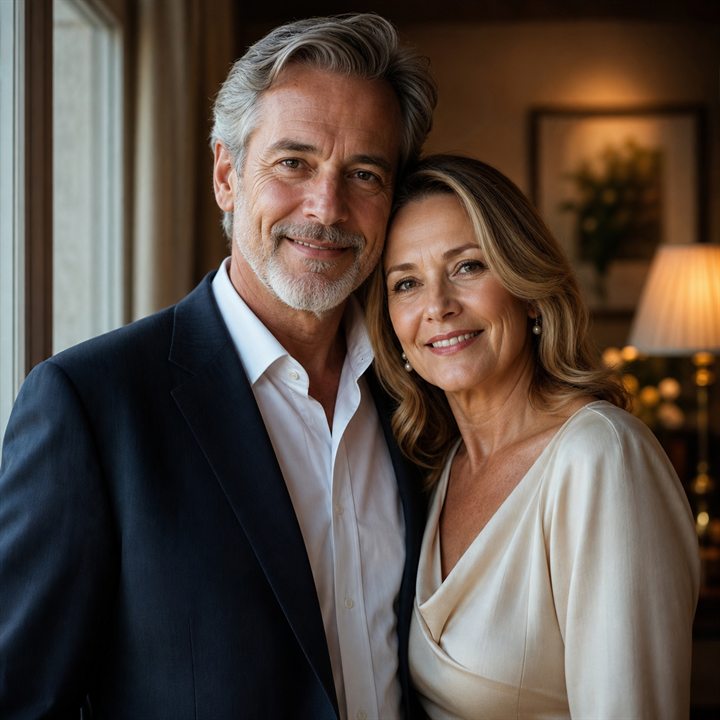
Elegant couple portrait — Refined indoor portrait with warm formal styling. 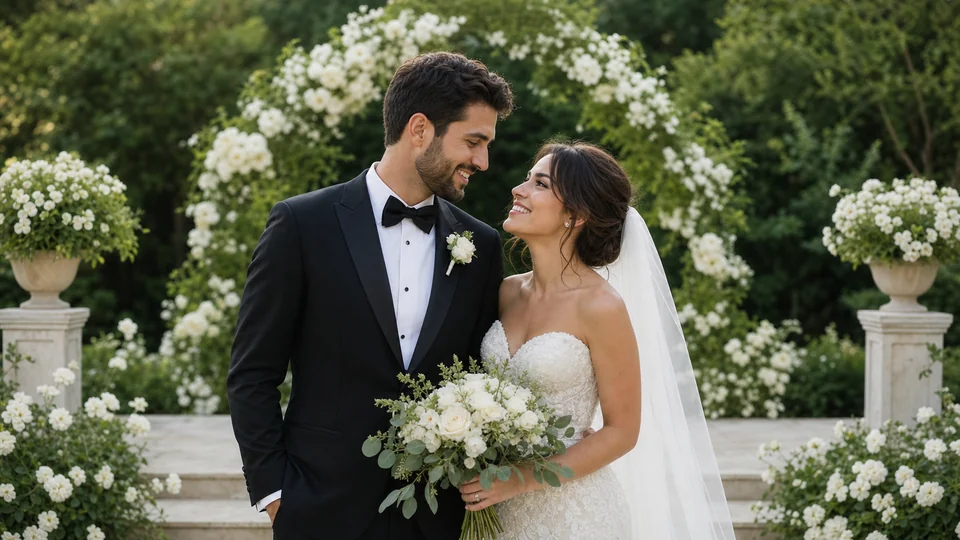
Garden ceremony — Soft daylight, greenery and understated romantic detail.
How Create an elegant wedding portrait works
Choose clear portraits with similar angles and lighting when combining two people. Describe the venue, clothing and mood without asking the model to alter the couple themselves.
PrimeArt prepares a couple-focused portrait prompt and a classic horizontal composition when you continue from this page.
What you can create
- Both faces preserved — Keep the couple recognizable, age-authentic and naturally expressive.
- Elegant formal styling — Coordinate attire, flowers, venue light and color without visual clutter.
- Believable couple portrait — Match perspective, body language and scale instead of producing a collage effect.
Popular use cases
- Wedding concepts — Explore a visual direction for styling, venue mood or portrait light.
- Anniversary image — Create a warm formal portrait for a personal keepsake.
- Invitation inspiration — Develop a refined couple visual before final design work.
- Restored wedding memory — Use the Restore page when the starting point is a damaged historical photo.
Prepare two references for a coherent couple portrait
Use clear faces with similar camera height and light. State which person appears on each side and whether the composition is close, half-length or full-length.
- Use one strong reference per person
- Prefer compatible angles
- Define the couple arrangement
Limits of a generated wedding scene
The model may reinterpret garments, jewelry, hands or body proportions while blending two sources. It cannot recreate an undocumented event with historical accuracy.
Review identity before the formal styling
Check both faces separately before judging the venue. Inspect hand contact, finger count, rings, veil edges, lapels, flowers and shared shadows.
- Compare each face independently
- Inspect hands and accessories
- Check scale, pose and shared lighting
How to get started
- Select clear references for both people — Choose recent portraits with visible faces and compatible angles. Avoid heavy filters or sources where one face is much smaller.
- Define one formal portrait concept — Describe venue mood, attire, flowers, light and composition while explicitly preserving both identities and ages.
- Inspect both people and their interaction — Compare each face, then review hands, rings, clothing joins, body scale and whether the couple shares believable light.
Frequently asked questions
- Can I combine two people from separate photos?
- Yes. Separate references can guide one couple portrait, though similar angles and lighting improve consistency.
- Is the result a real wedding photograph?
- No. It is a generated wedding-style portrait and should not be presented as documentary evidence of an event that did not occur.
- Will formalwear, rings and flowers be exact?
- AI can create a visual direction, but small jewelry, fabric construction and specific product details may change or be invented.
- How does the prepared Create an elegant wedding portrait workflow continue in Studio?
- Choose recent portraits with visible faces and compatible angles. Avoid heavy filters or sources where one face is much smaller. PrimeArt carries this page's selected direction and format into Studio so you can begin with that specific setup instead of an empty prompt.
Open the prepared Create an elegant wedding portrait setup
Choose recent portraits with visible faces and compatible angles. Avoid heavy filters or sources where one face is much smaller. Continue to Studio with this page's specific direction and format already selected.