Create with PrimeArt
Create a family portrait from your photos
Bring several family photos into one balanced, photorealistic portrait with consistent light, scale, clothing and natural expressions.
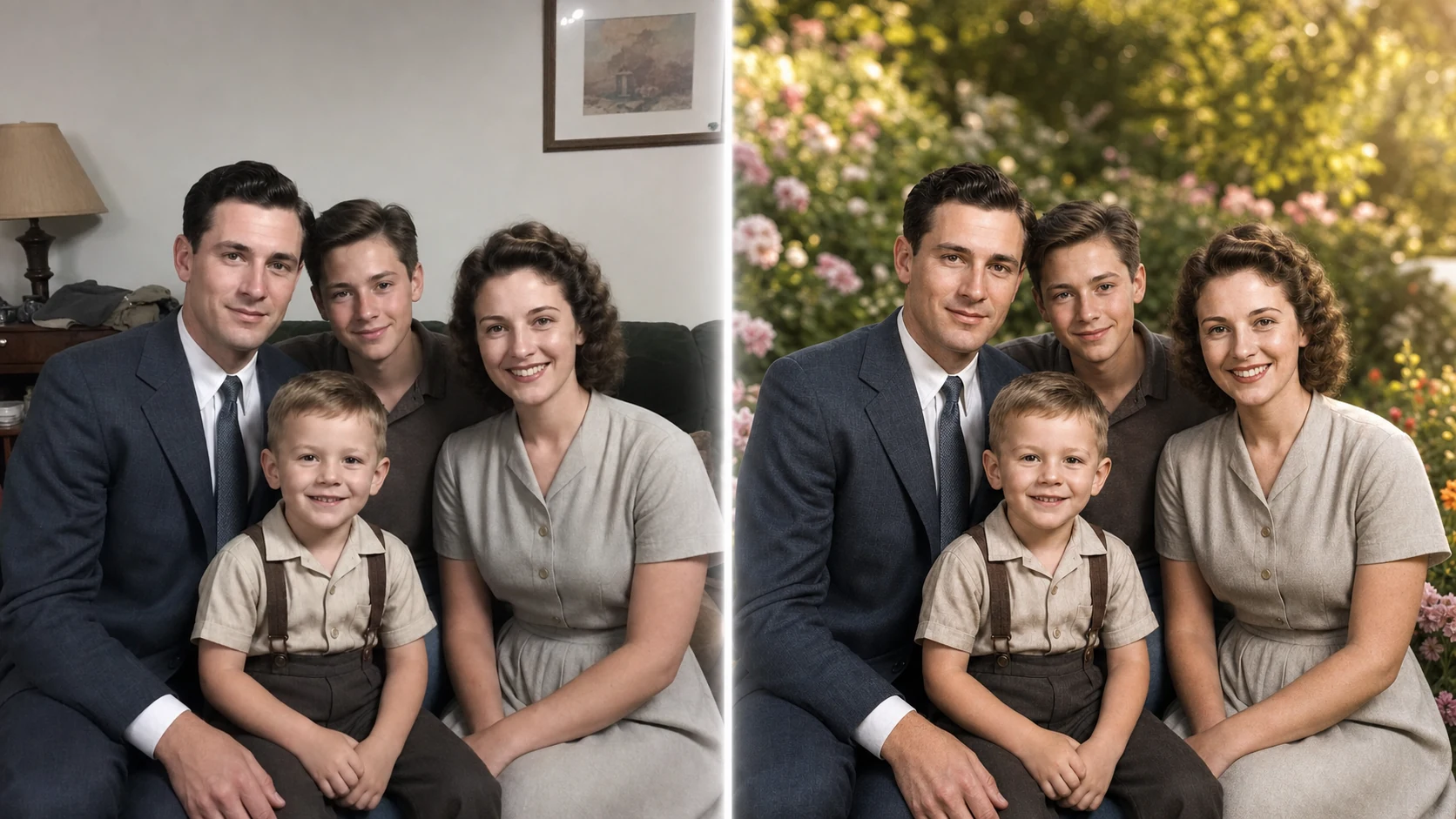
Example directions you can create
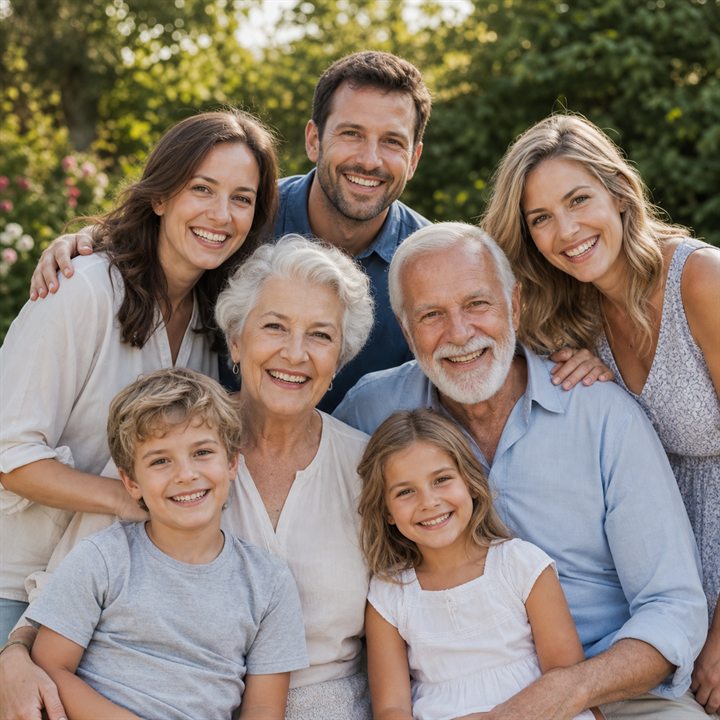
Garden family — Warm multigenerational portrait in late-afternoon light. 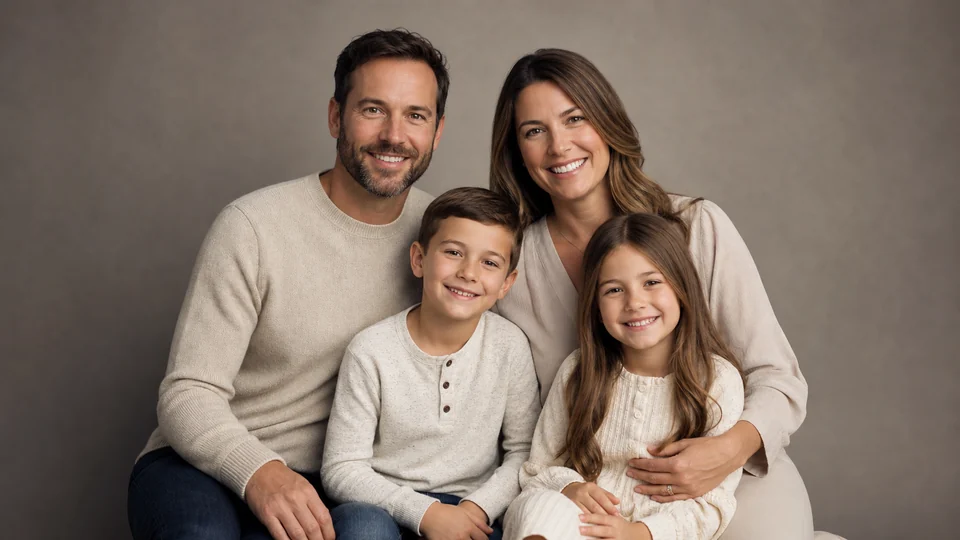
Classic studio family — Timeless neutral studio light and elegant styling. 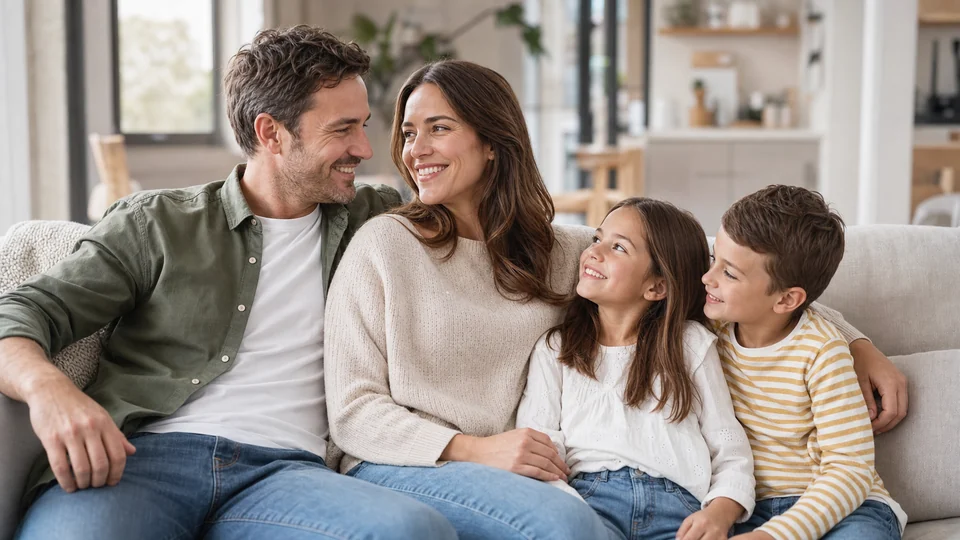
Relaxed family at home — Natural lifestyle portrait in a bright welcoming home.
How Create a family portrait from your photos works
Upload one clear reference for every person who should appear. Similar camera angles and even lighting make it easier to preserve each identity and build a believable group.
PrimeArt prepares a family-specific prompt and classic horizontal portrait format before Studio opens. The setup remains available while you sign in or register.
What you can create
- Everyone in one frame — Combine separate references into a coherent multigenerational portrait.
- Recognizable faces — Keep age, hairstyle and individual appearance as close to the source photos as possible.
- Natural group composition — Match scale, perspective, poses and light instead of creating a pasted-together collage.
Popular use cases
- Multigenerational portraits — Bring grandparents, parents and children together in one scene.
- Family gifts — Create a personal image for a print, card or framed keepsake.
- Long-distance families — Use separate photos when a traditional session is difficult to arrange.
- Garden portraits — Place the family in soft outdoor light with coordinated, natural styling.
Reference photos for a believable family portrait
Select sharp faces with natural expressions and similar head angles. Describe the family arrangement in plain language before adding decorative details.
- One recognizable reference per person
- Comparable face angles and light
- An explicit list of everyone in frame
Limits of combining several people
The model may alter age, height, body proportions or small identity details while harmonizing separate sources. Overlapping arms, young children and large groups need close review.
How to check a generated family portrait
Confirm the headcount first, then compare faces one by one. Inspect hands, limbs, eye direction, relative scale and whether everyone shares one believable camera perspective.
- Count people before judging style
- Compare identity person by person
- Check hands, contact points and shared lighting
How to get started
- Choose one clear reference for each person — Use unobstructed photos with comparable camera angles and light. Make sure every family member who should appear has a recognizable face reference.
- Define the group before the styling — State who belongs in the portrait and their approximate arrangement, then add the setting, clothing direction and mood.
- Audit every family member — Count the people, compare each face and check scale, hands, eye lines and contact between bodies before choosing a result.
Frequently asked questions
- Can I combine relatives from separate photographs?
- Yes. Separate references can guide one group portrait, although similar angles, image quality and lighting make a coherent result easier.
- How can I help the portrait preserve every identity?
- Use a distinct reference for each person, avoid requests that change age or facial features and review every face individually.
- Why might a person be duplicated or omitted?
- Multi-person scenes are complex. Keep the headcount explicit, avoid crowded staging and generate another version when the composition is wrong.
- How does the prepared Create a family portrait from your photos workflow continue in Studio?
- Use unobstructed photos with comparable camera angles and light. Make sure every family member who should appear has a recognizable face reference. PrimeArt carries this page's selected direction and format into Studio so you can begin with that specific setup instead of an empty prompt.
Open the prepared Create a family portrait from your photos setup
Use unobstructed photos with comparable camera angles and light. Make sure every family member who should appear has a recognizable face reference. Continue to Studio with this page's specific direction and format already selected.