Create with PrimeArt
AI Portrait Generator from photo or text
Create a portrait from a description or transform your own photo into a studio, editorial or cinematic scene.
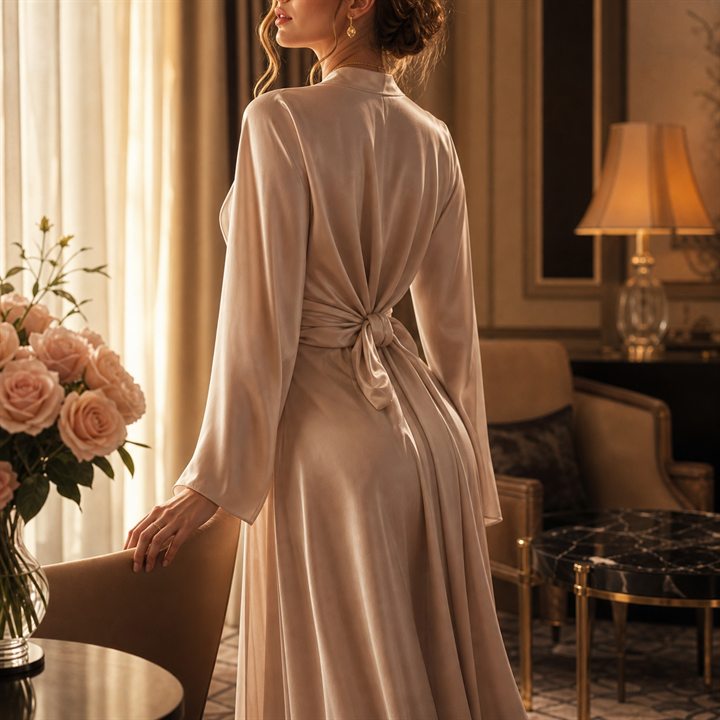
Example directions you can create
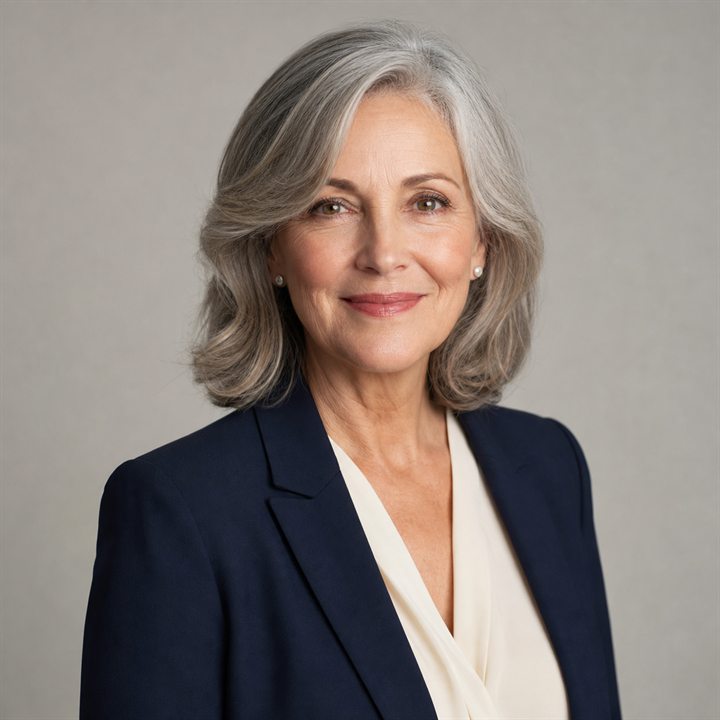
Classic studio — Timeless neutral background and flattering light. 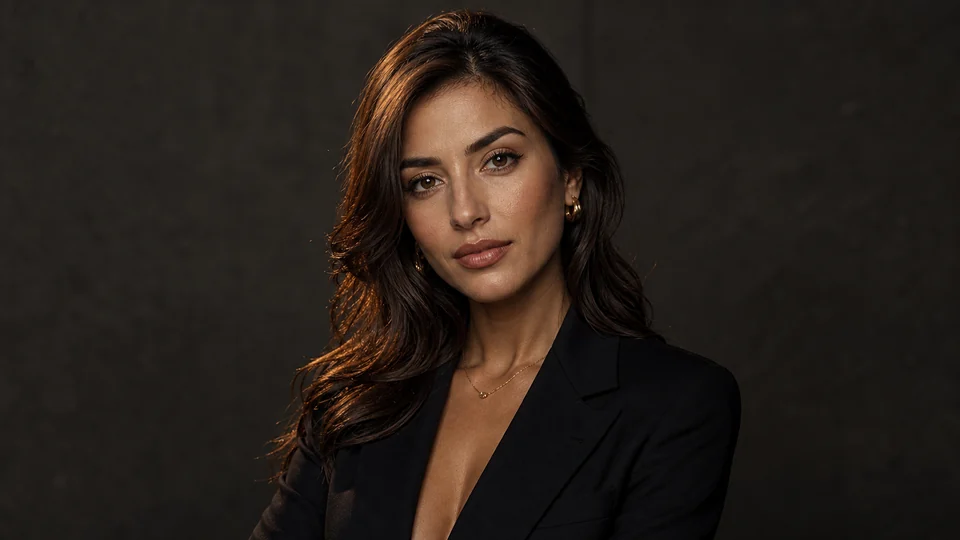
Cinematic editorial — Rich contrast, refined color and magazine-level light. 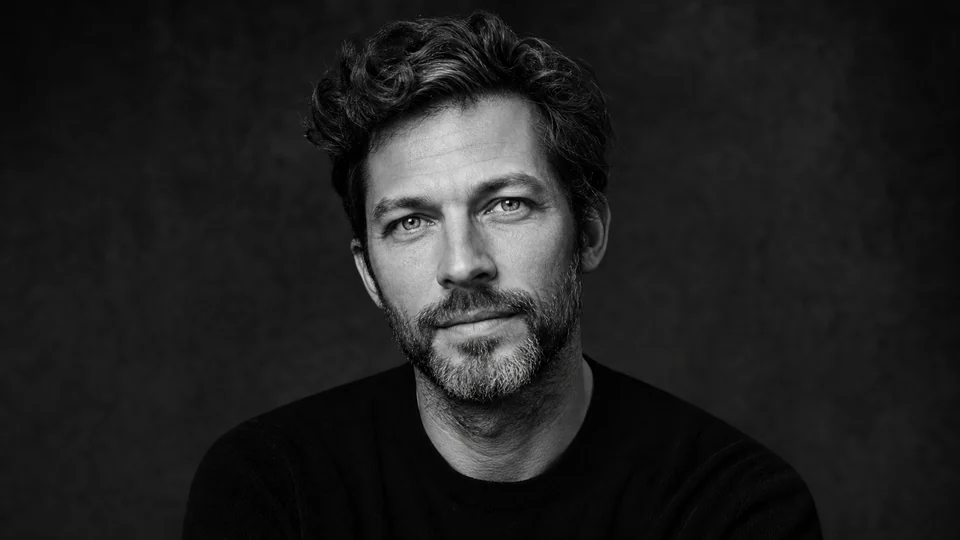
Fine-art monochrome — Expressive black-and-white portrait with natural texture.
How AI Portrait Generator from photo or text works
Create a portrait from text or transform an existing photo into a studio, editorial or cinematic scene. Describe the subject first, then add light, lens, background and mood.
When you use a reference photo, keep identity instructions clear and avoid asking for several conflicting styles in one generation.
What you can create
- Cinematic mood — Generate portraits with stronger atmosphere, framing and creator-grade visual presence.
- Identity depth — Portraits help you show more personality and more style than a plain profile crop.
- High reuse value — A strong portrait can work across social, bios, press, profiles and content campaigns.
Popular use cases
- Social portraits — Create images that feel more like visual statements than casual snapshots.
- Editorial looks — Push portraits toward premium, fashion-led or mood-heavy creator aesthetics.
- Creator branding — Use portraits across websites, profiles, newsletters and creator materials.
- Personal reinvention — Portraits are a strong format for style exploration and online identity changes.
Choose between a portrait prompt and a face reference
A text prompt is suitable for an invented subject or a portrait concept where no real identity must be preserved. Describe age range, pose, expression, wardrobe, environment, shot size and light.
Use a clear portrait reference for a real person. State what should remain recognizable before describing the new styling, setting and camera treatment.
- Use text for an invented portrait
- Use a recent reference for a real person
- Describe pose, crop and light
- Separate identity from styling changes
Portrait generation limits
A generated portrait can change facial detail, age cues, body proportions, jewelry, fabric patterns and background objects. It does not document a real photoshoot, location, outfit or event.
When the portrait represents a real person in a professional or public context, compare it carefully with the source and avoid invented details that could mislead viewers.
Portrait quality-control checklist
Inspect eye direction, facial symmetry, teeth, hands, hair, clothing edges and contact between the body and nearby objects. Check whether lighting and depth of field remain coherent across the whole frame.
Preview the image at its intended size. A wide editorial portrait and a small profile crop need different amounts of detail and negative space.
How to get started
- Bring a face or concept — Use a selfie or prompt as the starting point depending on how personal or exploratory you want the result to be.
- Aim at the portrait mood — Push toward cinematic, polished, editorial, soft, dramatic or clean creator energy.
- Use the portrait where presence matters — Deploy it in profiles, creator pages, social content or brand systems.
Frequently asked questions
- Can PrimeArt generate cinematic portraits?
- Yes. Cinematic, polished and mood-heavy portrait directions are a core fit for PrimeArt.
- Can I use my own photo for portraits?
- Yes. Uploading your own image helps the output stay recognizable while still feeling upgraded.
- Are these portraits good for creators?
- Yes. PrimeArt is positioned around creator visuals, identity and social-ready outputs.
- Can portraits become profile photos too?
- Yes. Many portrait outputs also work well as profile pictures, avatars and headshots.
Generate a portrait with more presence
Start from your photo or prompt and turn it into a portrait that feels more cinematic, polished and shareable.