Selfie-to-headshot workflow
Create a professional headshot from a selfie
Turn a recent, clearly lit selfie into a professional, corporate or creative headshot while keeping the face recognizable and the crop practical.
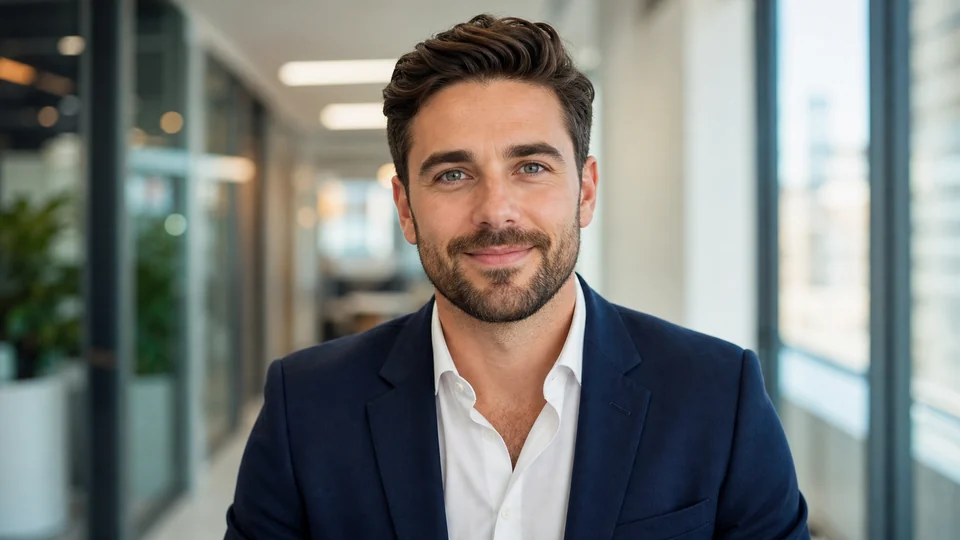
Example directions you can create
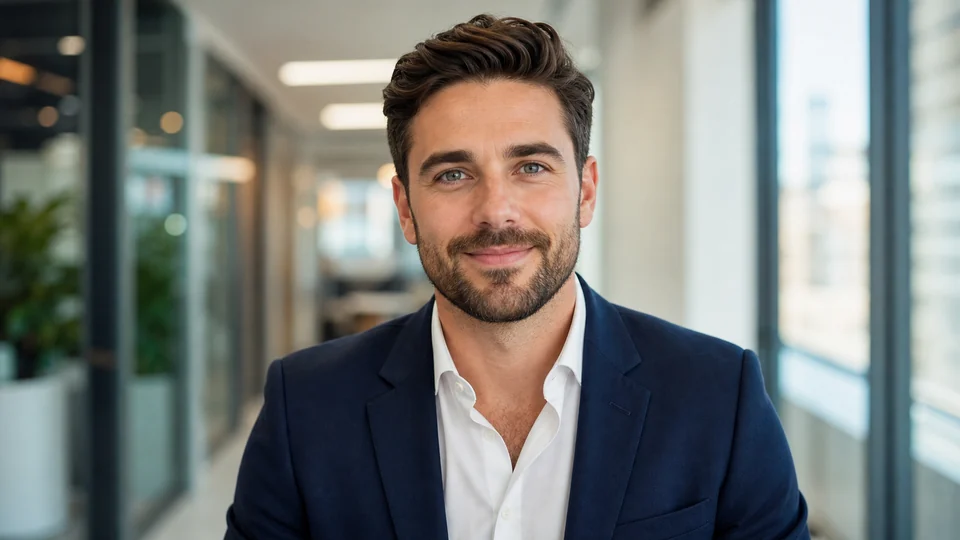
Corporate headshot — Confident office portrait with a tailored blazer. 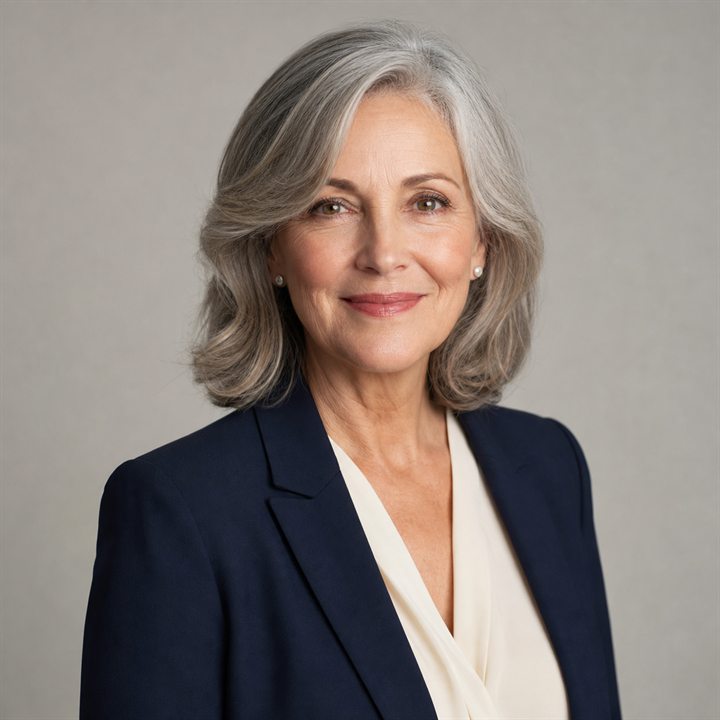
Classic studio — Timeless neutral background and flattering light. 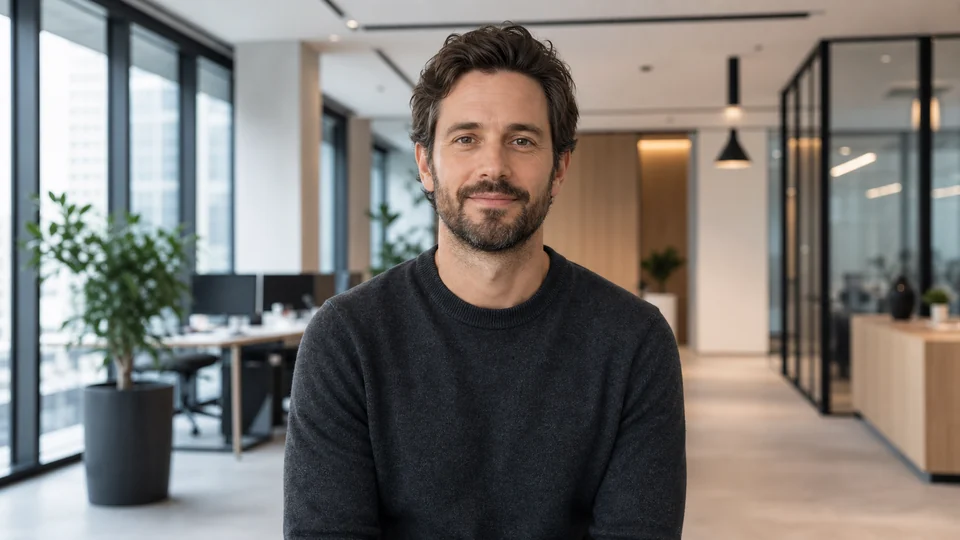
Modern office — Clean professional setting with realistic window light.
How Create a professional headshot from a selfie works
A headshot should present the same person in a more controlled photographic setting. Use a recent selfie with a fully visible face, then describe the clothing, background, lighting and crop separately from the identity that should stay unchanged.
Generated headshots can be useful for profiles, directories and bios, but they are not documentary photographs. Review identity, clothing and contextual details before the image represents you publicly or professionally.
What you can create
- Professional presentation — Use a clean head-and-shoulders crop, restrained background and light appropriate for a work profile.
- Corporate direction — Explore formal clothing and neutral office or studio settings without inventing credentials or uniforms.
- Creative-professional direction — Keep the portrait credible while using a warmer setting, softer wardrobe or more expressive light.
Popular use cases
- Professional profile — Prepare a recognizable portrait for a work profile or independent practice.
- Company directory — Use consistent framing and a simple background that reads alongside other team portraits.
- Speaker or author bio — Create a clear head-and-shoulders image for a program, article or personal page.
- Creative portfolio — Use a polished but less formal portrait for a portfolio or creator biography.
What makes a good source selfie for an AI headshot?
Use a recent photo with the face clearly visible, reasonable resolution and reasonably even lighting. Avoid sunglasses, heavy filters, extreme wide-angle distortion, motion blur and hair or hands covering important facial features.
A neutral head-and-shoulders source usually gives more control than a distant group image. Leave room around the head so the generated portrait can be reframed without cutting through hair or shoulders.
- Face fully visible
- Reasonable resolution
- No sunglasses or heavy filter
- Even light and minimal motion blur
AI headshot or traditional photoshoot?
AI is useful for exploring presentation, clothing, lighting and background directions from an existing portrait. A photographer is the better choice when you need documented real-world capture, exact organizational lighting or a consistent session for a whole team.
Whichever route you choose, the published image should still represent the person and professional context accurately.
Professional headshot preflight before publishing
Compare the generated face with a recent source and confirm that hairstyle, age, glasses and other identifying features remain accurate. A polished result should not imply credentials, uniforms or workplace access that the person does not have.
Preview the crop at the small size used by professional profiles, company directories and speaker cards. Check that the eyes remain clear, the shoulders are not cut awkwardly and the background does not merge with clothing.
- Verify identity against a recent portrait
- Check clothing and role-specific details
- Preview at directory and profile size
- Inspect teeth, glasses, hair and collar edges
How to get started
- Choose a suitable selfie — Use reasonable resolution, even light, no sunglasses, little motion blur and no heavy beauty filter.
- Describe the professional context — Choose the clothing, background, expression, light and crop without asking the model to redesign the face.
- Verify identity and role details — Compare the result with the source and inspect hair, glasses, teeth, collar edges and any work-related clothing.
Frequently asked questions
- Can I create a professional headshot from one selfie?
- Yes. Start with a recent, sharp selfie where the full face is visible, then describe the desired background, clothing, light and crop.
- What should I avoid in the source photo?
- Avoid sunglasses, extreme filters, heavy motion blur, strong lens distortion and hair or hands that cover the eyes or face.
- Can an AI headshot replace every professional photoshoot?
- No. Use a photographer when you need documented capture, exact lighting control or a consistent real-world session for a team.
- Do I need an account and how do paid outputs differ?
- An account is required to generate. Free image results include a watermark. Paid image options are watermark-free and include 2K or 4K where shown in Studio; an earlier watermarked result remains unchanged.
Upload a selfie for a professional headshot
Use a clear recent portrait, choose the professional context and verify identity before downloading the final result.