Create with PrimeArt
AI Background Generator and Changer
Create a standalone backdrop from text or change the background around an existing person or product while preserving the main subject.

Example directions you can create
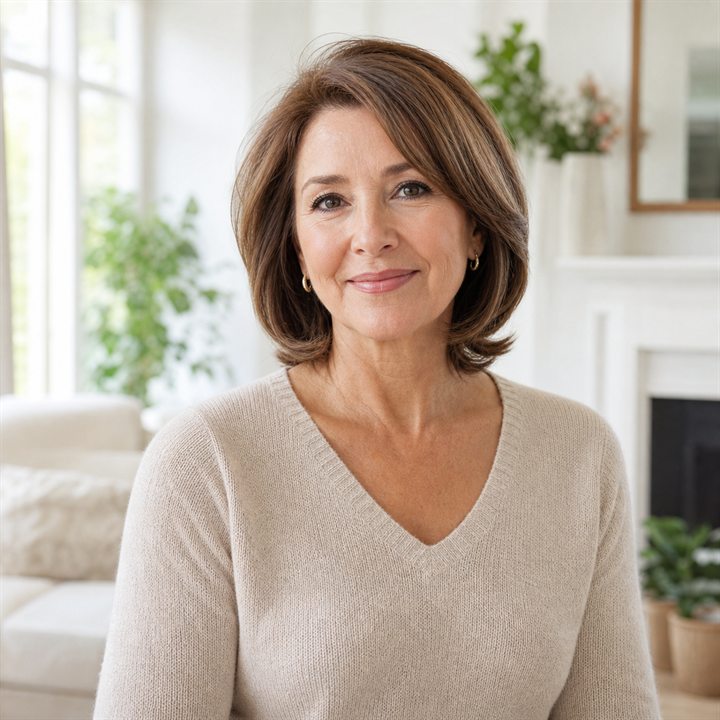
Elegant interior — Replace clutter with a bright refined interior. 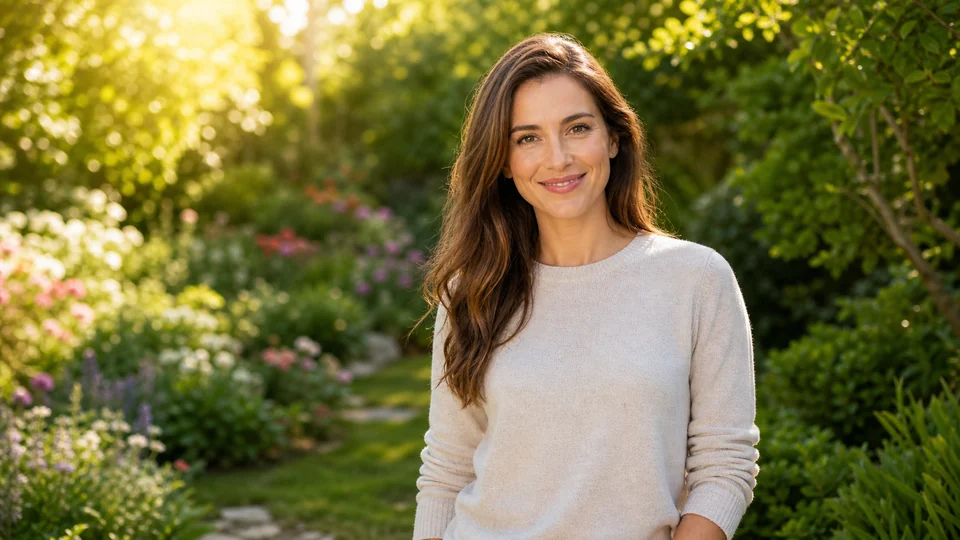
Sunlit garden — Natural greenery and soft outdoor depth. 
Modern office — Clean professional setting with realistic window light.
How AI Background Generator and Changer works
A useful background supports the subject instead of competing with it. Describe the environment, surface, depth, light direction and final crop while stating which part of the source image must stay unchanged.
Review the transition around hair, hands, transparent materials and product edges. Complex boundaries may need another generation or a narrower instruction.
What you can create
- New settings from one subject — Explore studio, lifestyle, architectural and outdoor backgrounds without changing the main idea.
- More consistent visual direction — Match palette, light and environment across a profile, campaign or product series.
- Faster composition testing — Compare several backdrops before choosing the setting that supports the subject best.
Popular use cases
- Portrait backgrounds — Create a cleaner profile, studio, office or lifestyle environment around a person.
- Product backdrops — Place a product on a suitable surface or in a scene that communicates context.
- Social and campaign scenes — Build a setting that fits the crop, palette and focal point of the final placement.
- Original wallpapers — Generate a standalone background when no source subject needs to be preserved.
How to make a generated background look believable
The new scene needs to agree with the subject. Match light direction, color temperature, camera height and depth of field so the foreground does not look pasted onto the background.
Include the intended output format early. A vertical profile visual needs a different composition and negative space than a wide website banner.
- Match light direction and color temperature
- Keep scale and perspective consistent
- Add believable contact shadows
- Choose the final aspect ratio before generating
Background generation vs. simple background removal
Background removal creates an isolated subject. Background generation creates a new visual environment and must account for lighting, perspective and the relationship between subject and scene.
PrimeArt is best used for the generative step: describing and creating a new setting around the source image or building a standalone background from text.
Background replacement quality-control checklist
Zoom in around hair, hands, glass, reflective surfaces and product edges. Check that the new background does not leak through the subject or leave a bright outline from the previous scene.
Review camera height, horizon, depth of field, light direction, color temperature, reflections and contact shadows together. The subject should appear grounded in the environment rather than layered over it.
- Inspect fine and transparent boundaries
- Match horizon and camera perspective
- Add believable contact shadows
- Check reflections and light direction
How to get started
- Start from a prompt or source image — Use text for a standalone backdrop or upload an image when a subject should remain in the scene.
- Describe environment and light — Name the location, depth, material, time of day, camera crop and light direction.
- Inspect boundaries and perspective — Check hair, edges, reflections, contact shadows and scale before using the result.
Frequently asked questions
- Can I replace a photo background with AI?
- Yes. Upload the source image, describe the new environment and state what should remain unchanged.
- Can I generate a background without a source image?
- Yes. Start from a text prompt when you need a standalone backdrop, wallpaper or environment.
- Will hair and transparent objects always be perfect?
- Not always. Fine hair, glass, reflections and translucent materials are difficult boundaries and should be reviewed closely.
- Do I need an account?
- Yes. Create an account or sign in before opening Studio.
Generate a new background
Describe the environment, light and format, then check how the new scene matches the subject.