Create with PrimeArt
AI Wallpaper Generator for phone and desktop
Describe the subject, palette and mood, then choose a vertical or wide format that fits your screen and leaves room for icons.
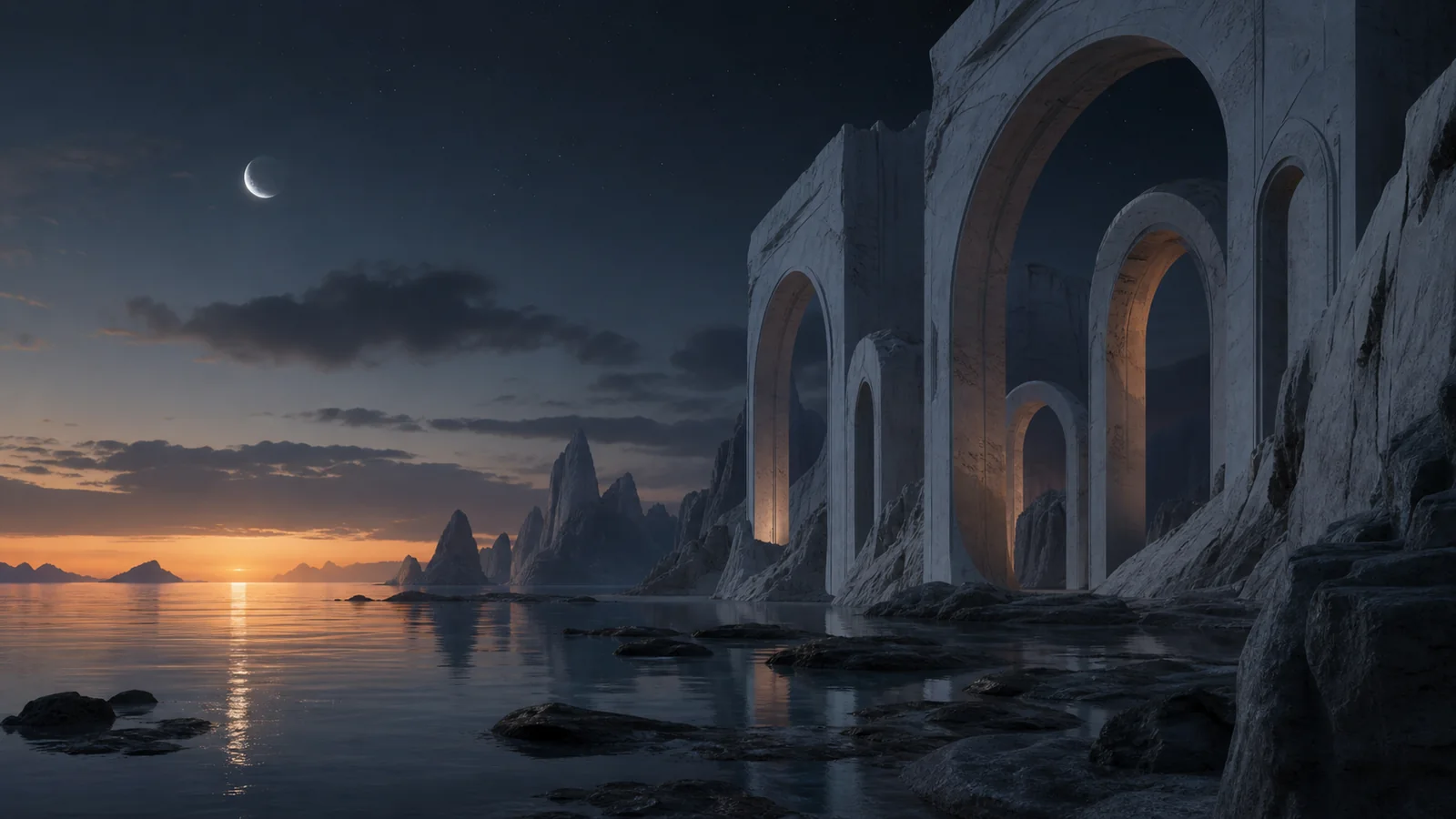
Example directions you can create
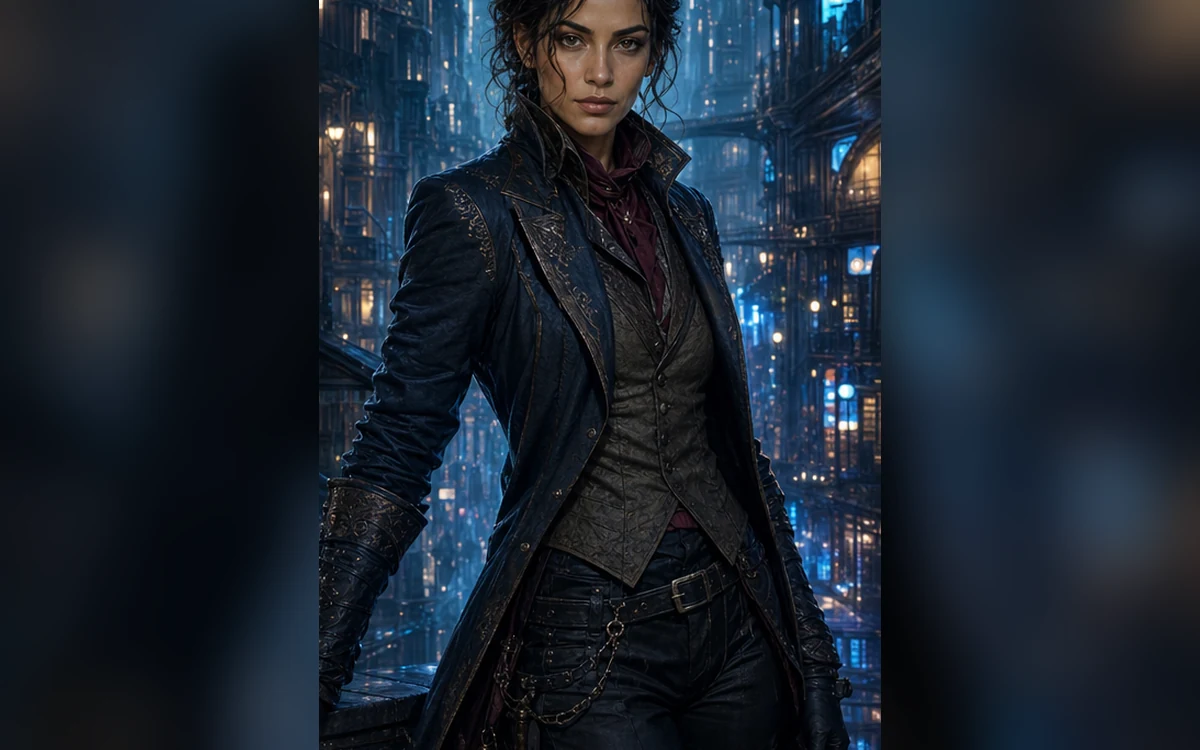
City rogue — Quiet confidence, textured layers and night-market light. 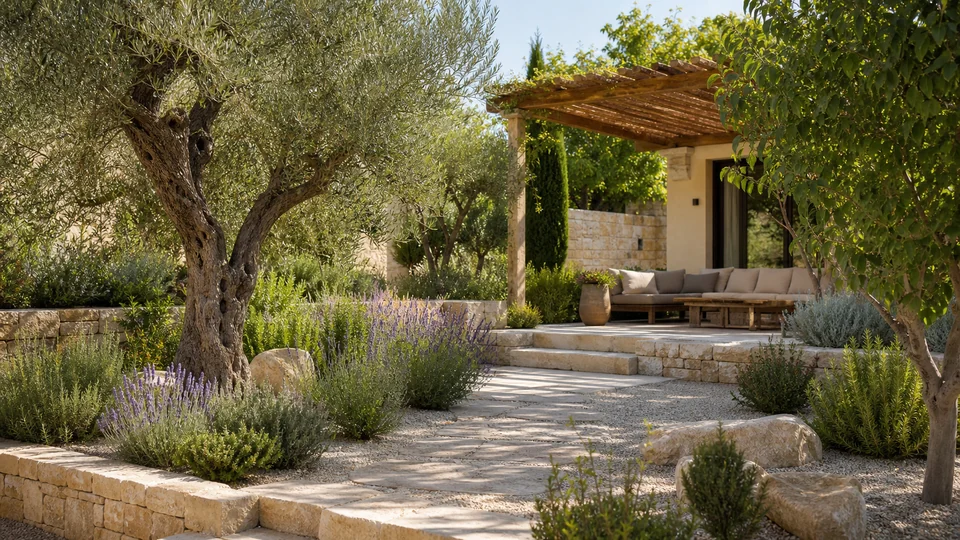
Mediterranean — Warm stone, herbs, olive tones and relaxed seating. 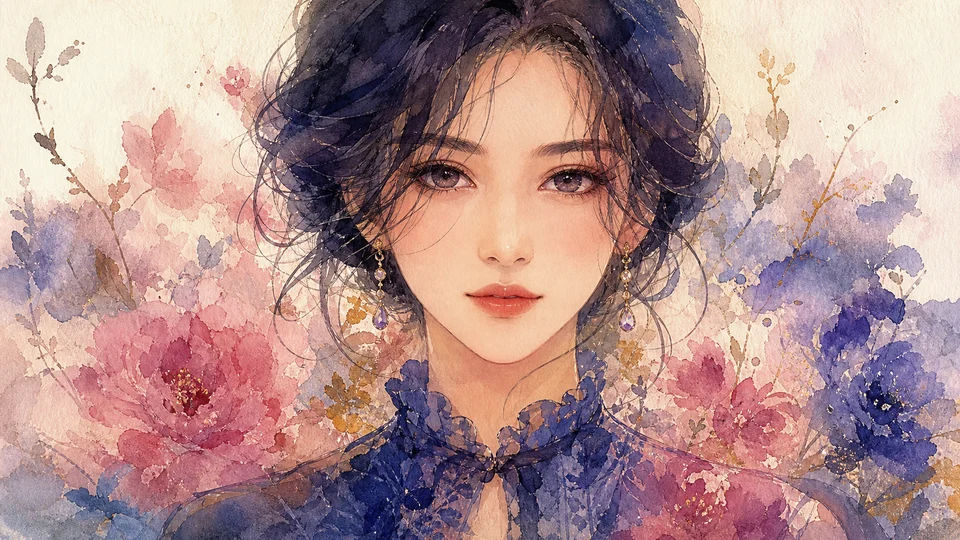
Watercolor anime — Delicate color, textured paper and lyrical atmosphere.
How AI Wallpaper Generator for phone and desktop works
Create a custom wallpaper from a description of the subject, palette and mood. Choose a wide format for desktop or a vertical format for a phone and lock screen.
Leave intentional negative space around clocks, widgets and icons so the finished background stays usable.
What you can create
- Better personal aesthetic — Turn your phone or desktop into part of the same visual world as your creator identity.
- Moodboard-ready output — Use wallpapers as visual references for posts, edits, brand direction and creator drops.
- Style exploration at scale — Wallpapers are an easy format for testing color, lighting and aesthetic ideas quickly.
Popular use cases
- Phone wallpapers — Create lock-screen and home-screen visuals with a stronger personal or creator vibe.
- Desktop backgrounds — Generate cleaner, moodier backgrounds for laptops, setups and creative workspaces.
- Moodboards — Use wallpaper-style outputs as mood references for other visual creation inside PrimeArt.
- Aesthetic collections — Build whole sets around anime, cinematic, neon, luxury or minimal styles.
Plan the wallpaper around the real screen
Choose the target device and orientation before generating. A phone lock screen needs a tall composition with safe space for the clock, while a desktop background needs enough width and a focal point that does not sit under icons.
Screen aspect ratios vary, so leave extra image area around important subjects. A centered composition may crop differently across phones, tablets and ultrawide displays.
- Choose phone or desktop orientation
- Leave safe space for clocks and widgets
- Keep important details away from crop edges
- Match the requested aspect ratio to the device
Wallpaper generation limits
Generated text, logos and interface elements may be malformed and should not be used as functional screen content. Fine lines and dark gradients may also lose clarity after device scaling or compression.
PrimeArt creates the image, not a device theme or icon pack. Apply the exported wallpaper through the operating system and check how its crop changes on the actual screen.
Test the final wallpaper on the target device
Preview both home-screen and lock-screen states. Check icon contrast, clock readability, crop, resolution and whether bright details become distracting during regular use.
Inspect the full file for banding, repeated shapes and unintended objects, then export a version that preserves the intended focal point after device cropping.
How to get started
- Start from the aesthetic, not just the image — Wallpaper generation works best when the mood and style are clear.
- Push color, light and vibe — Use descriptive prompts to make the background feel more intentional and more immersive.
- Turn it into a repeatable style set — Make multiple wallpapers so your background library feels cohesive instead of random.
Frequently asked questions
- Can PrimeArt generate phone wallpapers?
- Yes. PrimeArt can create backgrounds for phones, lock screens, desktops and aesthetic collections.
- Does wallpaper generation fit the rest of PrimeArt?
- Yes. Wallpaper intent strengthens the style, mood and aesthetic authority around the main photo cluster.
- Can I generate anime or cinematic wallpapers?
- Yes. Those are strong style directions for wallpaper creation.
- Can wallpaper ideas help with other visuals too?
- Yes. Wallpaper prompts often become good moodboards for portraits, avatars and creator visuals.
Generate a background with real aesthetic pull
Start with the mood you want and turn it into a wallpaper you actually keep.