Create with PrimeArt
Create a portrait of your pet
Turn a clear pet photo into a refined studio, garden or illustrated portrait while keeping distinctive markings and personality.
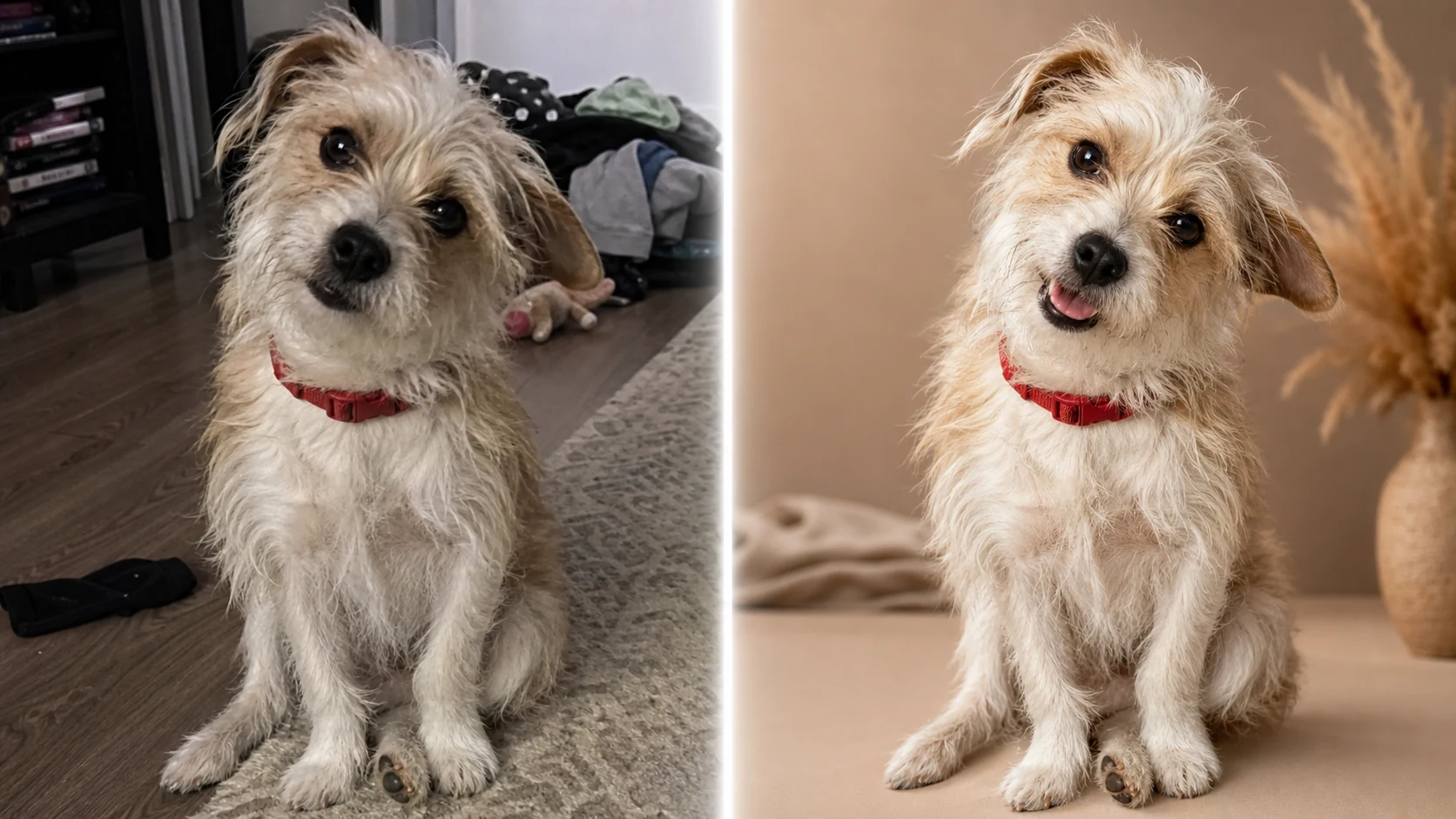
Example directions you can create
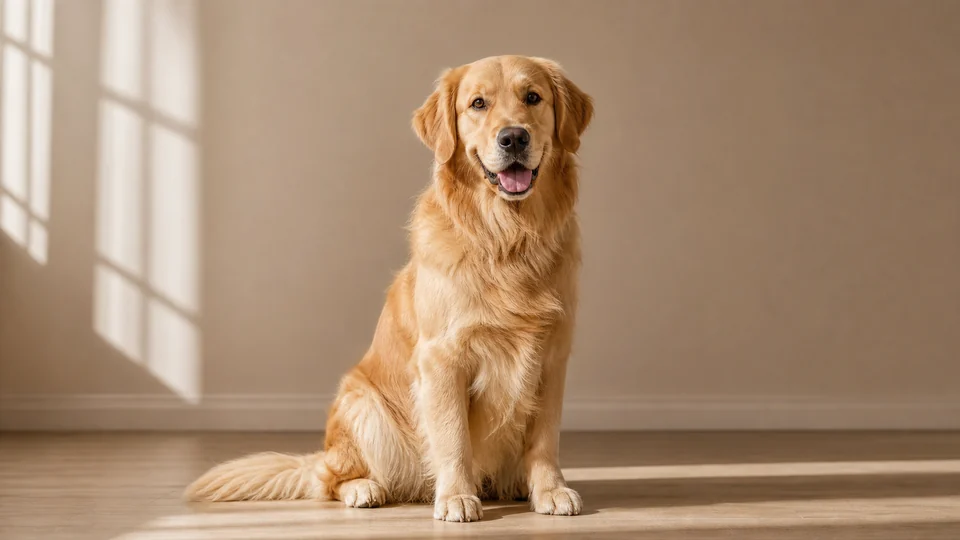
Warm studio pet — Detailed fur and a clean friendly portrait. 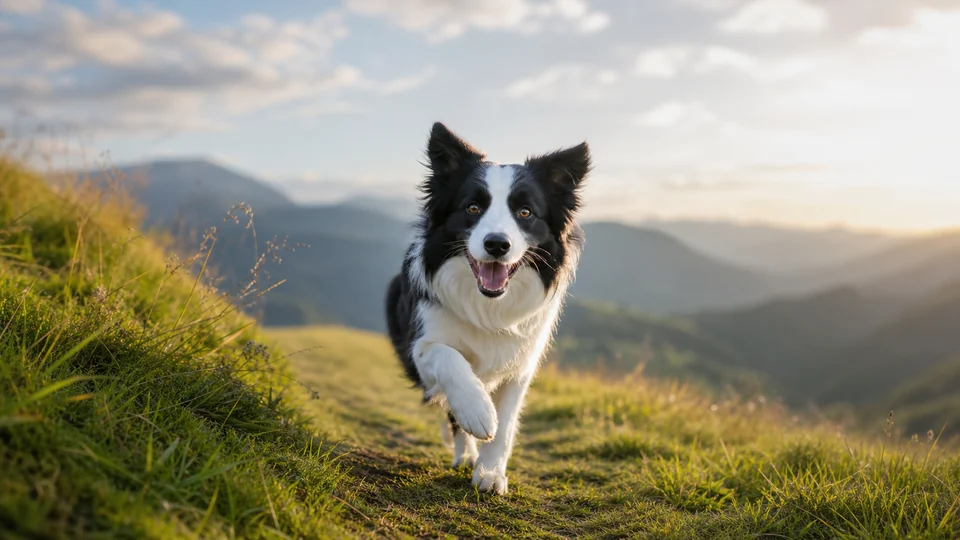
Outdoor adventure — Joyful natural portrait with fresh outdoor light. 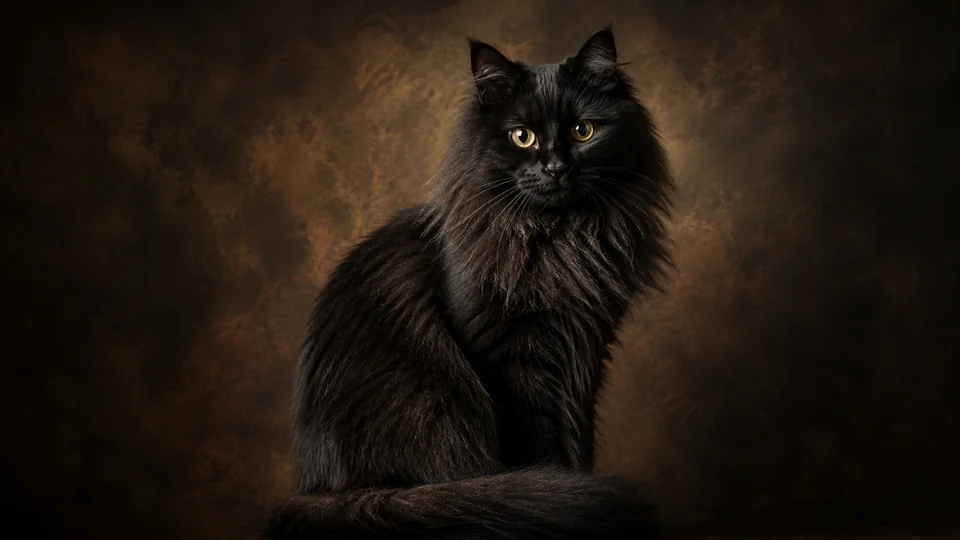
Fine-art pet — Painterly dark backdrop and dignified studio light.
How Create a portrait of your pet works
Choose a sharp photo with visible eyes, ears and coat markings. The model needs these identity cues to keep the result connected to the real animal.
PrimeArt opens a square portrait setup with a pet-specific prompt suitable for profiles, gifts and print concepts.
What you can create
- Distinctive markings retained — Preserve coat pattern, eye color, ear shape and other recognizable traits.
- Clean portrait light — Use soft directional light and a background that keeps attention on the animal.
- Flexible visual direction — Create a photorealistic studio, outdoor or tasteful illustrated portrait.
Popular use cases
- Pet profile image — Create a clear square portrait for social accounts.
- Personal gift — Prepare a refined portrait concept for a print.
- Memorial image — Create a calm, respectful portrait from a valued source photo.
- Matching pet set — Use one light and background direction for several animals.
Capture the traits that make a pet recognizable
The strongest reference shows both eyes, muzzle, ear shape and distinctive fur markings. For a full portrait, keep paws and tail visible rather than cropped.
- Sharp eyes and muzzle
- Visible coat pattern and ears
- Complete anatomy for full-body results
Fur and animal anatomy can drift
Dense texture may hide duplicated limbs, changed markings or inconsistent whiskers. Strong stylization can also simplify breed-specific features.
A pet-identity quality check
Compare eye color, nose shape, ear position, markings and body proportions with the source. Inspect paws, tail, whiskers and fur edges against the background.
- Verify distinctive markings
- Count and inspect paws
- Check fur edges and eye direction
How to get started
- Use a clear eye-level pet photo — Choose an image with visible eyes, ears, muzzle and coat markings. Avoid motion blur and limbs hidden outside the frame.
- Set the portrait style around the pet — Describe background, light, crop and artistic direction while asking to preserve species, breed traits, coloring and expression.
- Compare markings and anatomy — Check eyes, nose, ears, paws, tail and distinctive patches. Refine any result that changes what makes the animal recognizable.
Frequently asked questions
- What pet photo gives the best identity reference?
- Use a sharp, evenly lit image near the animal’s eye level with the face and distinctive coat pattern unobstructed.
- Can I create both realistic and illustrated pet portraits?
- Yes. Choose one rendering direction at a time and compare how well markings, face shape and expression survive the style change.
- Will breed and coat markings stay exact?
- They can drift during generation. Small patches, eye color, ear shape and fur direction need close comparison with the source.
- How does the prepared Create a portrait of your pet workflow continue in Studio?
- Choose an image with visible eyes, ears, muzzle and coat markings. Avoid motion blur and limbs hidden outside the frame. PrimeArt carries this page's selected direction and format into Studio so you can begin with that specific setup instead of an empty prompt.
Open the prepared Create a portrait of your pet setup
Choose an image with visible eyes, ears, muzzle and coat markings. Avoid motion blur and limbs hidden outside the frame. Continue to Studio with this page's specific direction and format already selected.