Create with PrimeArt
Create Halloween photos from your own picture
Turn a portrait, couple, family or pet photo into an original Halloween scene with believable costumes, pumpkin light and eight ready-to-use directions.
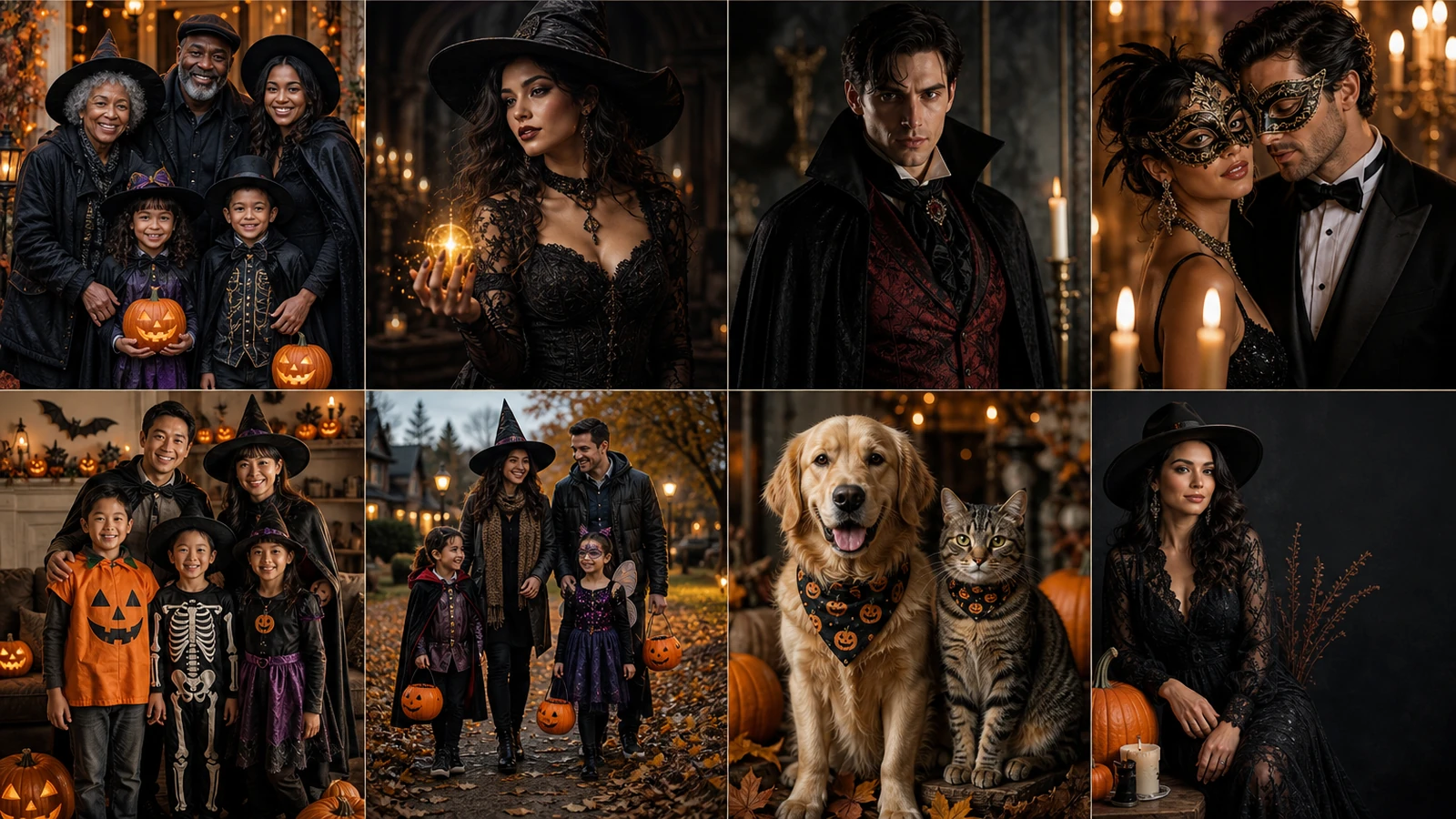
Example directions you can create
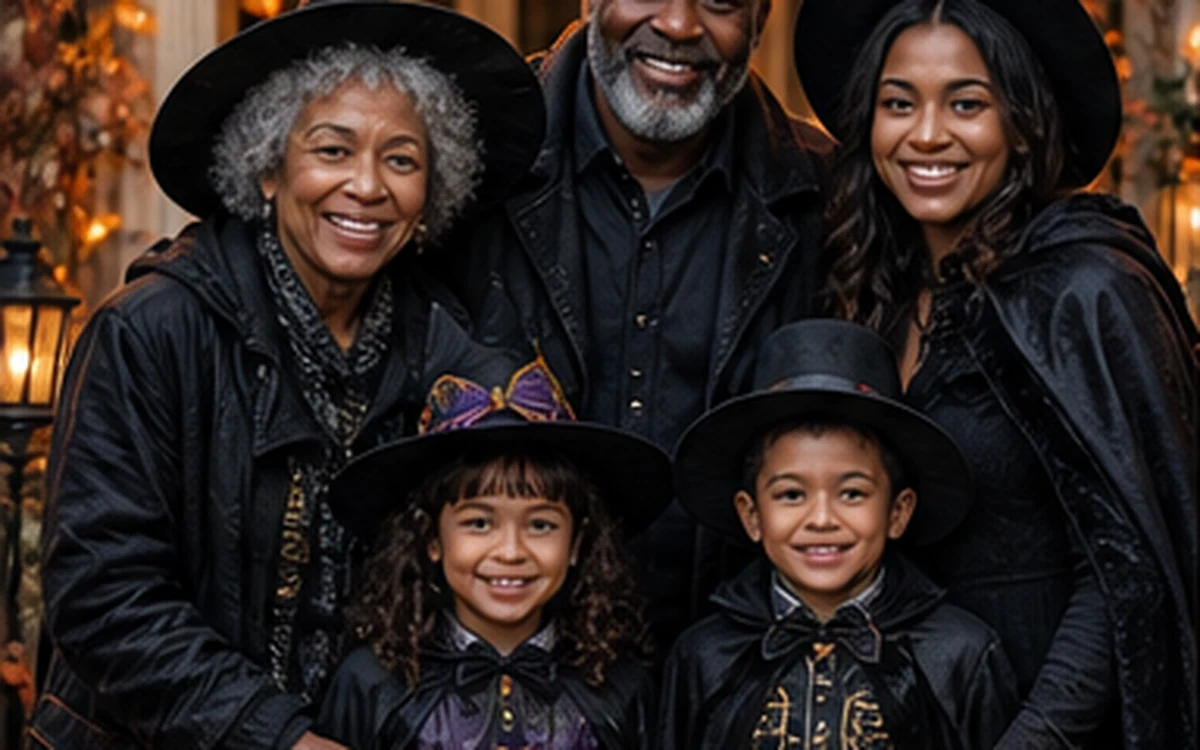
Pumpkin-lit porch — Warm lantern light, carved pumpkins and a refined autumn porch. 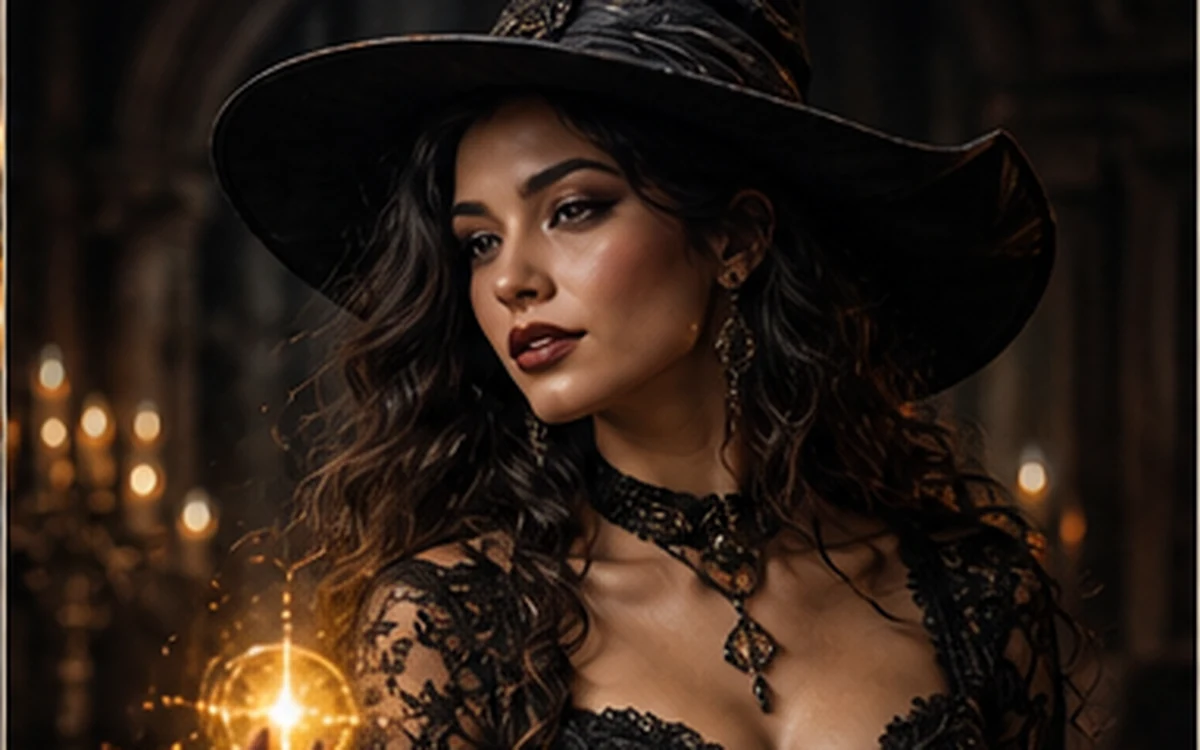
Elegant witchlight — Original witch-inspired fashion with moonlight and subtle magic. 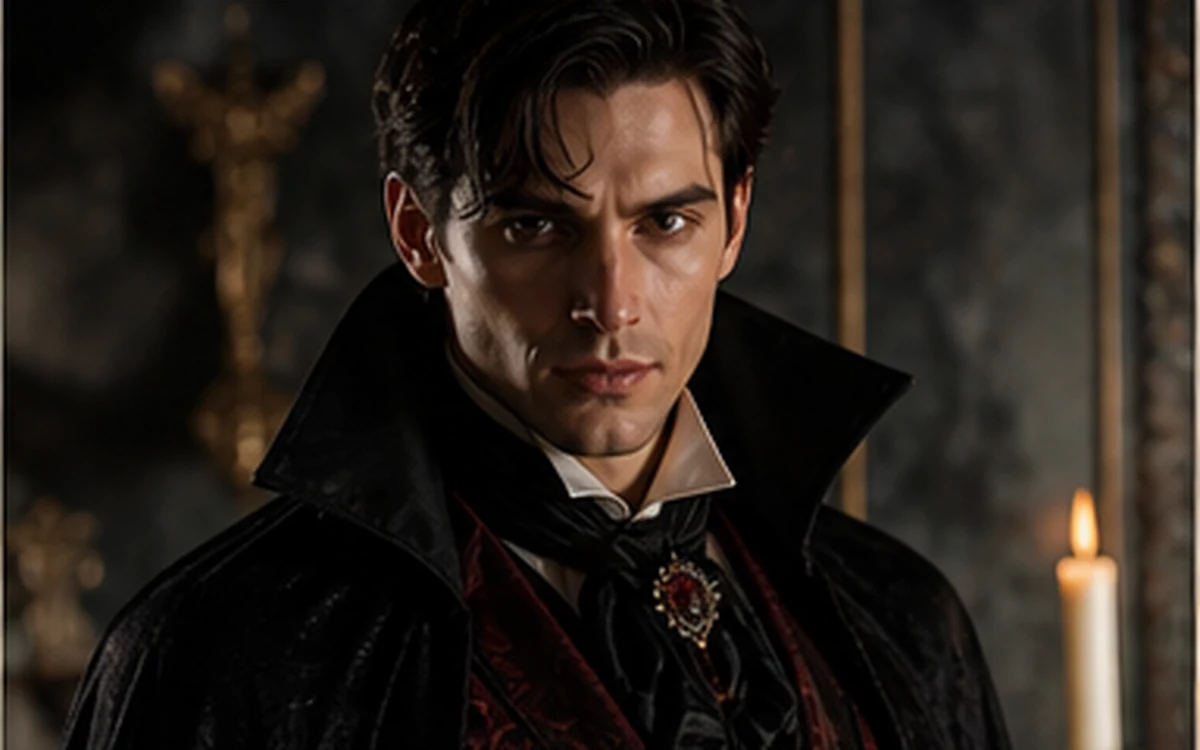
Vampire editorial — Polished burgundy tailoring and dramatic non-graphic light. 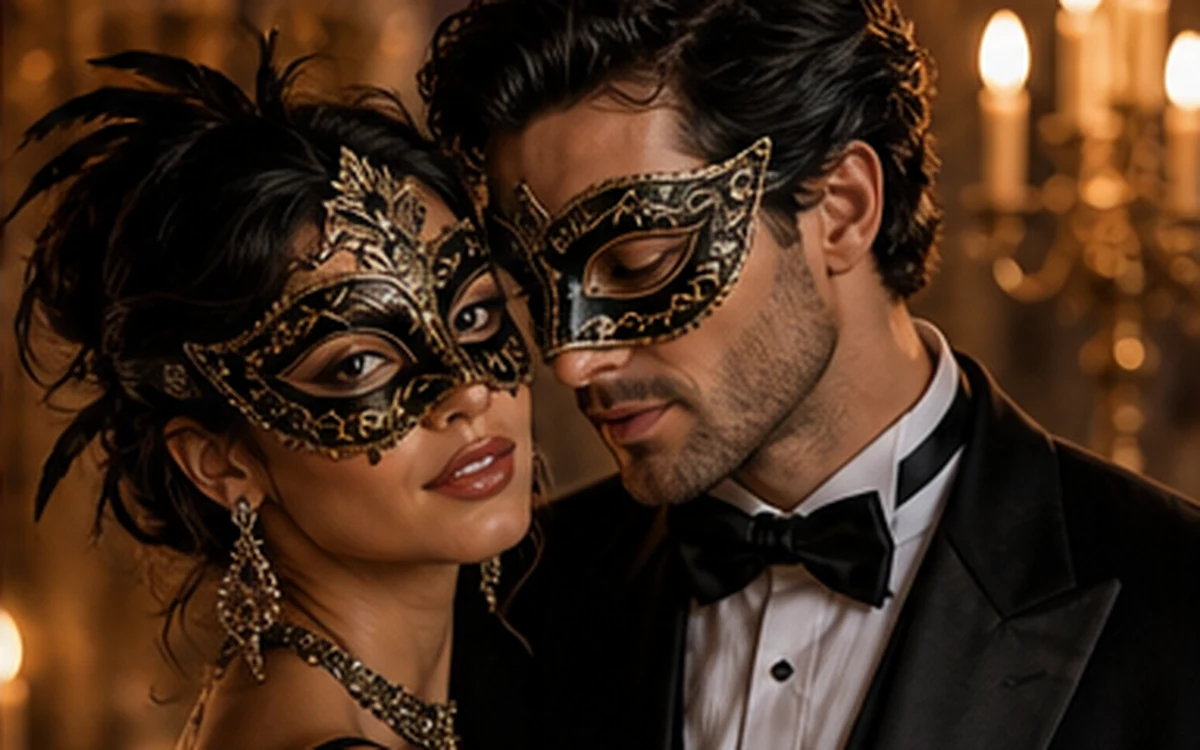
Candlelight masquerade — A polished couple or party portrait with original masks and candlelight. 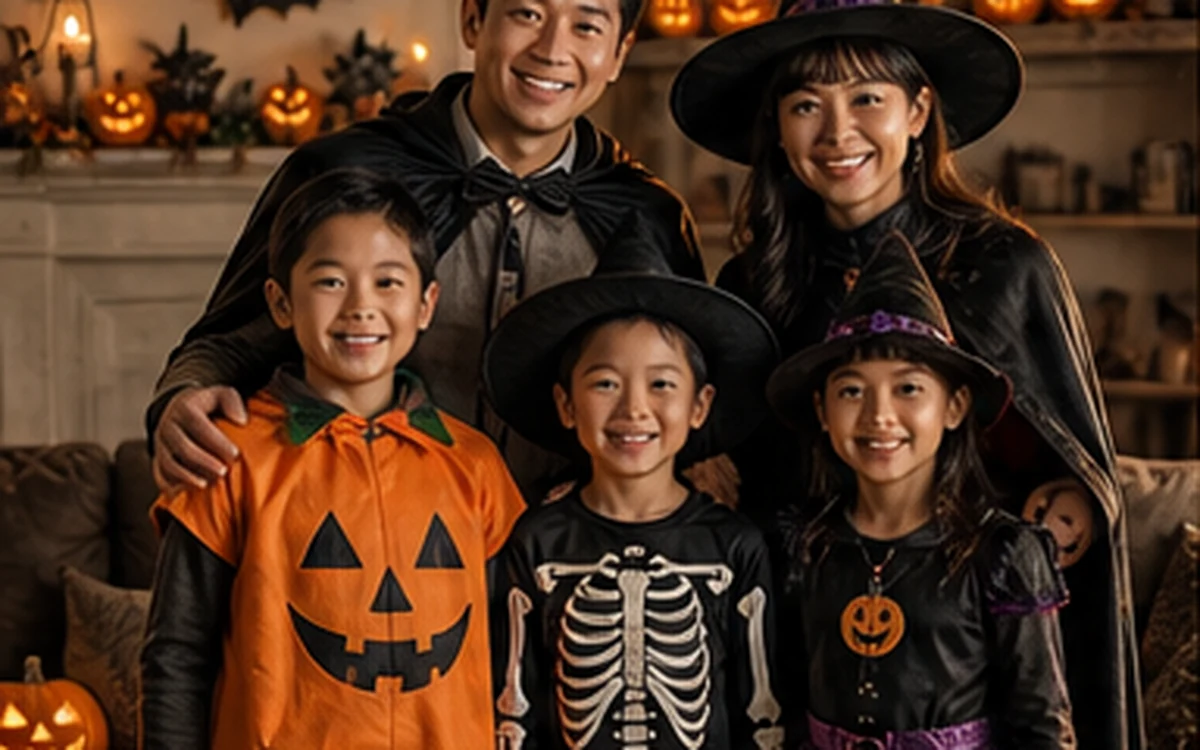
Family costumes — Coordinated, original and age-appropriate costumes for the whole family. 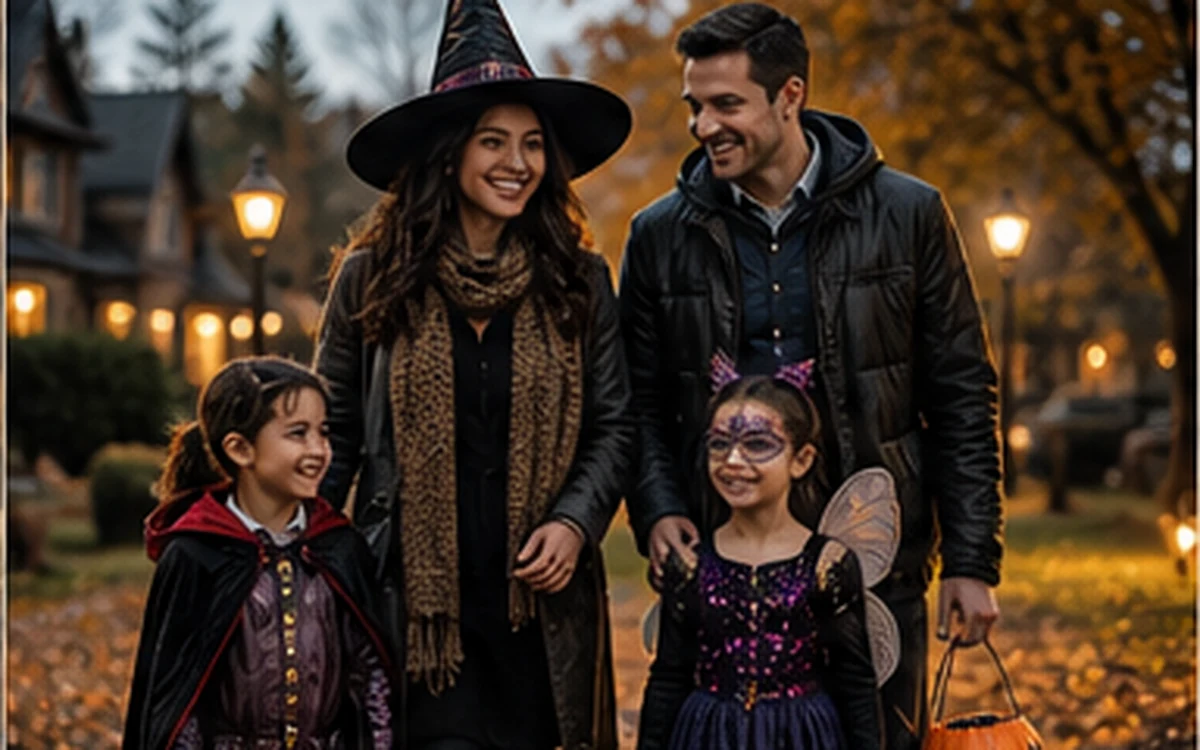
Trick-or-treat night — A playful neighborhood scene with safe costumes and glowing lanterns. 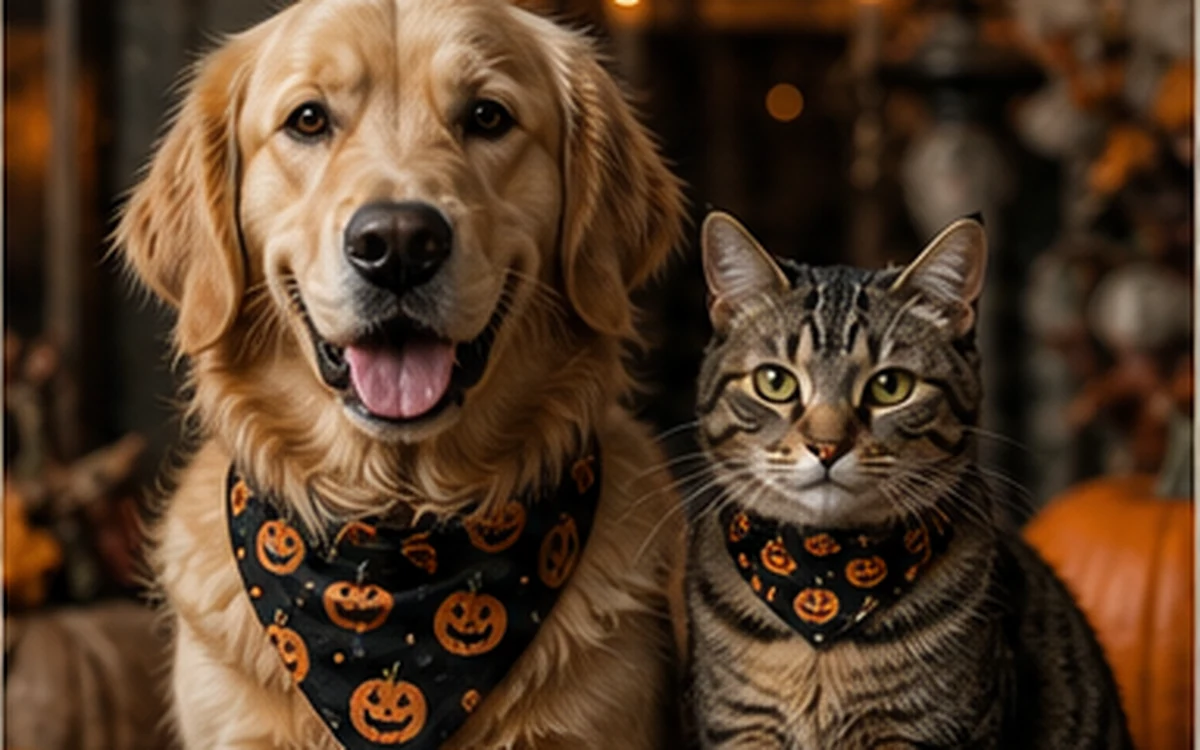
Halloween pet — A comfortable original costume that keeps the pet recognizable. 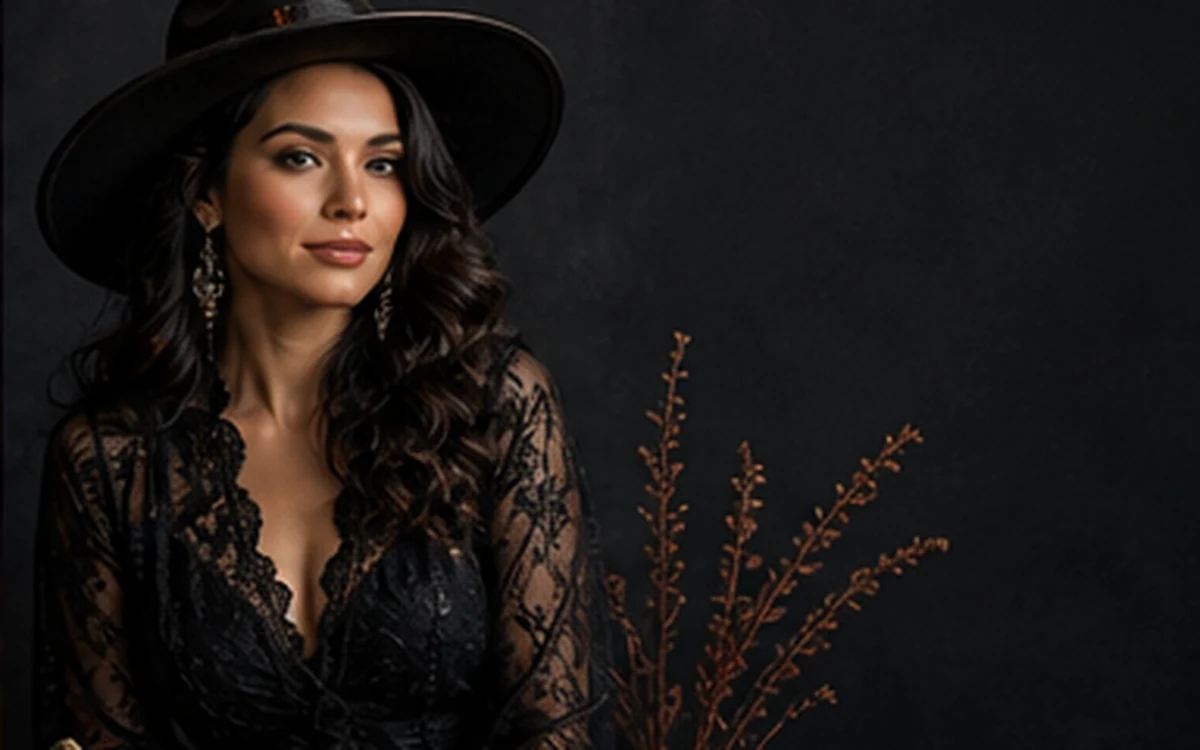
Halloween card — A balanced seasonal composition with clean space for real text.
How Create Halloween photos from your own picture works
Upload a clear portrait, couple or family photo and choose an original Halloween direction. PrimeArt prepares the matching prompt while using every uploaded person as an identity reference.
Choose pumpkin porch, elegant witch-inspired styling, vampire editorial, candlelit masquerade, family costumes, trick-or-treat, a pet portrait or a Halloween card composition. Every direction avoids gore, named characters and recognizable franchise designs.
What you can create
- Eight original Halloween directions — Choose a clearly different setting, costume and composition instead of applying one generic orange filter.
- Recognizable people and pets — Prioritize faces, ages, headcount and distinctive pet markings from the uploaded references.
- Safe seasonal atmosphere — Create playful or elegant Halloween imagery without graphic violence, protected characters or copied masks.
Popular use cases
- Halloween family portraits — Bring the family into one pumpkin-lit scene with age-appropriate original costumes.
- Couples and party photos — Create a polished masquerade, candlelit party or gothic editorial direction for two adults.
- Pet Halloween portraits — Add a simple comfortable costume while preserving species, coat pattern and expression.
- Halloween cards and invitations — Prepare a balanced image with clean space where you can add accurate text afterward.
Eight original Halloween photo ideas from one starting image
This page connects to eight prepared Halloween directions rather than one generic orange-and-black filter. They cover adults, couples, families, children, pets and card layouts while keeping copied characters and graphic violence out of the brief.
- Pumpkin-lit porch
- Elegant witchlight
- Vampire editorial
- Candlelight masquerade
- Family costumes
- Trick-or-treat night
- Halloween pet
- Halloween card
Prepare a source photo for costumes and atmospheric light
Use a sharp, evenly lit face and leave enough space around the body for clothing, props and the new setting. For families, upload one recognizable reference per person and keep the intended headcount explicit.
For a pet, choose an image with clear eyes, ears and coat markings. Avoid a source where a costume would cover the face or restrict the animal’s natural body shape.
- Use recent, unfiltered faces
- Show enough of the body for the costume
- Keep every family member or pet clearly visible
Review a generated Halloween scene before sharing or printing
Inspect the result at full size. Compare faces or pet markings with the source, count people and animals, and check hands, teeth, masks, costume seams, pumpkin carvings, lantern flames and shadows.
Treat the result as a creative image rather than a record of a real event. For invitations and cards, add names, dates and greetings in a separate design step so spelling and typography stay under your control.
- Confirm identity and headcount
- Inspect costume edges and small props
- Reject copied character details
- Add invitation text separately
How to get started
- Choose the people, pet and final format first — Use a sharp portrait, couple, family or pet photo. Decide whether the result is for a profile image, family keepsake, invitation, social post or Halloween card before choosing one of the eight directions.
- Pick one original Halloween direction — Choose pumpkin porch, witchlight, vampire editorial, candlelight masquerade, family costumes, trick-or-treat, a pet portrait or a card composition. One focused direction is easier to control than several mixed costumes and settings.
- Check identity, anatomy and costume details — Confirm every uploaded person or pet is present and recognizable. Inspect faces, hands, costume edges, masks, pet markings, pumpkins, lanterns and any negative space reserved for real text.
Frequently asked questions
- Which Halloween photo preset should I choose?
- Use Pumpkin-lit porch for a warm all-purpose portrait, Elegant witchlight or Vampire editorial for one adult, Candlelight masquerade for a couple or party, Family costumes or Trick-or-treat for children and groups, Halloween pet for an animal, or Halloween card when you need clean greeting space.
- Does PrimeArt copy famous Halloween characters or masks?
- No. The prepared directions ask for original costumes, masks and settings rather than named villains, protected characters or recognizable franchise designs.
- Can I use children or pets in a Halloween photo?
- Yes. Choose a clear reference and an appropriate preset. The family, trick-or-treat and pet directions prioritize age-appropriate styling, recognizable identity and non-graphic scenes.
- How does the prepared Create Halloween photos from your own picture workflow continue in Studio?
- Use a sharp portrait, couple, family or pet photo. Decide whether the result is for a profile image, family keepsake, invitation, social post or Halloween card before choosing one of the eight directions. PrimeArt carries this page's selected direction and format into Studio so you can begin with that specific setup instead of an empty prompt.
Open the prepared Create Halloween photos from your own picture setup
Use a sharp portrait, couple, family or pet photo. Decide whether the result is for a profile image, family keepsake, invitation, social post or Halloween card before choosing one of the eight directions. Continue to Studio with this page's specific direction and format already selected.