Create with PrimeArt
Try a new outfit on your photo
Change clothing, color and styling while keeping the same person, pose, body proportions, light and photographic realism.
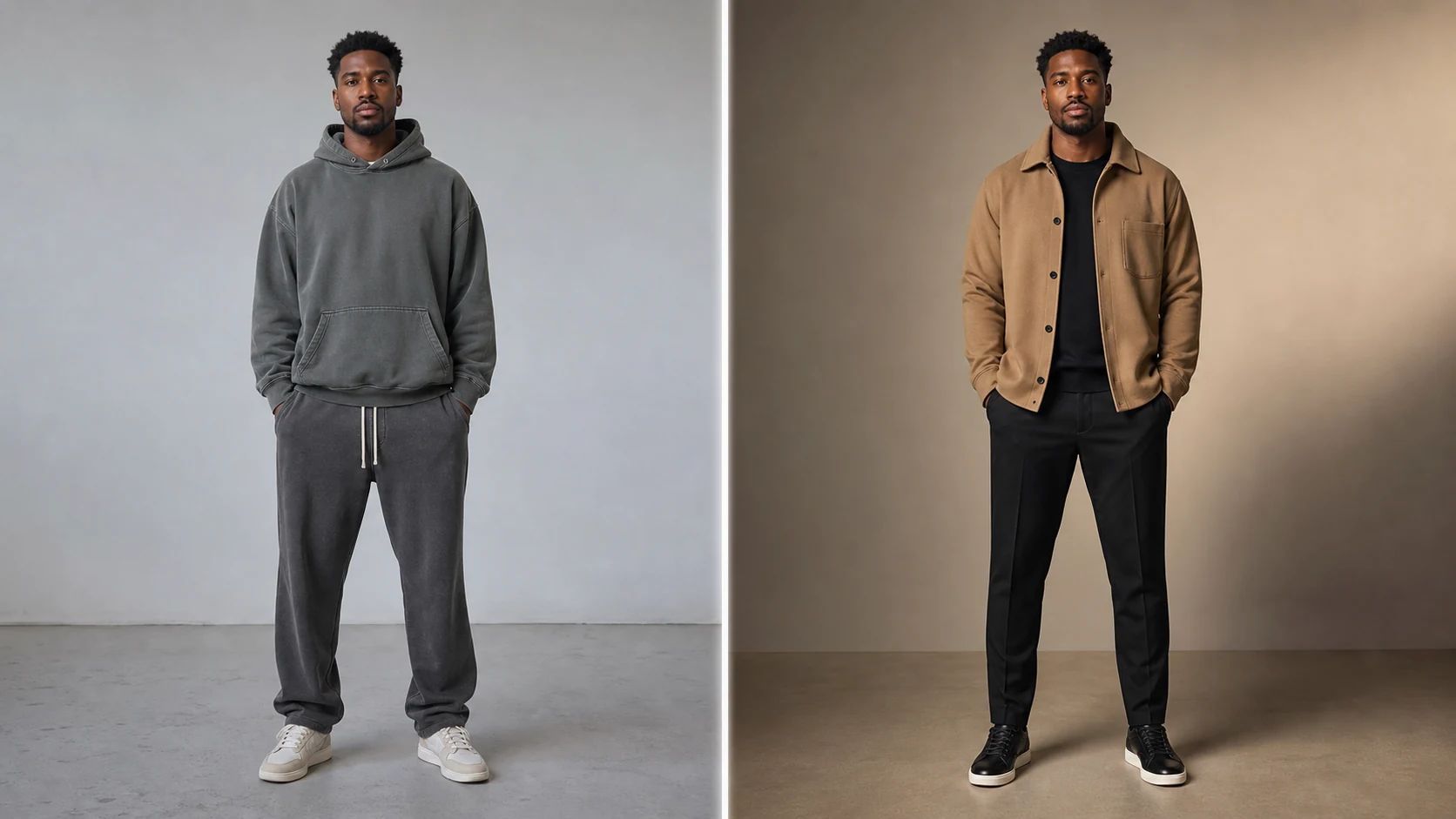
Example directions you can create
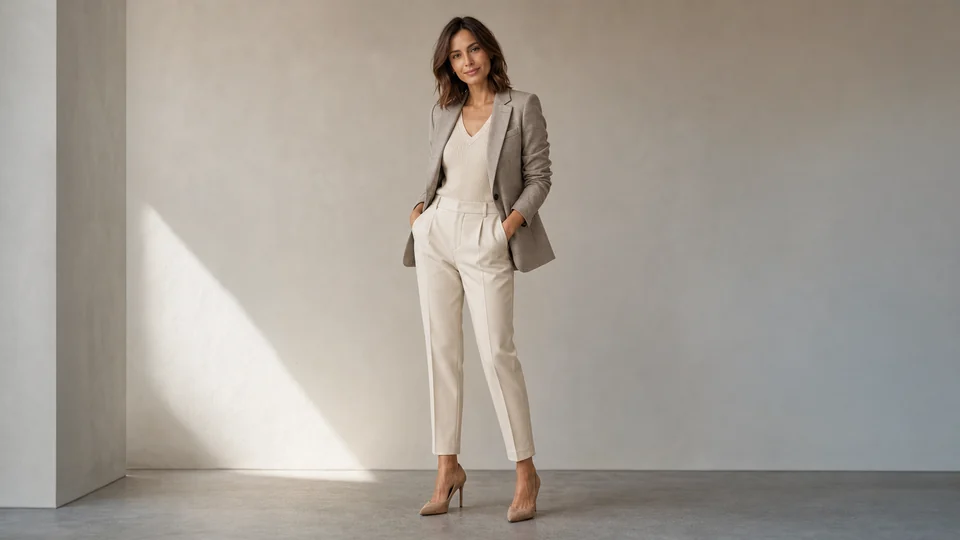
Smart casual — Tailored layers and clean everyday elegance. 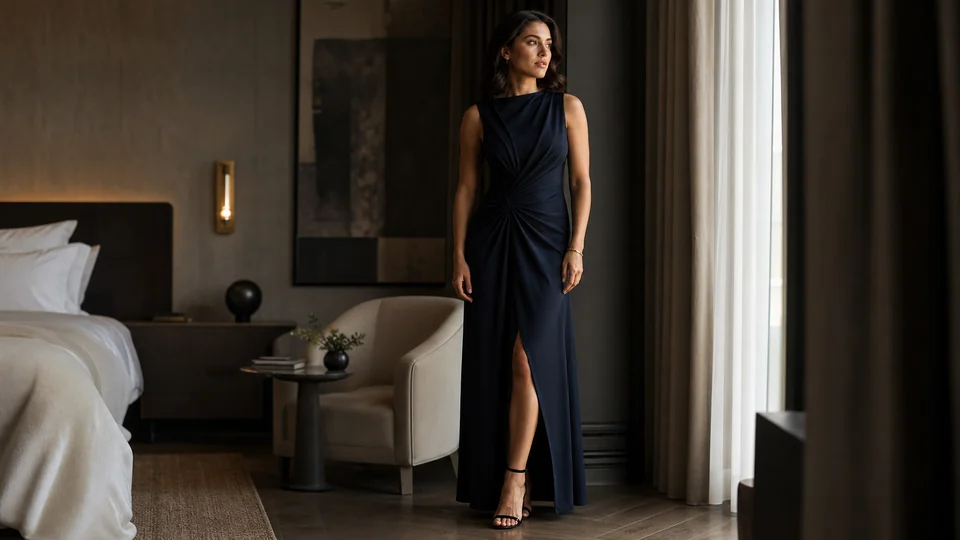
Evening elegance — Refined formal styling with premium fabrics. 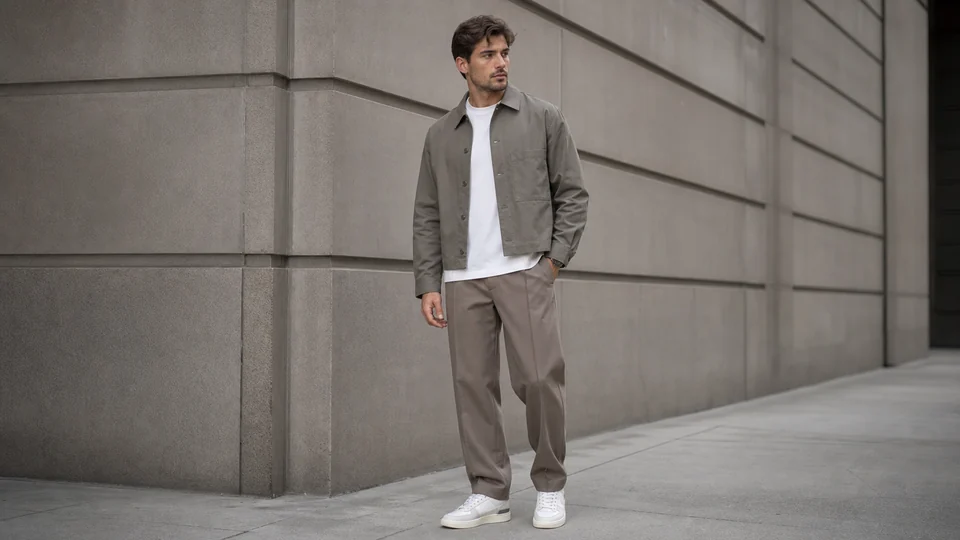
Modern streetwear — Clean layered silhouette with confident contemporary color.
How Try a new outfit on your photo works
Use a clear photo where the current clothing and body outline are visible. Describe the garment, fabric, fit and color instead of using only a broad style label.
PrimeArt loads an outfit-only edit instruction and vertical format so the person stays stable while the clothing changes.
What you can create
- Clothing-only edit — Keep face, pose, hands and body proportions unchanged.
- Believable fabric — Match folds, texture, fit, shadows and the direction of light.
- Faster style comparison — Test formal, casual, seasonal or editorial directions from one image.
Popular use cases
- Wardrobe planning — Compare colors and silhouettes before buying.
- Creator styling — Explore a stronger look for a campaign or portrait.
- Formal outfit — Preview a refined suit, dress or event-ready direction.
- Seasonal change — Adapt the same portrait to summer, autumn or winter styling.
Choose a source that shows clothing boundaries
A neutral standing pose with visible limbs gives the clearest garment map. Crossed arms, long hair, bags and furniture can hide where fabric should begin or end.
- Show the intended garment area
- Keep hands and limbs visible
- Avoid heavy occlusion
Virtual clothing is not a sizing tool
The output can communicate color and silhouette but does not know body measurements, fabric stretch or the construction of a purchasable garment.
Check that the outfit did not reshape the person
Compare shoulder width, waist, limbs, face and posture with the original. Inspect seams, hems, buttons, hands and patterned fabric for discontinuities.
- Preserve body proportions
- Inspect seams and closures
- Treat fit as visual inspiration
How to get started
- Use a photo that shows the relevant body area — Choose a sharp full-body or three-quarter image with a clear pose and minimal overlap from bags, arms or furniture.
- Describe one garment direction — Specify garment type, silhouette, fabric, color and coverage while keeping face, body, pose and background unchanged.
- Inspect fit and body preservation — Compare proportions and posture with the source, then check hands, hems, seams, closures and fabric interaction.
Frequently asked questions
- Can I change clothes without changing the person?
- You can ask to preserve face, body and pose, but generative edits may still reshape anatomy or skin. Compare the result with the source.
- Will a generated outfit match a real catalog item?
- Not reliably. AI can suggest a style direction, but exact cut, construction, print placement and sizing should not be assumed.
- What source photo works best?
- Use a visible silhouette with little obstruction and enough resolution to distinguish arms, waist, legs and the current garment boundaries.
- How does the prepared Try a new outfit on your photo workflow continue in Studio?
- Choose a sharp full-body or three-quarter image with a clear pose and minimal overlap from bags, arms or furniture. PrimeArt carries this page's selected direction and format into Studio so you can begin with that specific setup instead of an empty prompt.
Open the prepared Try a new outfit on your photo setup
Choose a sharp full-body or three-quarter image with a clear pose and minimal overlap from bags, arms or furniture. Continue to Studio with this page's specific direction and format already selected.