Create with PrimeArt
Preview a makeup look on your photo
Explore a natural, evening or editorial makeup direction while keeping the same face, expression, skin texture and lighting.
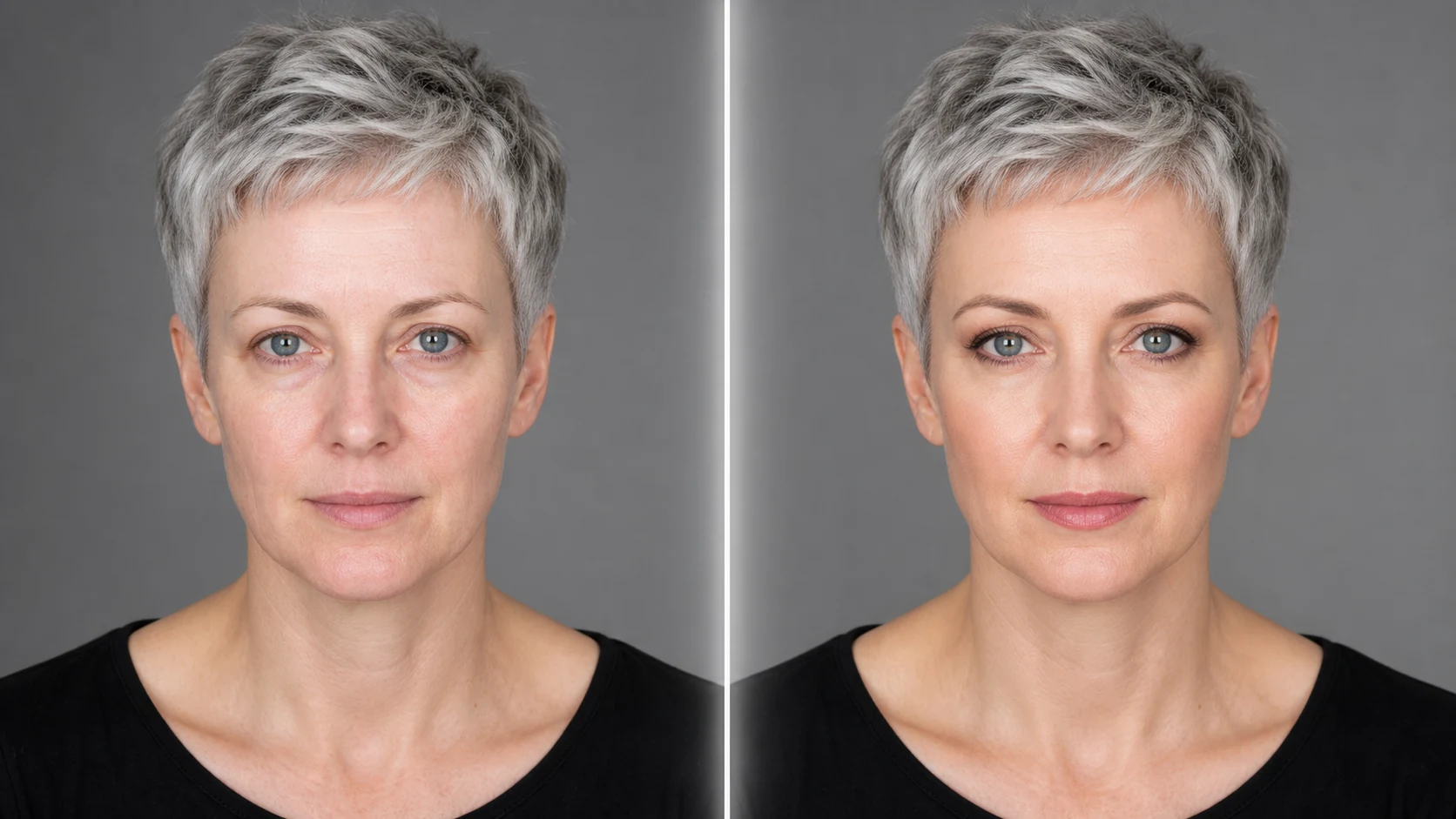
Example directions you can create
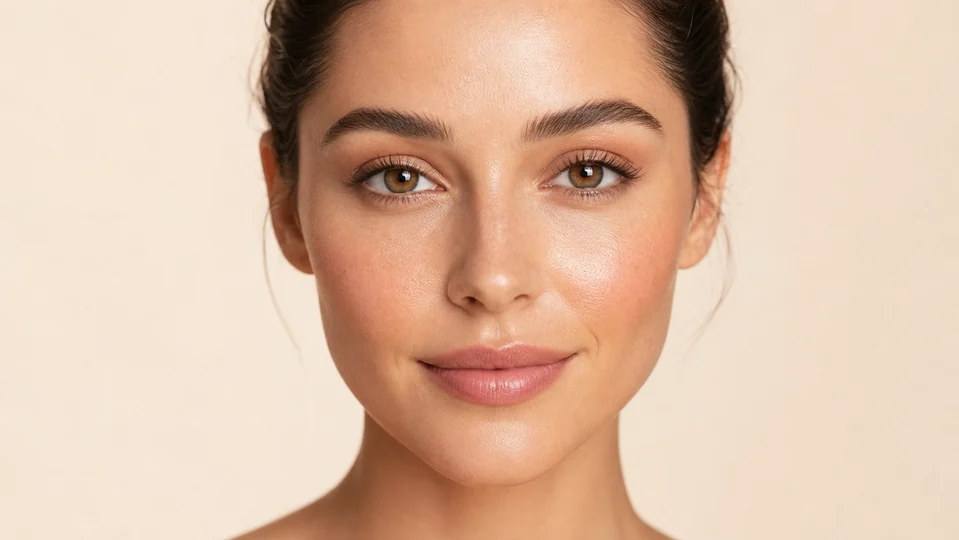
Natural glow — Fresh complexion, softly defined eyes and a nude lip. 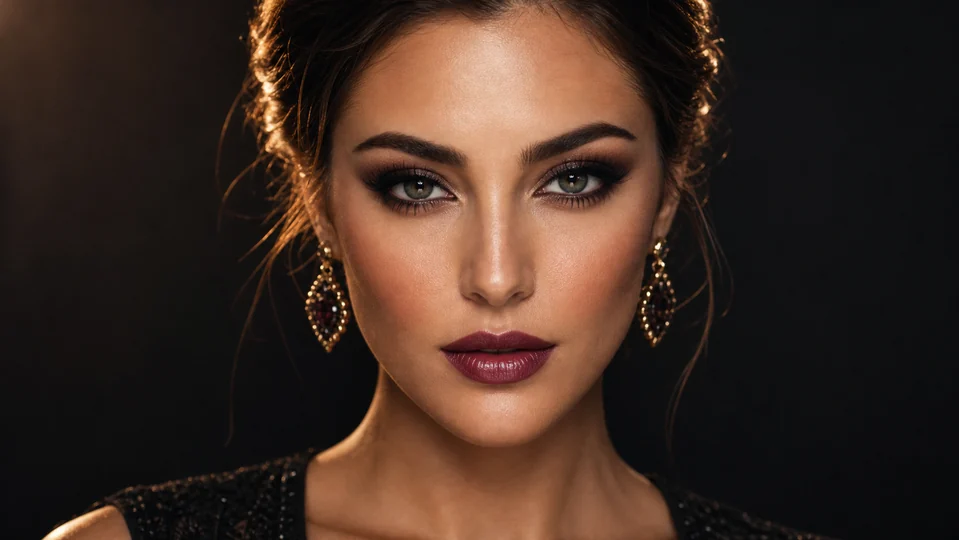
Evening glam — Smoky definition, elegant glow and a richer lip. 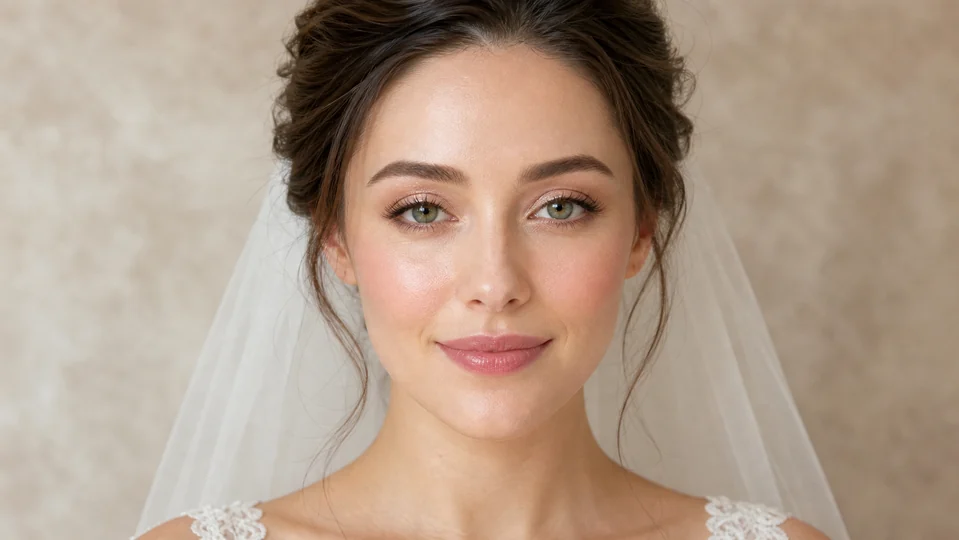
Soft bridal — Long-wear romantic makeup with natural skin texture.
How Preview a makeup look on your photo works
Start from a sharp, evenly lit portrait with minimal occlusion. Describe the finish, color family and intensity instead of asking for a vague glow-up.
The Studio loads a face-preserving beauty-edit prompt and vertical portrait format so the change stays focused on makeup.
What you can create
- Face preserved — Keep facial structure, age, expression and natural proportions unchanged.
- Realistic application — Match foundation, eye makeup and lip color to the original light and skin texture.
- Look comparison — Test restrained daytime, evening or editorial directions from one portrait.
Popular use cases
- Event inspiration — Preview a polished direction before an appointment.
- Color comparison — Test warm, cool, neutral or bold palettes.
- Creator beauty look — Explore an editorial direction for a portrait or campaign.
- Natural refresh — Add subtle definition without changing the person.
A neutral source for virtual makeup
Use even white or natural light and avoid filters that change skin texture or facial proportions. Keep hair and hands away from the eyes, cheeks and lips.
- Visible natural skin texture
- Even light and accurate exposure
- Unobstructed eyes, lips and brows
A color preview is not a product match
AI cannot reproduce how a specific formula, finish or shade behaves on real skin. It may also over-smooth texture or modify facial features while adding makeup.
Check the face before evaluating the look
Compare eye shape, lip contour, brows, nose and skin tone with the source. Inspect symmetry, lash edges, teeth, hairline and makeup boundaries at full size.
- Preserve facial structure
- Inspect symmetry and edges
- Verify shades under real-world light separately
How to get started
- Use an unfiltered, evenly lit face — Choose a sharp front or gentle three-quarter portrait where skin tone, eyes, lips and brows are visible without beauty filters.
- Describe one makeup direction — Specify finish, intensity and areas such as eyes, lips, cheeks or brows while preserving face shape, age and skin texture.
- Compare color and facial identity — Check that features remain unchanged, then inspect eyeliner, lashes, lip edges, symmetry and how color responds to the source light.
Frequently asked questions
- Can I preview a subtle or bold makeup look?
- Yes. Describe the finish and intensity clearly, then test one direction at a time so changes are easy to compare.
- Will the preview match an exact cosmetic shade?
- No. Screen color, source lighting, skin undertone and the physical product all affect real appearance. Use the image as visual inspiration.
- Can makeup be changed without reshaping the face?
- The prompt can request feature preservation, but generative edits may still smooth skin or alter eyes, lips and brows. Compare with the original.
- How does the prepared Preview a makeup look on your photo workflow continue in Studio?
- Choose a sharp front or gentle three-quarter portrait where skin tone, eyes, lips and brows are visible without beauty filters. PrimeArt carries this page's selected direction and format into Studio so you can begin with that specific setup instead of an empty prompt.
Open the prepared Preview a makeup look on your photo setup
Choose a sharp front or gentle three-quarter portrait where skin tone, eyes, lips and brows are visible without beauty filters. Continue to Studio with this page's specific direction and format already selected.