Create with PrimeArt
Try a new hairstyle on your photo
Preview a different cut, length, texture or color while keeping your face, expression, pose and identity unchanged.
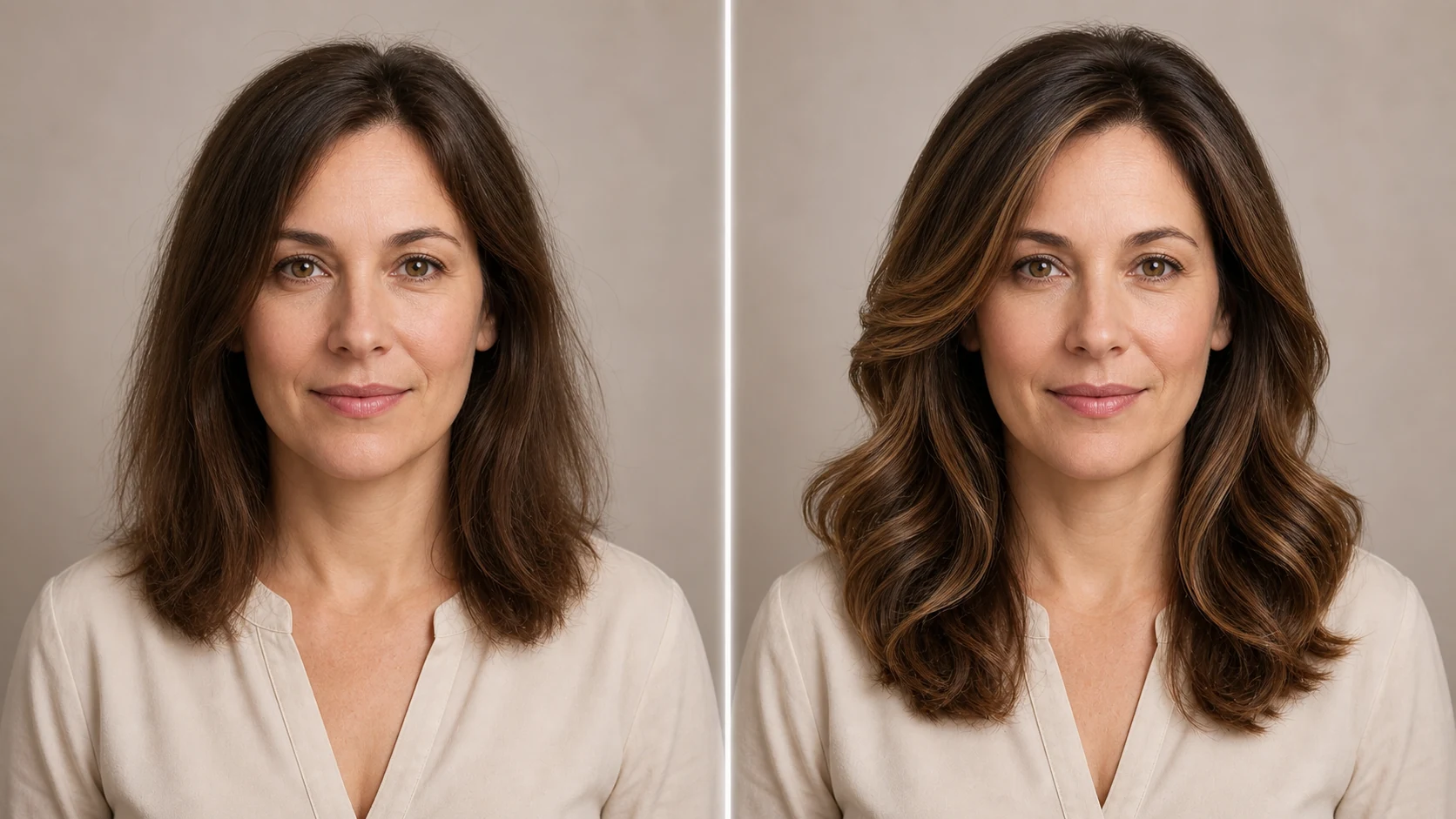
Example directions you can create
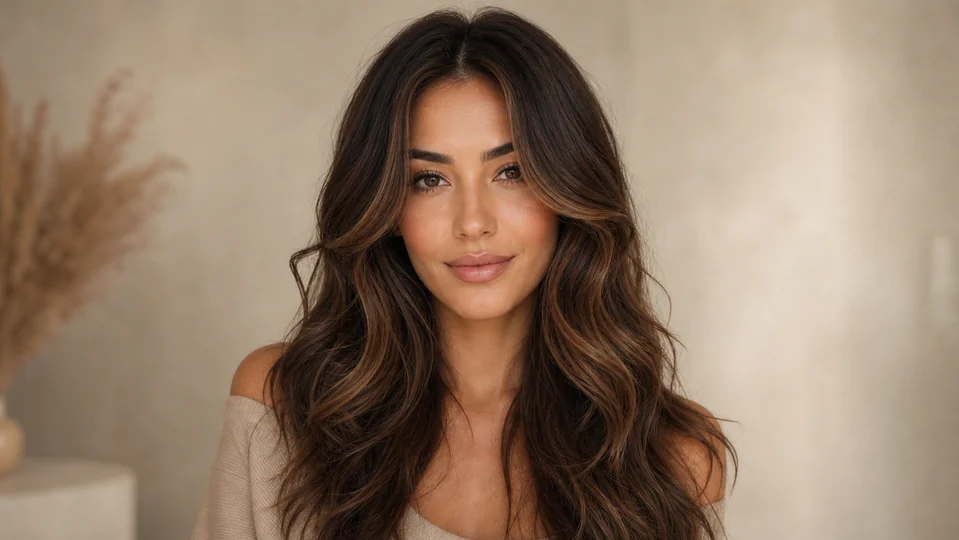
Soft layered waves — Long face-framing layers with natural movement. 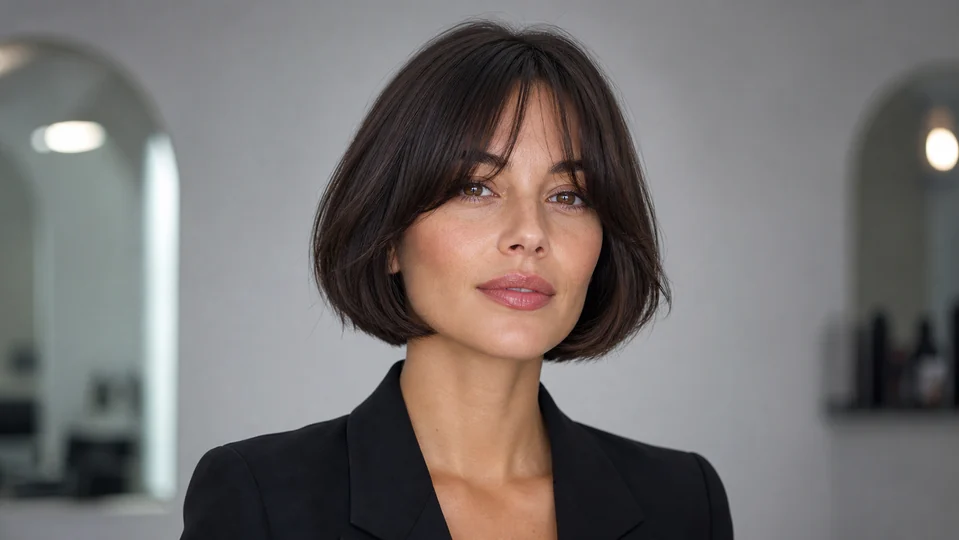
French bob — Chin-length textured bob with a soft fringe. 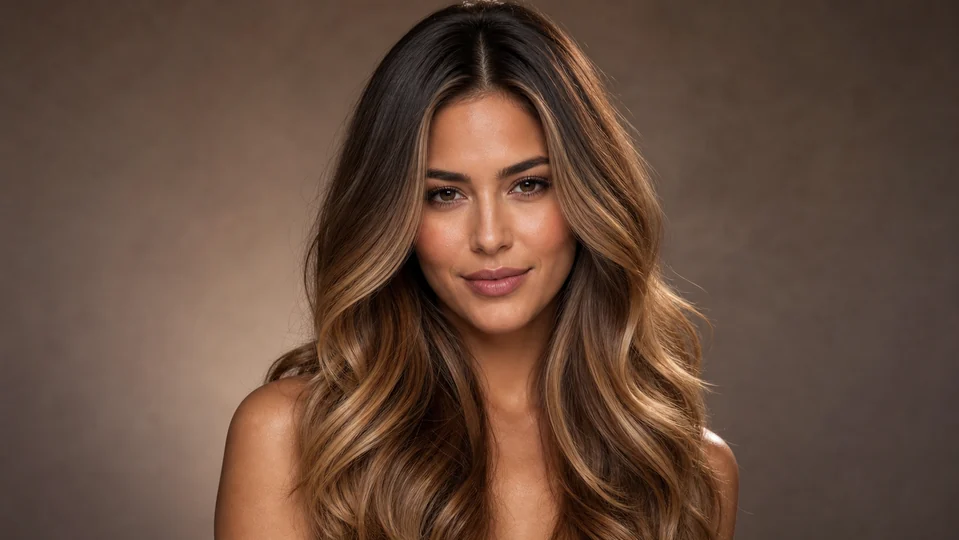
Glossy balayage — Voluminous salon waves with warm dimensional color.
How Try a new hairstyle on your photo works
Use a sharp portrait with visible hair, a natural hairline and little obstruction around the head. Describe one hairstyle direction at a time for a comparison you can actually judge.
The Studio opens with an identity-preserving hair-edit prompt and portrait format; upload your photo and replace the hairstyle description with the exact look you want.
What you can create
- Cut preview — Explore shorter, longer, layered or fringe-based directions before a real appointment.
- Color comparison — Test restrained warm, cool, dark or light color changes with consistent lighting.
- Face stays recognizable — Limit the edit to the hair while keeping facial features and expression unchanged.
Popular use cases
- New haircut — Preview a bob, layers, fringe, crop or longer silhouette.
- Hair color — Compare believable shades without changing skin tone.
- Texture and styling — Try straight, wavy, curly, braided or polished directions.
- Salon reference — Create a visual conversation starter, not a technical cutting plan.
Choose a useful photo for virtual hair testing
A front or gentle three-quarter portrait with neutral light gives the clearest view of face shape and existing hair. Keep the whole head inside the frame.
- Show the natural hairline
- Avoid hats and hand occlusion
- Keep the face and hair equally sharp
A hairstyle preview is not a salon simulation
AI can suggest silhouette and color, but it cannot measure density, damage, curl behavior or how a cut will fall after washing and styling.
Check that only the hairstyle changed
Compare jaw, eyes, nose, skin texture and head shape with the source. Then inspect hairline continuity, ears, flyaways, clothing edges and light direction.
- Confirm facial identity
- Inspect hairline and ear edges
- Compare color under the same light
How to get started
- Use a portrait with a visible hairline — Choose a sharp image where hair, forehead, ears and face shape are not hidden by hands, hats or deep shadow.
- Change one hair variable at a time — Describe the cut, length, texture or color precisely. Separate experiments make differences easier to judge.
- Compare the face and hair construction — Check identity, hairline, ears, strand direction and shadows. Reject results that reshape the face or merge hair with clothing.
Frequently asked questions
- Can I preview both a haircut and hair color?
- Yes, but testing one change at a time produces a clearer comparison and makes unwanted facial changes easier to notice.
- Will the preview match a real salon result?
- No. Hair density, texture, growth pattern and color response differ in real life. Use the image as visual direction, not a technical guarantee.
- What if my hair is covered or cropped out?
- The model has less evidence about the natural hairline and volume, so it must invent more. A new source with the full head visible is preferable.
- How does the prepared Try a new hairstyle on your photo workflow continue in Studio?
- Choose a sharp image where hair, forehead, ears and face shape are not hidden by hands, hats or deep shadow. PrimeArt carries this page's selected direction and format into Studio so you can begin with that specific setup instead of an empty prompt.
Open the prepared Try a new hairstyle on your photo setup
Choose a sharp image where hair, forehead, ears and face shape are not hidden by hands, hats or deep shadow. Continue to Studio with this page's specific direction and format already selected.