Create with PrimeArt
Make a profile picture people recognize
Improve the crop, background, light and overall polish of a portrait while keeping the face natural and readable at a small size.
- AI profile picture
- profile photo generator
- PFP maker
- social profile image
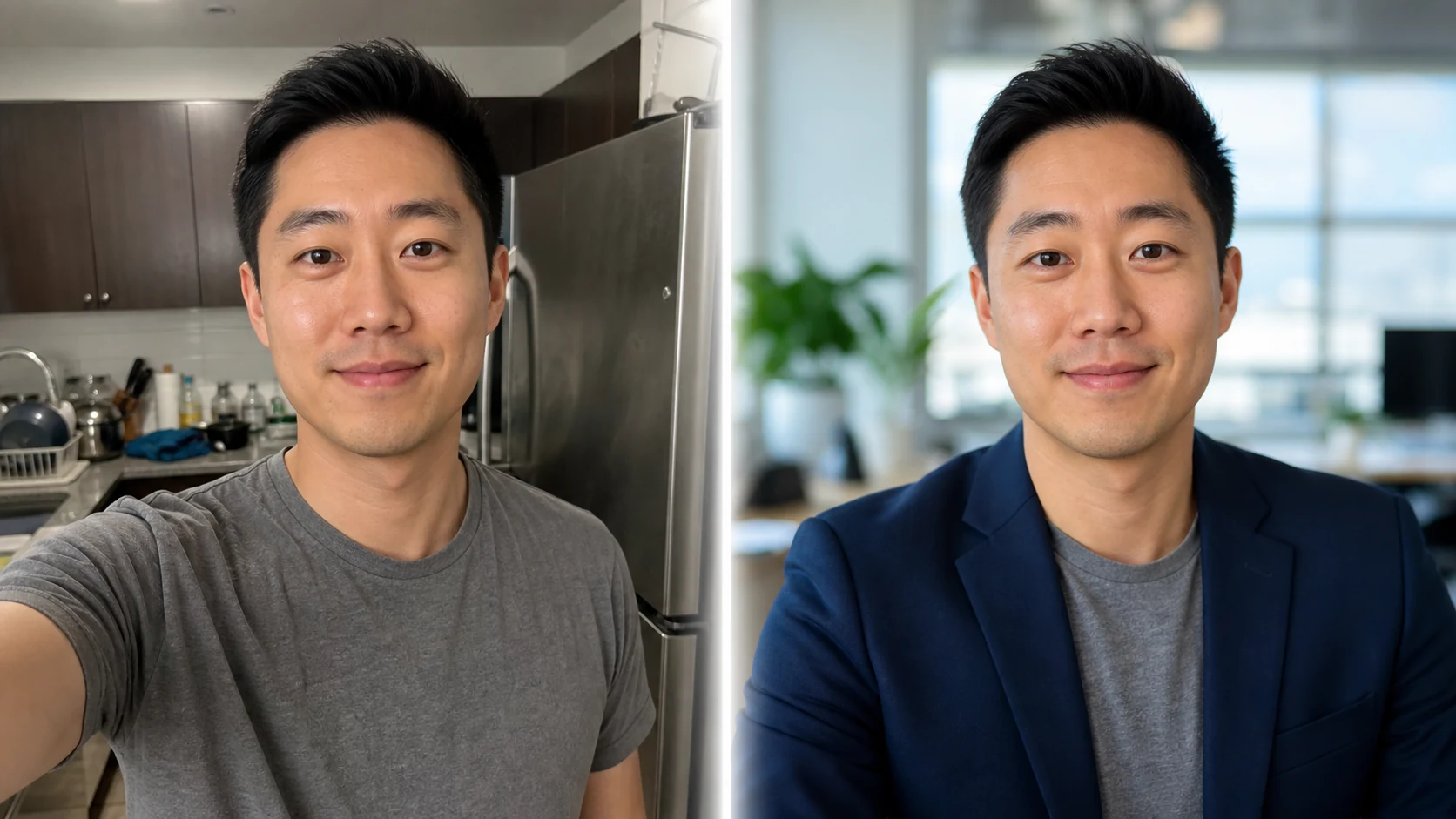
Example directions you can create
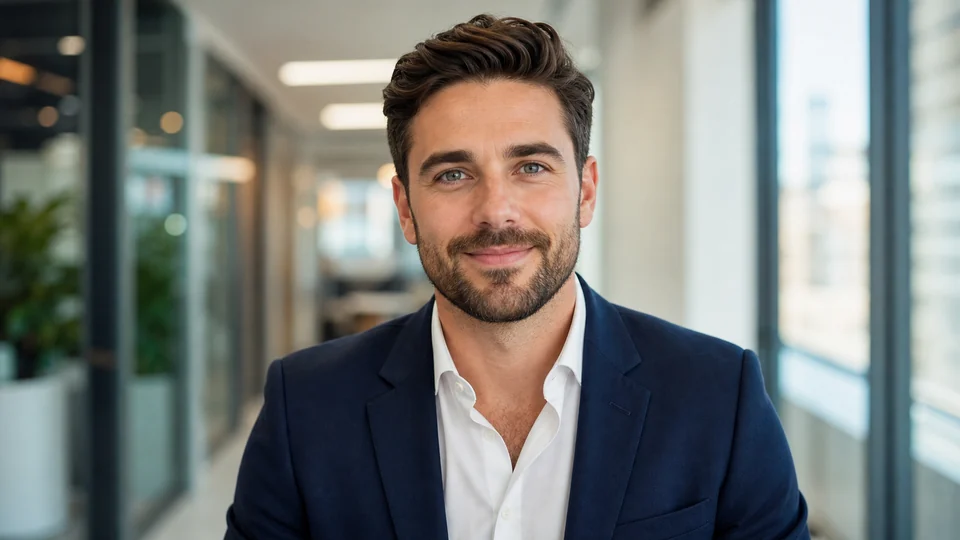
Corporate headshot — Confident office portrait with a tailored blazer. 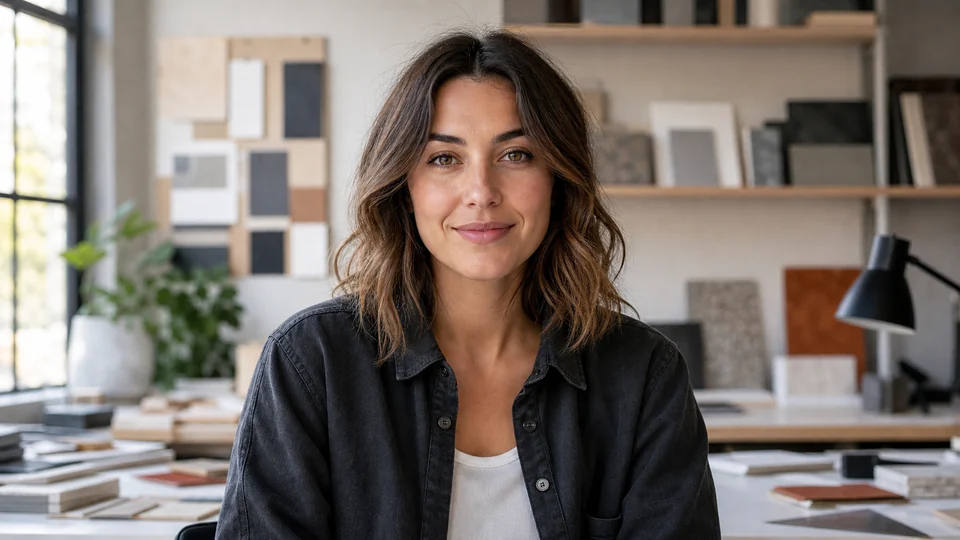
Creative professional — Relaxed editorial portrait for portfolios and bios. 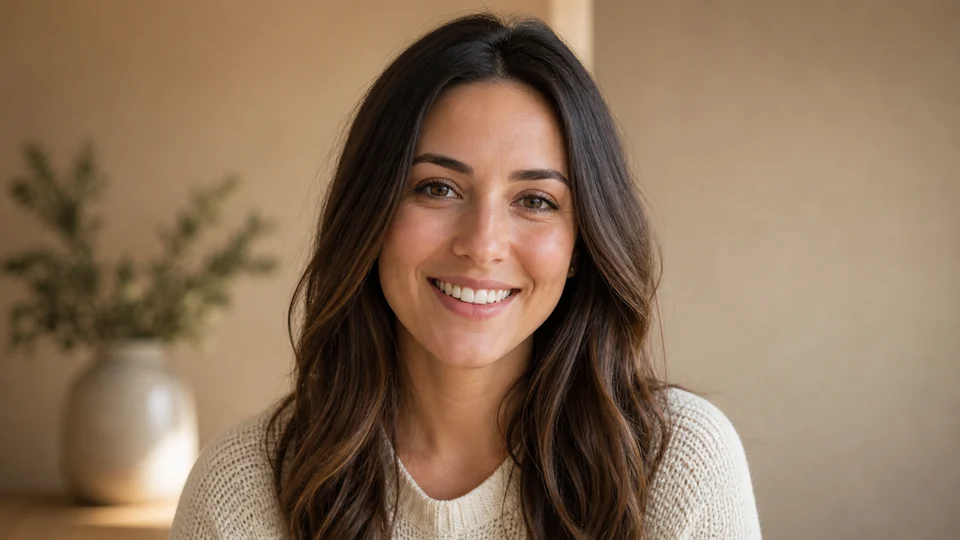
Friendly profile — Natural daylight and an approachable expression.
How Make a profile picture people recognize works
Profile images need a clear face, direct crop and enough contrast to work as a small circle or square. Begin with a sharp photo and choose the impression you want to communicate.
The Studio starts in a square format with a profile-photo instruction already prepared for either an uploaded portrait or a new text-led image.
What you can create
- Clear face and crop — Keep important features visible even when the image is displayed very small.
- Cleaner background — Reduce distractions and create useful separation around the subject.
- Platform-ready format — Start square so the result adapts cleanly to circular profile crops.
Popular use cases
- Social profiles — Refresh a personal or creator account.
- Professional bio — Create a friendly, polished portrait for a short profile.
- Community account — Use a readable image across Discord, forums and groups.
- Personal brand — Keep a consistent face, light and palette across platforms.
Source-photo choices for a stronger profile image
Use a face-forward or gentle three-quarter portrait with even light. Keep the head fully visible and avoid screenshots already compressed by another platform.
- Sharp eyes and natural expression
- Space for square and circle crops
- Simple, unobstructed head outline
A polished profile image can still be inaccurate
Generative edits may alter age, facial proportions, hair or clothing details. A professional look is not useful if colleagues or contacts no longer recognize the person.
Check clarity at profile-picture size
Compare identity first, then reduce the image to a thumbnail. Inspect glasses, hair edges, teeth, earrings and the boundary between shoulders and background.
- Confirm likeness at full size
- Preview a small crop
- Keep the background quiet
AI Profile Picture ideas for real projects
This prepared workflow is useful for social profiles, professional bio, community account, personal brand. Choose the final aspect ratio and destination early so the composition has the right framing and usable space.
The three example sessions on this page show distinct starting points for the same topic. Open one to carry its direction into Studio, then adapt the prompt and source image to your own project.
- Social profiles: Refresh a personal or creator account.
- Professional bio: Create a friendly, polished portrait for a short profile.
- Community account: Use a readable image across Discord, forums and groups.
- Personal brand: Keep a consistent face, light and palette across platforms.
How to get started
- Pick a photo with a readable face — Use a recent portrait with a natural expression, sharp eyes and enough room around the head for a square or circular crop.
- Set the impression and background — Choose professional, approachable, creative or understated direction, then describe simple lighting and background that support it.
- Review the final thumbnail — Check likeness at full size and at small profile size. Confirm that the face remains clear after the platform crop.
Frequently asked questions
- Can I make a professional profile picture from a casual photo?
- Yes. Background, light, crop and clothing direction can be refined, but the result should still be checked for accurate identity and believable detail.
- Will the image work in a circular crop?
- Leave space around the head and keep important features near the center. Previewing the result as a circle helps catch clipped hair or shoulders.
- Should a profile picture still look like me?
- Yes when it represents a real account. Prefer recognizable, current features over heavy retouching or changes that could mislead viewers.
- Will PrimeArt prepare the ai profile picture workflow automatically?
- Yes. When you continue from this page, Studio opens on the Image tab with a matching prompt and aspect ratio already selected. The setup is retained while you continue through registration or sign-in.
Start your ai profile picture project
Continue to Studio with the matching prompt and format already prepared, then upload a source image or generate from text.