Create with PrimeArt
Create a polished portrait from your photo
Turn an everyday picture into a clean studio portrait with controlled light, background, clothing direction and natural skin texture.
- AI portrait
- portrait from photo
- studio portrait AI
- editorial portrait
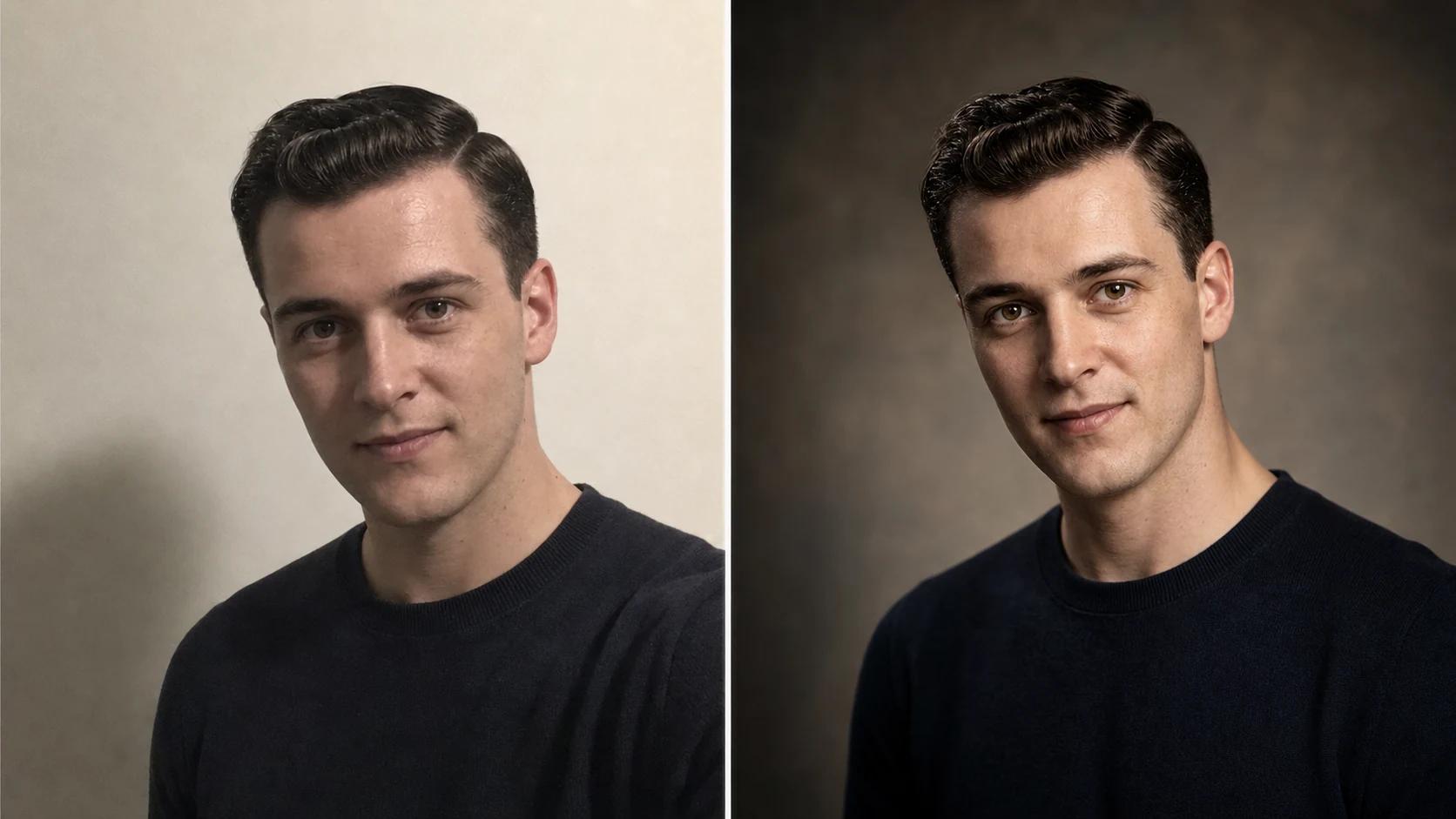
Example directions you can create
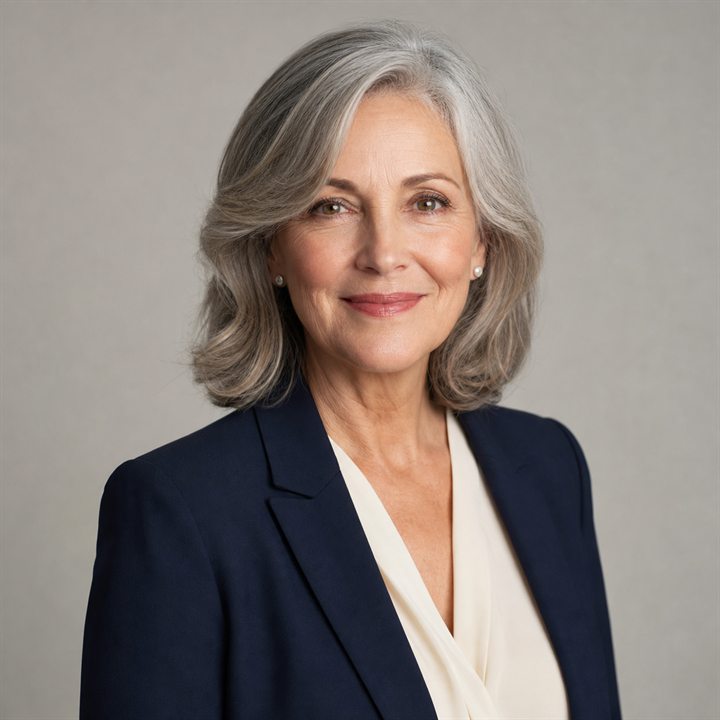
Classic studio — Timeless neutral background and flattering light. 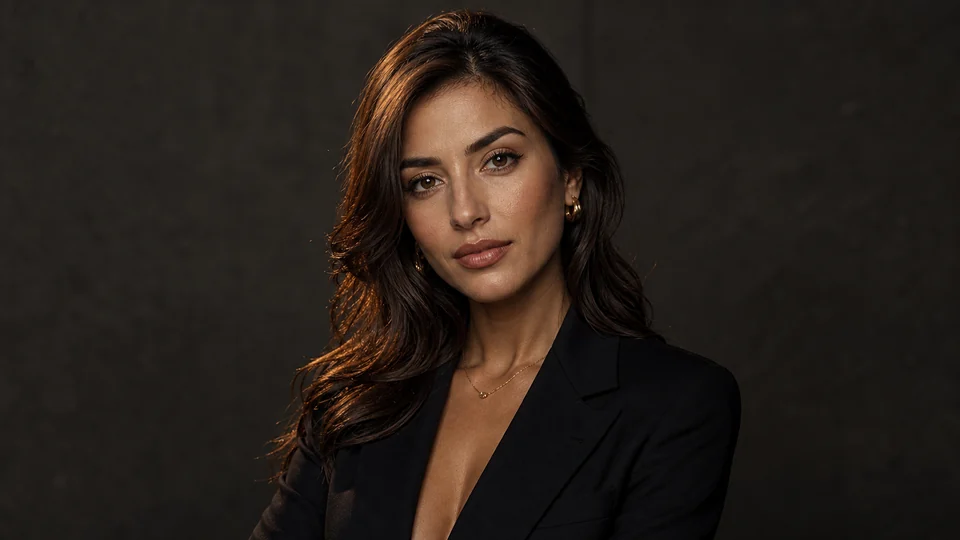
Cinematic editorial — Rich contrast, refined color and magazine-level light. 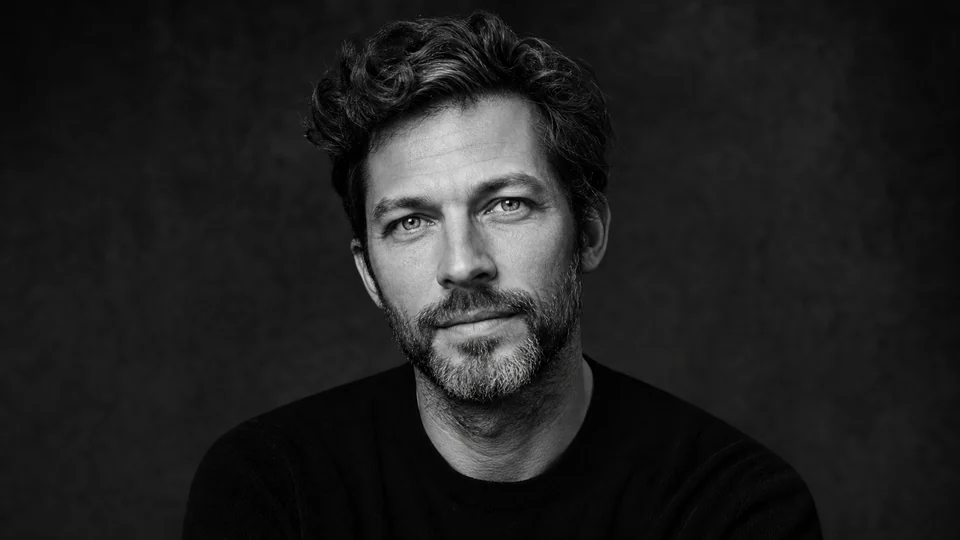
Fine-art monochrome — Expressive black-and-white portrait with natural texture.
How Create a polished portrait from your photo works
A recent high-resolution portrait gives PrimeArt the strongest identity reference. Keep the face visible and begin with one clear visual direction.
Studio opens with an elegant portrait preset and vertical composition, ready for your upload or a text-only portrait concept.
What you can create
- Studio-quality direction — Use clean light, a controlled background and balanced portrait framing.
- Natural identity — Preserve age, facial structure and realistic skin texture.
- Flexible styling — Move toward professional, editorial, cinematic or understated portrait moods.
Popular use cases
- Personal profile — Create a polished image for a bio or account.
- Creator branding — Build a recognisable portrait direction across channels.
- Editorial concept — Explore stronger styling and controlled light.
- Gift portrait — Create a refined personal image for print.
What makes a strong portrait reference
Choose a recent image with sharp eyes, even exposure and no beauty filter hiding texture. A neutral or natural expression is easier to compare across variations.
- Keep both eyes visible
- Avoid motion blur and heavy filters
- Use a crop with enough head and shoulder context
Identity can drift during a style change
New light, lens cues and clothing can subtly alter age, face shape or skin. The result is a generated interpretation even when it looks photographic.
A likeness-first portrait checklist
Compare eye spacing, nose, mouth, jaw, ears, hairline and distinctive marks. Then inspect hands, clothing seams, glasses and background edges.
- Judge identity before polish
- Inspect accessories and hands
- Change one instruction per revision
AI Portrait ideas for real projects
This prepared workflow is useful for personal profile, creator branding, editorial concept, gift portrait. Choose the final aspect ratio and destination early so the composition has the right framing and usable space.
The three example sessions on this page show distinct starting points for the same topic. Open one to carry its direction into Studio, then adapt the prompt and source image to your own project.
- Personal profile: Create a polished image for a bio or account.
- Creator branding: Build a recognisable portrait direction across channels.
- Editorial concept: Explore stronger styling and controlled light.
- Gift portrait: Create a refined personal image for print.
How to get started
- Start with a current, detailed portrait — Use a sharp face with natural skin texture, visible eyes and minimal obstruction. Select a crop that contains the features you need to preserve.
- Describe the portrait, not a different person — Set background, lens feel, light, clothing direction and mood while asking to keep identity, age and facial structure.
- Compare likeness at full size — Review eyes, mouth, jaw, hairline and recognizable marks. Refine one visual variable if the style is right but identity has drifted.
Frequently asked questions
- How can I keep the portrait recognizable?
- Use a clear source and state that identity, age, facial structure and natural skin texture should remain unchanged. Always compare the result with the original.
- Can I change the background and clothing?
- Yes. Those can be described as part of the portrait direction, but complex garments, text and accessories should be checked closely.
- Can a small or blurred face be restored perfectly?
- No. When facial evidence is weak the model must estimate missing information, which can reduce likeness. Use the best original available.
- Will PrimeArt prepare the ai portrait workflow automatically?
- Yes. When you continue from this page, Studio opens on the Image tab with a matching prompt and aspect ratio already selected. The setup is retained while you continue through registration or sign-in.
Start your ai portrait project
Continue to Studio with the matching prompt and format already prepared, then upload a source image or generate from text.