Create with PrimeArt
Turn your photo into anime
Create a clean anime portrait from your photo while preserving recognizable facial features, hairstyle and overall identity.
- photo to anime
- AI anime portrait
- anime avatar
- anime profile picture
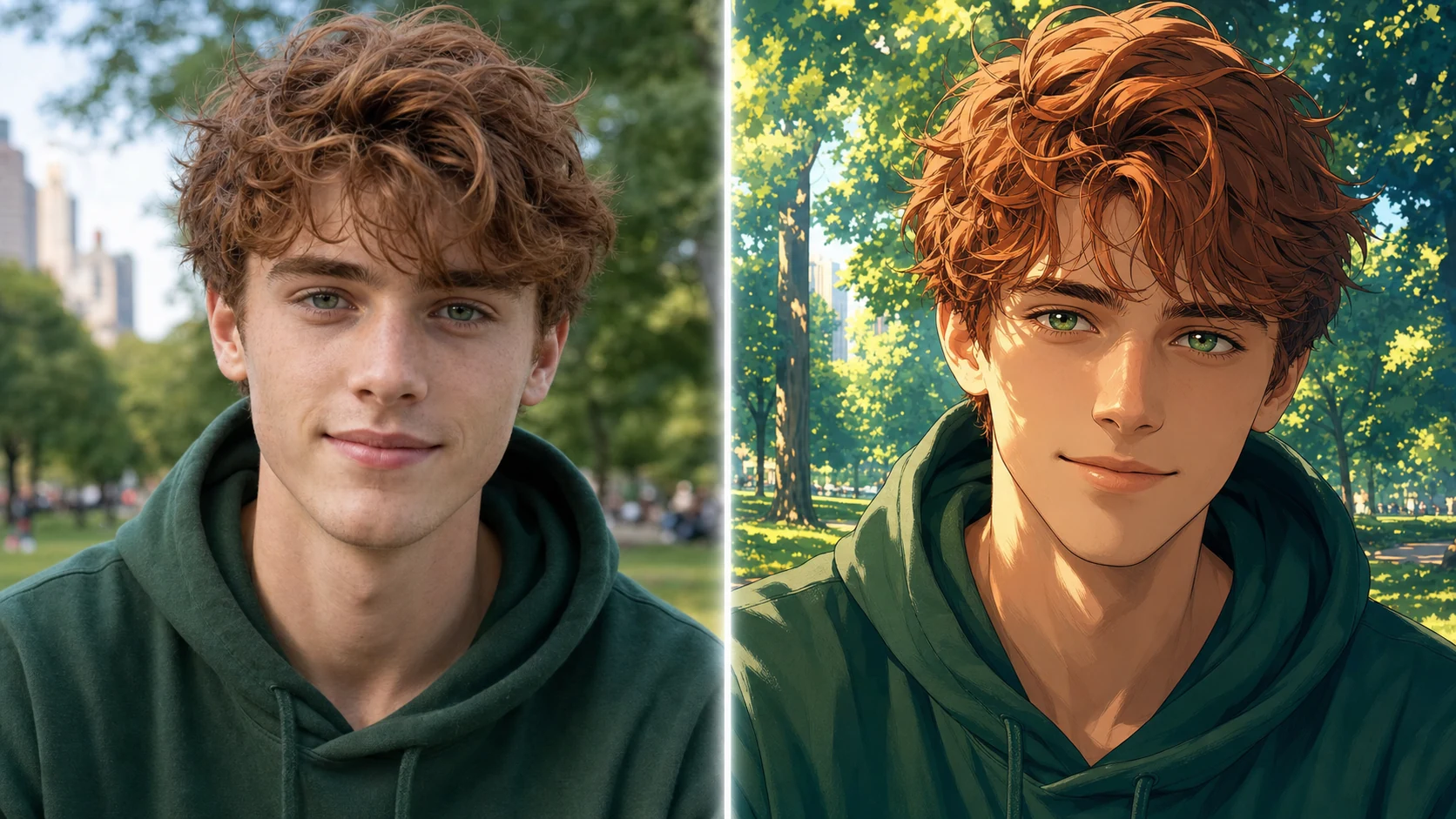
Example directions you can create
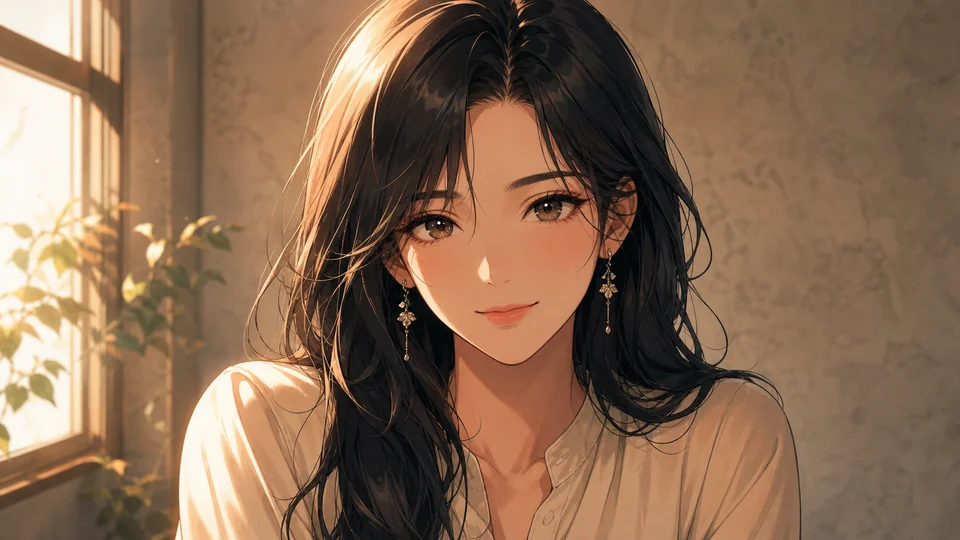
Soft cinematic anime — Detailed hand-painted look with gentle daylight. 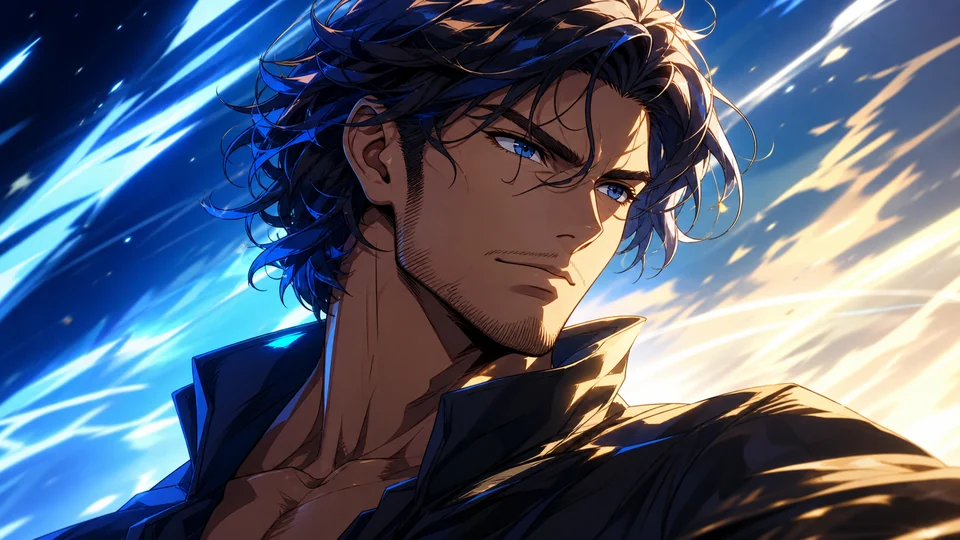
Dynamic shōnen — Stronger linework, dramatic light and energetic framing. 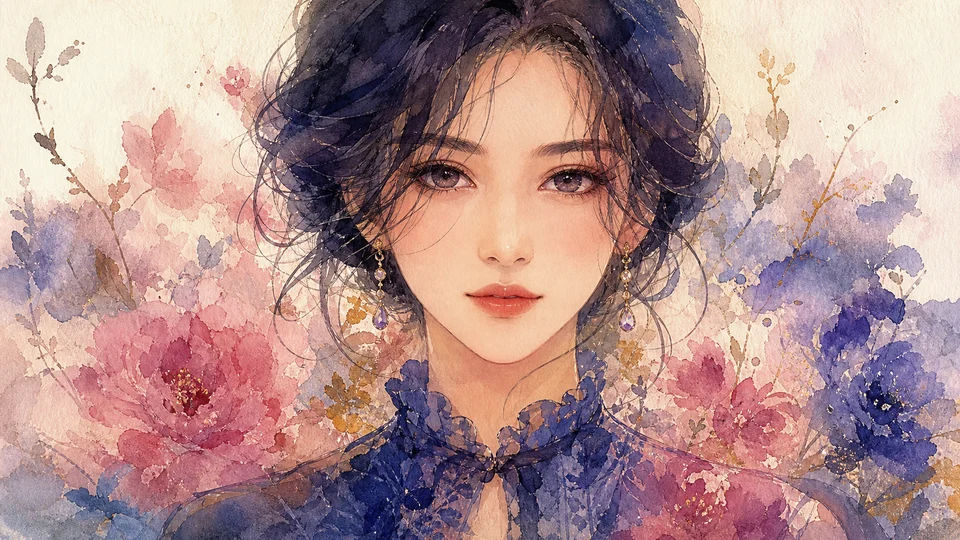
Watercolor anime — Delicate color, textured paper and lyrical atmosphere.
How Turn your photo into anime works
Choose a sharp portrait and name the traits you want: line quality, palette, light, mood and setting. One coherent direction usually works better than stacking unrelated styles.
The Studio opens in a profile-friendly square format with an anime transformation prompt ready for your source photo.
What you can create
- Recognizable anime identity — Keep the face and hairstyle connected to the original person.
- Controlled illustration style — Define clean linework, shading, palette and atmosphere.
- Profile-ready composition — Use a clear square portrait that remains readable across platforms.
Popular use cases
- Anime avatar — Create a stylized profile image from a real portrait.
- Fandom portrait — Explore a character-like visual direction without copying a specific copyrighted character.
- Matching set — Apply one visual language across several portraits.
- Illustrated gift — Create a personal anime-inspired portrait concept.
A photo that survives strong stylization
Use a source where face shape, eyes, hair and pose are easy to read. Avoid tiny faces, motion blur and crowded backgrounds that compete with identity.
- Clear facial outline
- Visible hairstyle and expression
- Simple pose and background
Anime conversion is an interpretation
Illustration changes proportions, texture and detail by design. It can also introduce inconsistent hands, clothing folds or perspective that were not present in the photo.
Check both character identity and drawing quality
Compare recognizable features with the source before inspecting line continuity, eye alignment, hands, accessories and background perspective.
- Preserve key face and hair cues
- Inspect hands and costume edges
- Remove repeated or broken linework
AI Anime Photo ideas for real projects
This prepared workflow is useful for anime avatar, fandom portrait, matching set, illustrated gift. Choose the final aspect ratio and destination early so the composition has the right framing and usable space.
The three example sessions on this page show distinct starting points for the same topic. Open one to carry its direction into Studio, then adapt the prompt and source image to your own project.
- Anime avatar: Create a stylized profile image from a real portrait.
- Fandom portrait: Explore a character-like visual direction without copying a specific copyrighted character.
- Matching set: Apply one visual language across several portraits.
- Illustrated gift: Create a personal anime-inspired portrait concept.
How to get started
- Use a portrait with clear identity cues — Choose a sharp face, visible hair silhouette and simple pose so the transformation has enough information to preserve recognizable traits.
- Describe visual traits, not a pile of styles — Specify line weight, color palette, shading, mood and background in one coherent anime-inspired direction.
- Review likeness and illustration anatomy — Check eyes, face shape, hairstyle and expression, then inspect hands, clothing, perspective and repeated line artifacts.
Frequently asked questions
- Can PrimeArt turn my own photo into anime-style artwork?
- Yes. The photo supplies identity and composition cues while the prompt defines the illustrated rendering and setting.
- Will the anime version look exactly like the source?
- Stylization simplifies and exaggerates features, so exact likeness is not guaranteed. Clear source details and restrained instructions improve recognizability.
- What should I describe in an anime prompt?
- Focus on line style, palette, lighting, mood, clothing and setting. One coherent direction is easier to control than several conflicting aesthetics.
- Will PrimeArt prepare the ai anime photo workflow automatically?
- Yes. When you continue from this page, Studio opens on the Image tab with a matching prompt and aspect ratio already selected. The setup is retained while you continue through registration or sign-in.
Start your ai anime photo project
Continue to Studio with the matching prompt and format already prepared, then upload a source image or generate from text.