Create with PrimeArt
AI 2016 Photo Filter – Recreate the 2016 Aesthetic
Bring back the unmistakable 2016 look with warm pink highlights, cool violet shadows, direct-flash energy and a lightly faded social-photo finish.
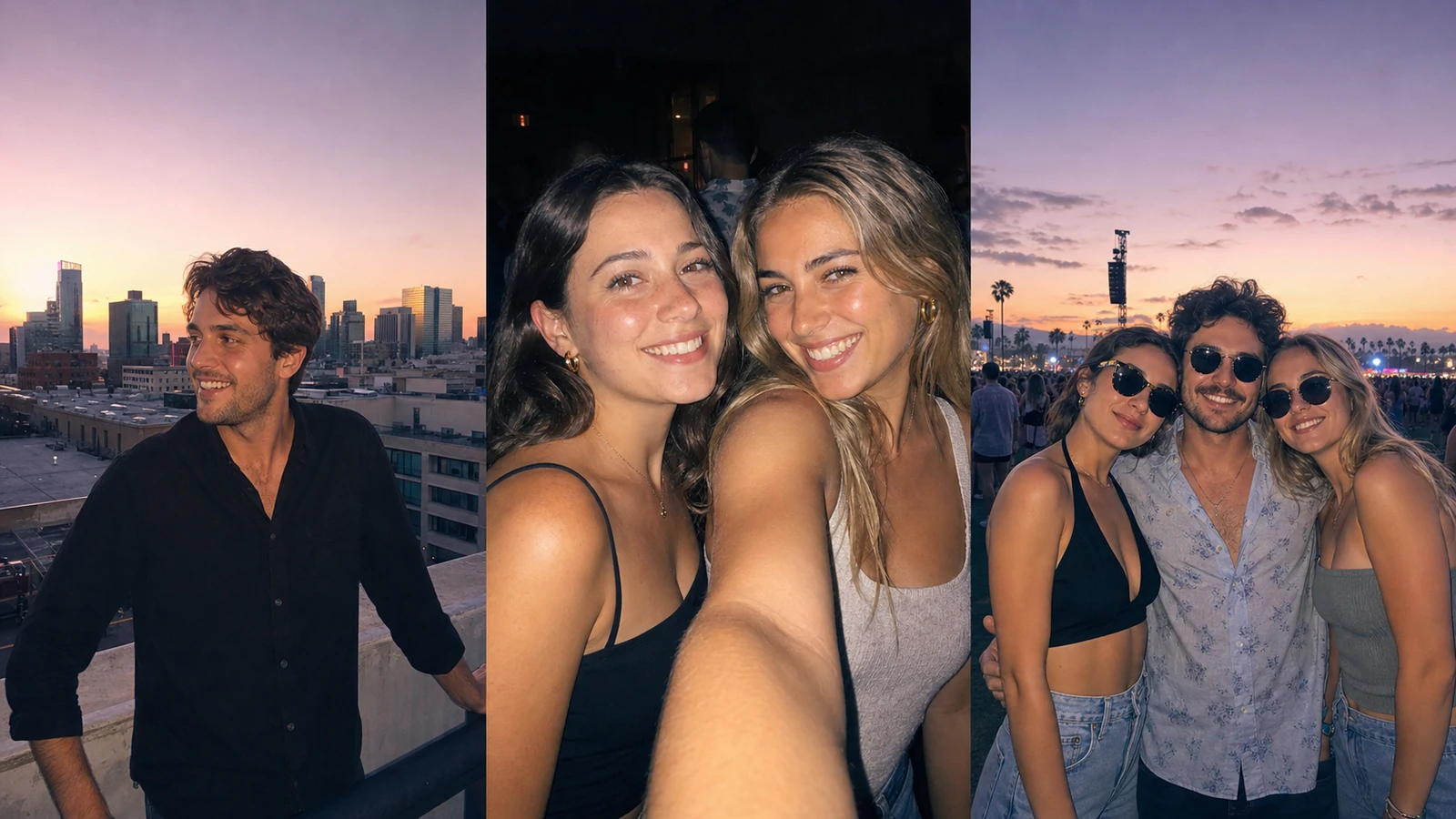
Example directions you can create
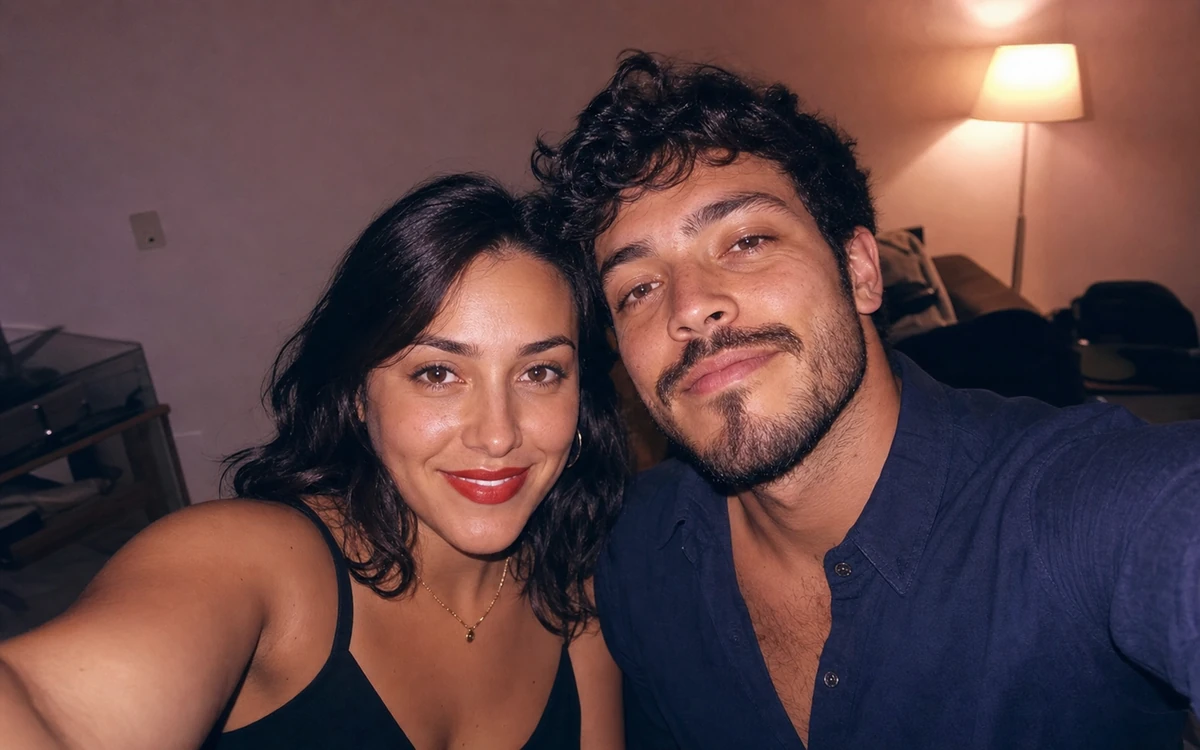
2016 Retro Flash — Direct-flash nostalgia with real-night energy. 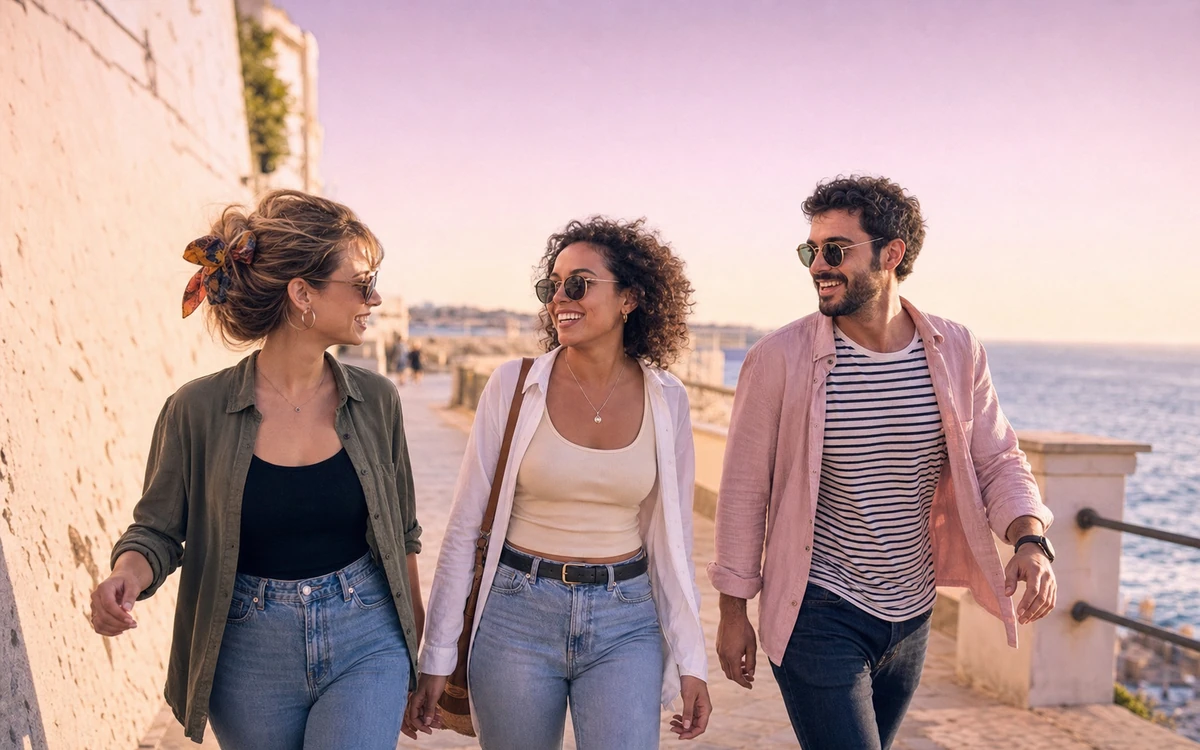
Pastel feed — Dusty rose highlights, lavender shadows and a soft faded finish. 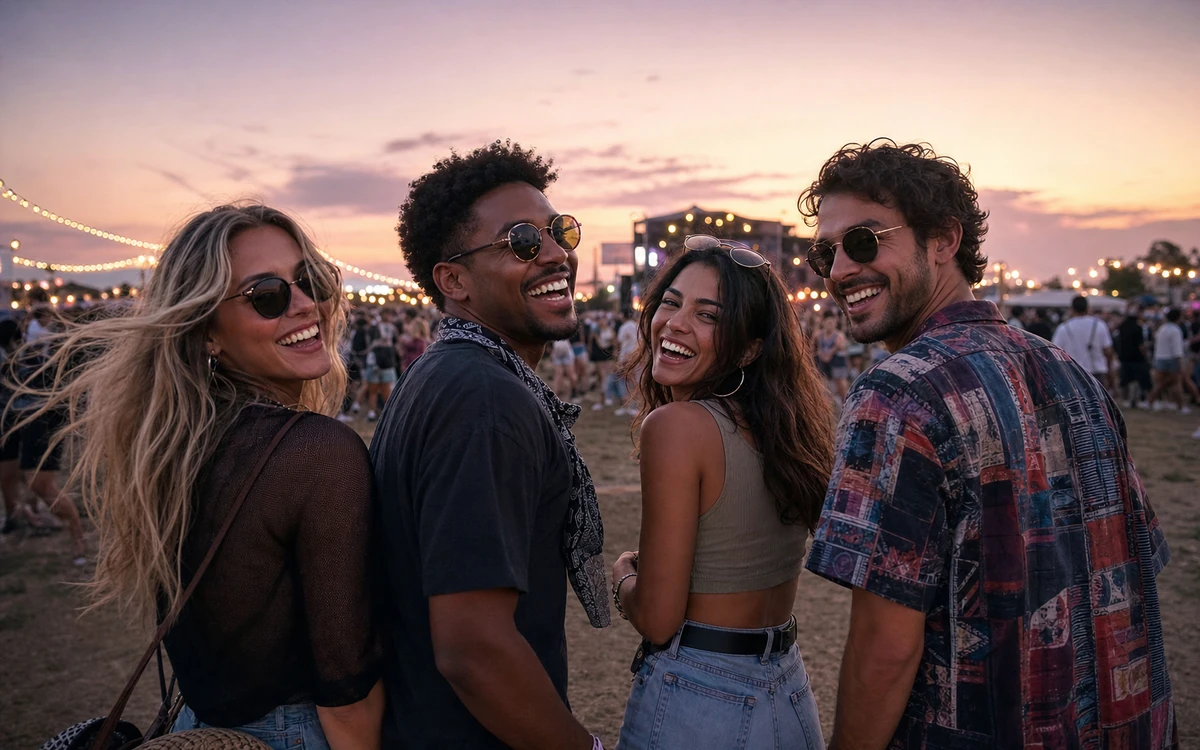
Festival sunset — Warm dusk haze, lively color and compact-camera texture.
How AI 2016 Photo Filter – Recreate the 2016 Aesthetic works
Start with a clear portrait, selfie or candid photo. PrimeArt keeps the people and composition recognizable while rebuilding the color, contrast and flash behavior associated with mid-2010s social photography.
Choose a direct-flash selfie, pastel feed or festival-sunset direction. Each preset gives the image a distinct 2016 mood without adding platform logos, fake captions or a dated frame.
What you can create
- Recognizable 2016 color — Balance dusty pink highlights, cooler shadows and restrained fading instead of applying a generic vintage wash.
- Camera-like texture — Add believable direct flash, mild digital grain and compact-camera softness while keeping faces readable.
- Clean share-ready image — Create the aesthetic without generated captions, interface elements, logos or watermarks.
Popular use cases
- Throwback portrait — Give a current portrait the color and energy of a 2016 social post.
- Flash selfie — Recreate a candid compact-camera look for a night-out photo.
- Festival memory — Add warm dusk color, gentle haze and lively mid-2010s atmosphere.
- Cohesive photo set — Apply one visual direction across a recap, carousel or personal mood board.
What makes a photo look like it came from 2016
The look comes from a specific balance rather than one heavy color wash: compact-camera flash, slightly lifted black levels, pink or amber highlights, violet-blue shadows and mild digital texture.
Keep the treatment photographic. Strong scratches, paper borders and sepia aging push the result toward an older analog era instead of the cleaner mid-2010s social-photo aesthetic.
- Soft direct-flash character
- Dusty pink or amber highlights
- Cool violet-blue shadows
- Restrained fade and digital grain
Keep the filter from rewriting the photo
A useful filter preserves the exact face, body, hair, clothing, accessories, background, objects, crop and composition. Only color, tonal response, flash character and image texture should change.
Quality checks for a 2016-style edit
Compare the original and result at the same size. Check skin tone, facial detail, hair edges, hands and background geometry, then inspect shadows for crushed detail and highlights for unnatural magenta clipping.
- Nothing added or removed
- Every identity and pose preserved
- Skin tones remain believable
- No text, timestamp, logo or interface
How to get started
- Choose a clear source with a real moment — Use a sharp portrait, selfie or candid image with readable faces and a simple composition. The filter works best when it can preserve the original scene instead of inventing a new one.
- Describe the 2016 camera and color behavior — Ask for direct flash, dusty pink highlights, violet-blue shadows, lifted blacks and restrained digital grain. Avoid platform names, interface elements and fake captions.
- Compare the source and filtered result — Check every face, pose, item of clothing and background object before reviewing color. A filter should change the finish, not rewrite what happened in the photo.
Frequently asked questions
- What defines the 2016 photo aesthetic?
- A recognizable 2016 treatment often combines direct compact-camera flash, warm pink highlights, cooler violet shadows, modest fading and light digital grain. The effect should remain subtle enough to preserve skin and detail.
- Will the filter add a timestamp or social-media interface?
- No. The presets create only the photographic treatment. They intentionally avoid captions, dates, interface elements, logos and watermarks.
- Can I apply the 2016 filter to a group photo?
- Yes. Use a clear source and keep the headcount explicit. Compare every face afterward because identity preservation becomes harder as the group grows.
- How does the prepared AI 2016 Photo Filter – Recreate the 2016 Aesthetic workflow continue in Studio?
- Use a sharp portrait, selfie or candid image with readable faces and a simple composition. The filter works best when it can preserve the original scene instead of inventing a new one. PrimeArt carries this page's selected direction and format into Studio so you can begin with that specific setup instead of an empty prompt.
Open the prepared AI 2016 Photo Filter – Recreate the 2016 Aesthetic setup
Use a sharp portrait, selfie or candid image with readable faces and a simple composition. The filter works best when it can preserve the original scene instead of inventing a new one. Continue to Studio with this page's specific direction and format already selected.