Create with PrimeArt
AI Photo & Image Enhancer
Upload the best original file available and improve clarity, detail, light and color without rebuilding the whole image.
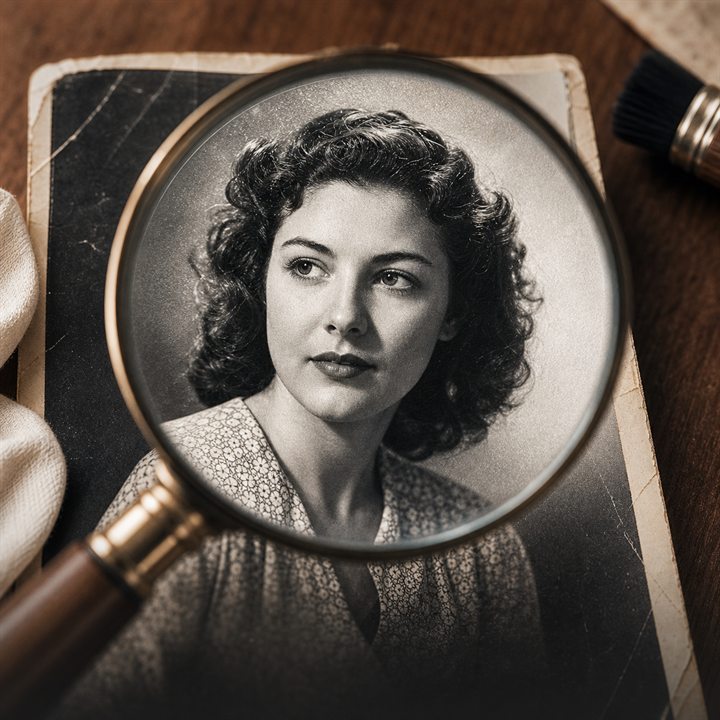
Example directions you can create
Natural detail boost — Improve clarity and micro-contrast without changing color, identity or natural texture. 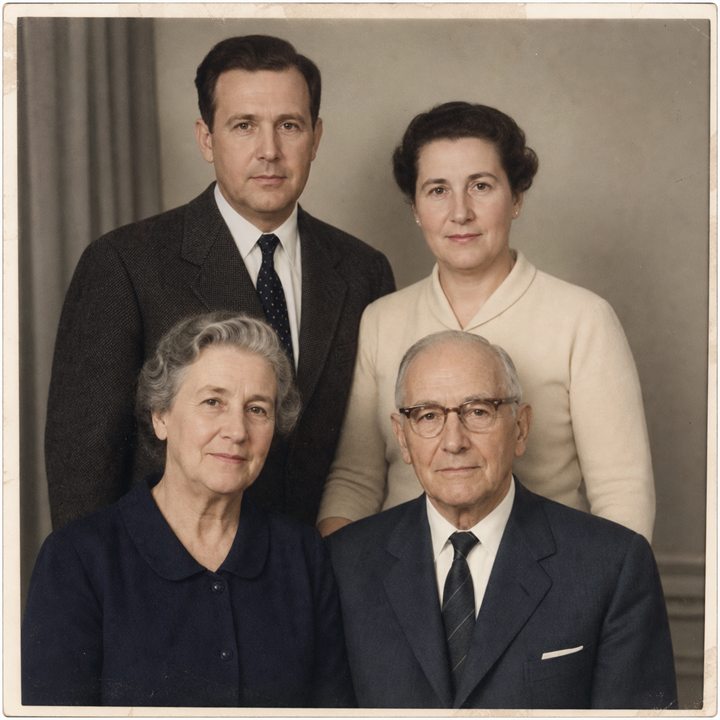
Clearer faces — Reduce blur, noise and compression artifacts while preserving every face and the original composition. 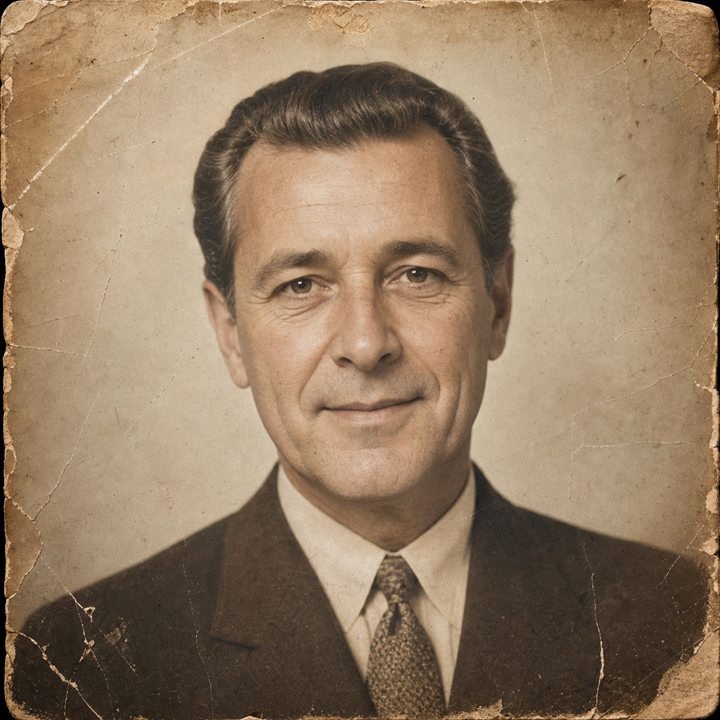
Clean damaged areas — Repair folds, stains and paper damage while keeping the source image recognizable.
How AI Photo & Image Enhancer works
Improve an existing photo when the composition is already right but the image lacks clarity, detail, contrast or balanced color.
Enhancement cannot recover every detail from a heavily blurred or tiny source, so begin with the best original file available.
What you can create
- Better detail — Lift images that feel soft, muddy or less premium than you want online.
- More usable social outputs — Enhanced photos become stronger candidates for profile, feed and creator uses.
- Easier content recovery — Save images you like but would normally avoid posting because they feel weak.
Popular use cases
- Portrait cleanup — Make portraits feel sharper and more deliberate without a full reshoot.
- Selfie enhancement — Improve detail and visual quality on selfies before using them online.
- Creator content rescue — Save content assets that are good conceptually but need more clarity or polish.
- Profile-photo improvement — Enhance profile images so they read better even in small crops.
What an AI image enhancer can improve
Enhancement works best when the source already contains useful visual information. It can improve perceived sharpness, local contrast, color balance and detail, but it cannot reliably recover every feature that was never captured.
Use the largest original file available and avoid repeatedly saving a compressed copy. Compare the result at normal viewing size as well as close up so added detail still looks natural.
- Sharpness and perceived detail
- Contrast and color balance
- Clarity in portraits and objects
- Usability for profiles and digital sharing
Choose the best source before enhancing a photo
Use the original camera or scan file rather than a screenshot or an image repeatedly downloaded from social media. Repeated compression removes texture and edge information that enhancement cannot recover reliably.
Work from the largest clean version available and keep an untouched copy. Correcting a weak derivative does not restore factual detail that was absent from the source.
- Prefer the original file over a screenshot
- Avoid repeated JPEG compression
- Keep an untouched source copy
- Enhance before making additional exports
Check whether enhanced detail is plausible
Enhancement may create plausible texture around faces, hair, fabric, text and distant objects. Compare those areas with the original instead of assuming that sharper-looking detail is historically or factually accurate.
Inspect halos, oversharpened edges, plastic skin, color shifts and invented letters. Reduce the change or retain the original when the enhanced version introduces information that cannot be verified.
How to get started
- Start with the photo you already like — Enhancement works best when the source has a strong base but needs more quality.
- Improve the photo, do not just decorate it — PrimeArt is useful when you want more clarity, stronger detail and a more postable finish.
- Reuse the upgraded image — Take the enhanced result into your profile, content or creator toolkit immediately.
Frequently asked questions
- Can AI enhance image quality?
- AI can improve perceived sharpness, contrast, color and detail when the source contains enough usable information.
- Can it fix a very blurry or tiny photo?
- Results are limited by the source. Enhancement may improve appearance, but it cannot guarantee accurate recovery of details that were not captured.
- Should I use the original file?
- Yes. Use the largest, least-compressed original available for the best starting point.
- Do I need an account?
- Yes. Create an account or sign in before using Studio.
Enhance the image you already have
Start with an existing photo and make it look stronger, sharper and more worth using.