Create with PrimeArt
Restore old photos with AI
Repair scratches, fading, dust and damaged details while keeping the people, expressions and period character of the original photograph.
- restore old photos
- photo repair AI
- remove scratches
- family archive
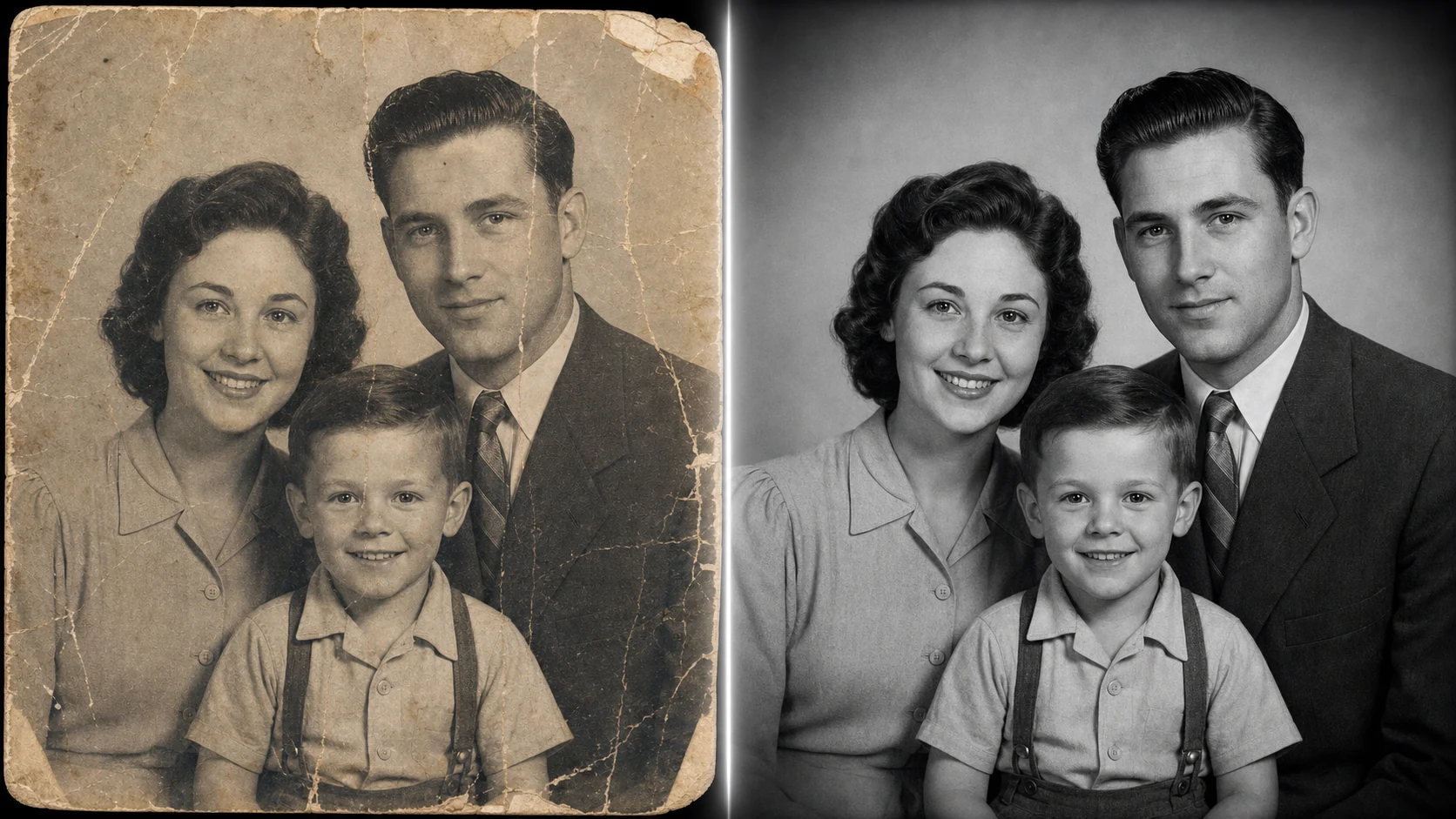
Example directions you can create
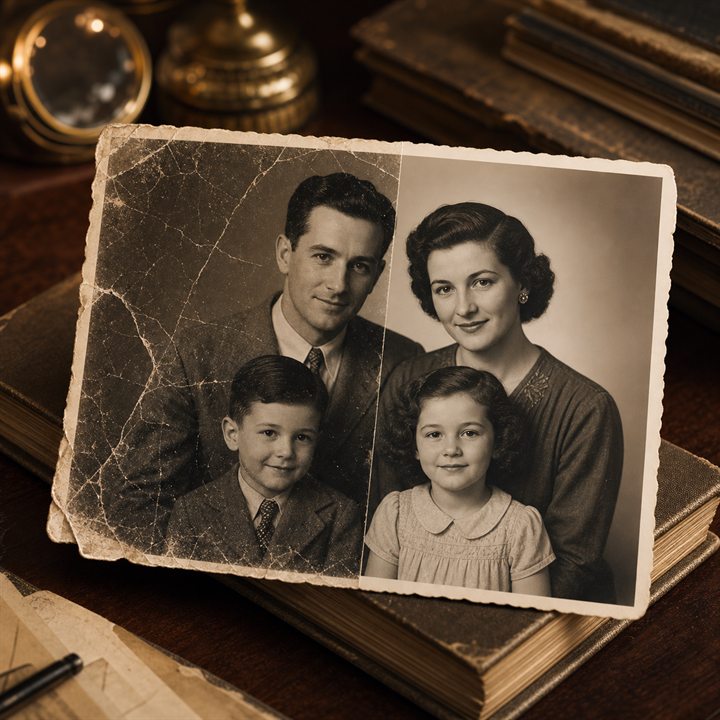
Natural repair — Repair scratches, dust and fading without modernizing the photo. 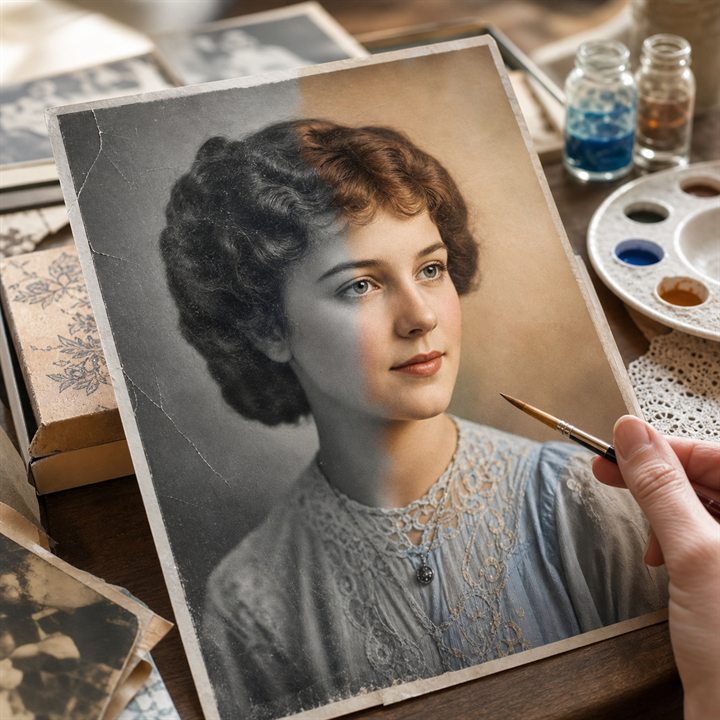
Natural color — Add restrained, historically believable colors. 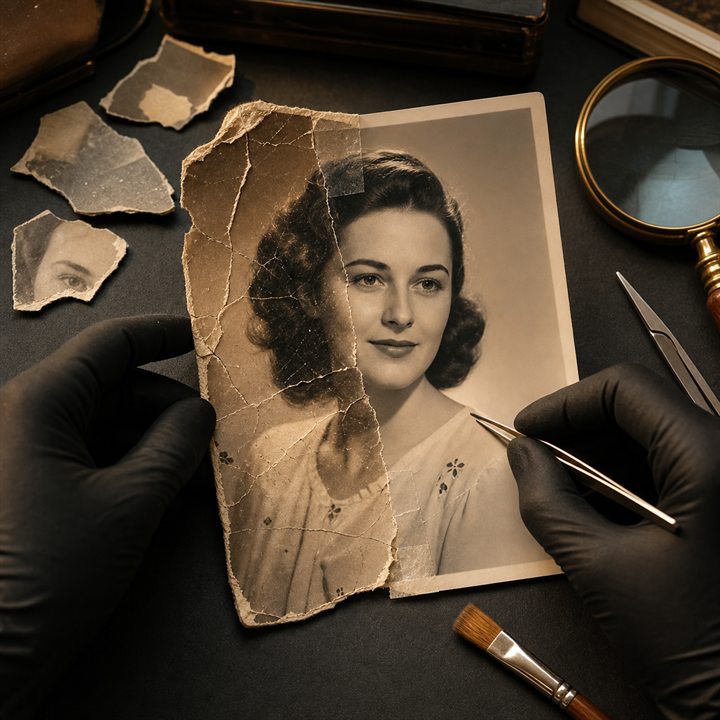
Deep reconstruction — Rebuild torn and genuinely missing fragments.
How Restore old photos with AI works
Start with the clearest scan or photograph of the original. PrimeArt can reduce scratches, folds, fading and noise while rebuilding only the details that need attention.
The Studio opens with a restoration prompt and a landscape-friendly format already selected, so the first task is simply uploading the source photo.
What you can create
- Cleaner family archives — Prepare damaged photographs for sharing, printing and safer digital storage.
- Natural detail recovery — Improve faces, clothing and texture without turning the result into a modern-looking portrait.
- Original character preserved — Keep the composition, expressions and photographic grain that make the source meaningful.
Popular use cases
- Scratched photographs — Reduce visible scratches, dust, folds and scanning marks.
- Faded family portraits — Recover useful contrast and restrained, believable detail.
- Old wedding photos — Repair a keepsake while preserving both identities and period styling.
- Archive preparation — Create a clean digital copy while keeping the untouched scan separately.
The best input for restoring an old photo
Start with the highest-resolution original available. A flat scan with even exposure carries more useful information than a compressed screenshot or a phone photo taken through glass.
- Use even light without glare
- Keep faces and borders in focus
- Upload the least-compressed source available
What AI restoration cannot know
Restoration can clean and reconstruct, but it cannot verify details erased by a tear, blur or overexposure. Colorization is interpretive, and aggressive sharpening can remove authentic grain.
Quality checks for a restored copy
Compare source and result at full size. Look for altered eyes, teeth, jewelry, fingers, fabric patterns, signage and repeated textures near repaired areas.
- Check every face separately
- Inspect repaired borders and folds
- Preserve the untouched scan as the archival master
Restore Old Photos ideas for real projects
This prepared workflow is useful for scratched photographs, faded family portraits, old wedding photos, archive preparation. Choose the final aspect ratio and destination early so the composition has the right framing and usable space.
The three example sessions on this page show distinct starting points for the same topic. Open one to carry its direction into Studio, then adapt the prompt and source image to your own project.
- Scratched photographs: Reduce visible scratches, dust, folds and scanning marks.
- Faded family portraits: Recover useful contrast and restrained, believable detail.
- Old wedding photos: Repair a keepsake while preserving both identities and period styling.
- Archive preparation: Create a clean digital copy while keeping the untouched scan separately.
How to get started
- Digitize the original carefully — Use a flat, evenly lit scan or photograph. Avoid glare and keep the complete border in frame so folds, tears and missing edges remain visible.
- Describe the damage, not a new scene — Ask to repair scratches, dust, fading or restrained color while preserving every person, pose, garment and period detail.
- Compare the repair with the archive copy — Zoom in on faces, hands and rebuilt edges. Keep the untouched source separately and refine any area where the result invents too much detail.
Frequently asked questions
- What old-photo damage can this workflow address?
- It can reduce visible scratches, dust, folds, fading, stains and small missing areas. Heavy blur and large absent regions leave less reliable evidence to reconstruct.
- Can PrimeArt colorize a black-and-white photograph?
- You can request restrained colorization, but the colors are a plausible interpretation rather than proof of the original scene.
- Will reconstructed facial detail be historically exact?
- No model can recover information that is no longer present. Treat rebuilt detail as an estimate and compare it with other family references when accuracy matters.
- Will PrimeArt prepare the restore old photos workflow automatically?
- Yes. When you continue from this page, Studio opens on the Image tab with a matching prompt and aspect ratio already selected. The setup is retained while you continue through registration or sign-in.
Start your restore old photos project
Continue to Studio with the matching prompt and format already prepared, then upload a source image or generate from text.