Create with PrimeArt
Design your dorm room with AI
Turn a photo of your assigned dorm into a realistic 2D decor preview with removable, small-space ideas that respect the existing layout.
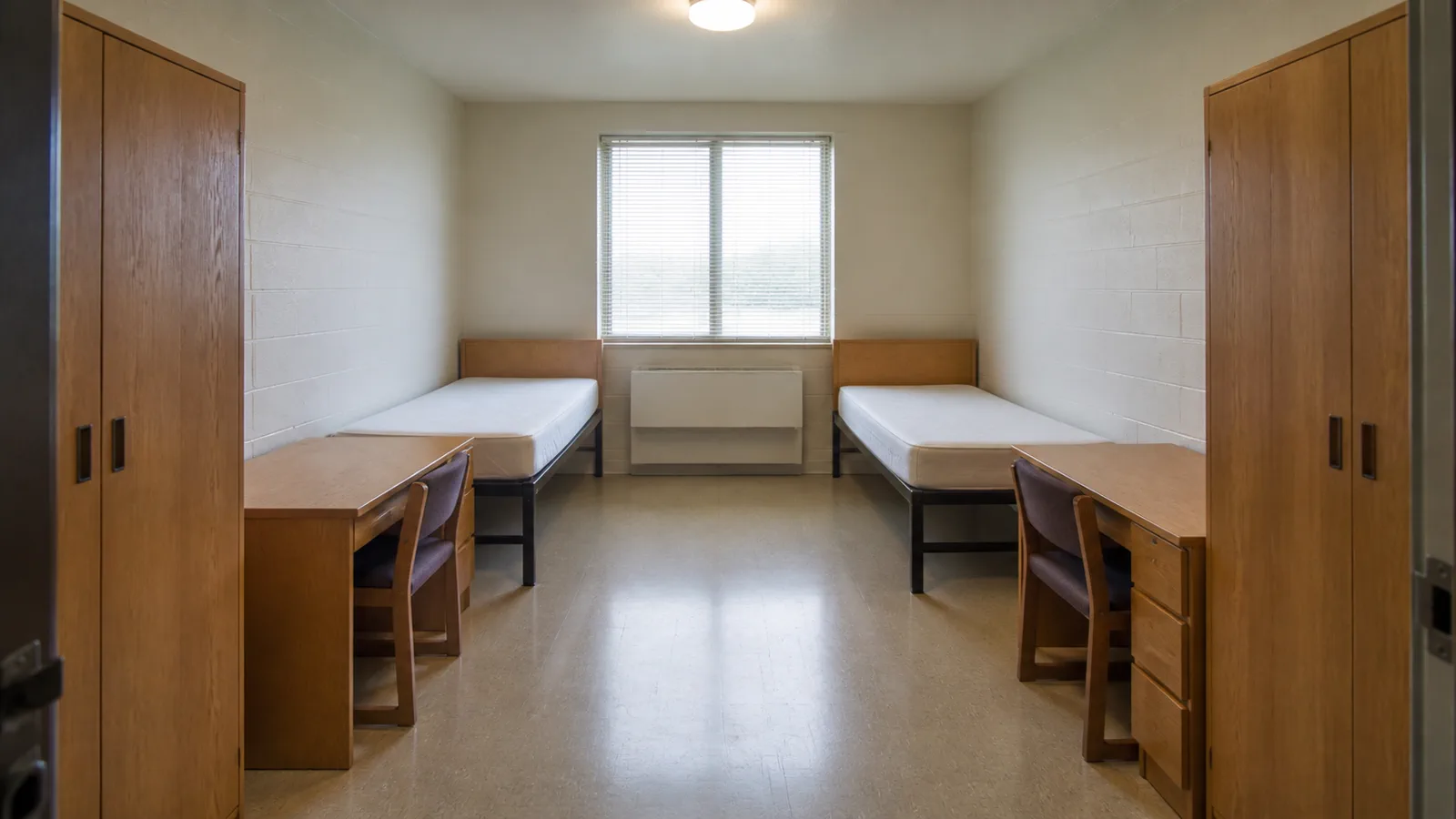
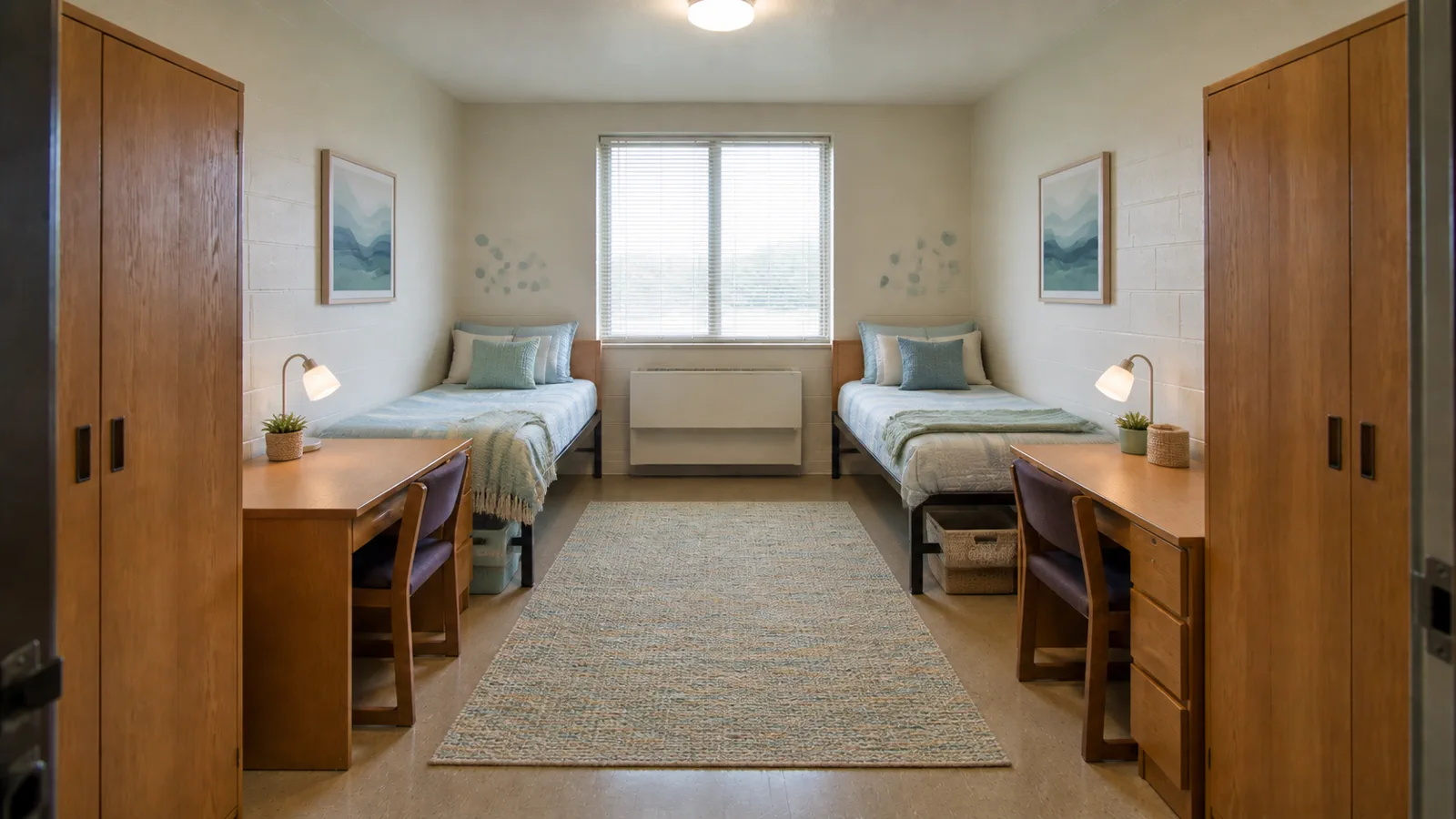
Example directions you can create
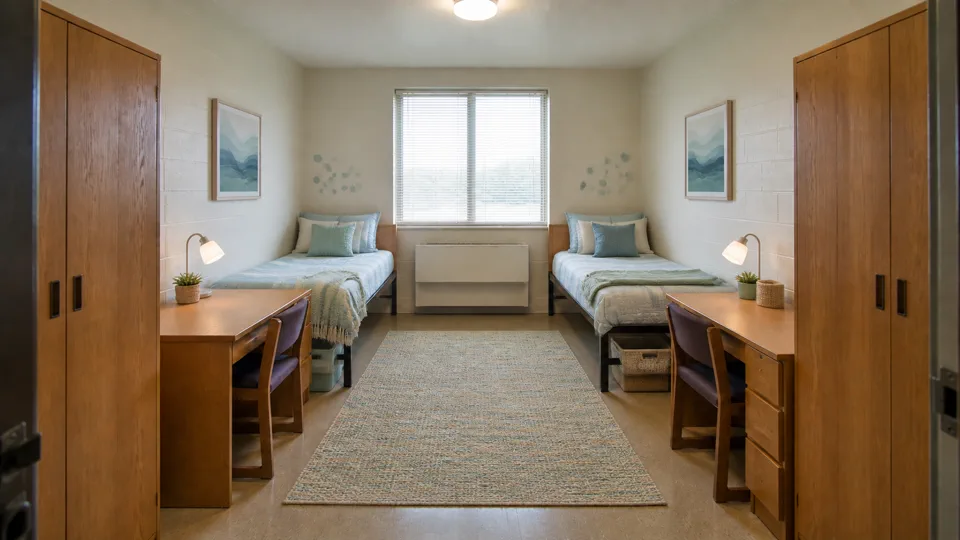
Coastal Dorm — Calm sand, warm white and restrained navy with natural texture. 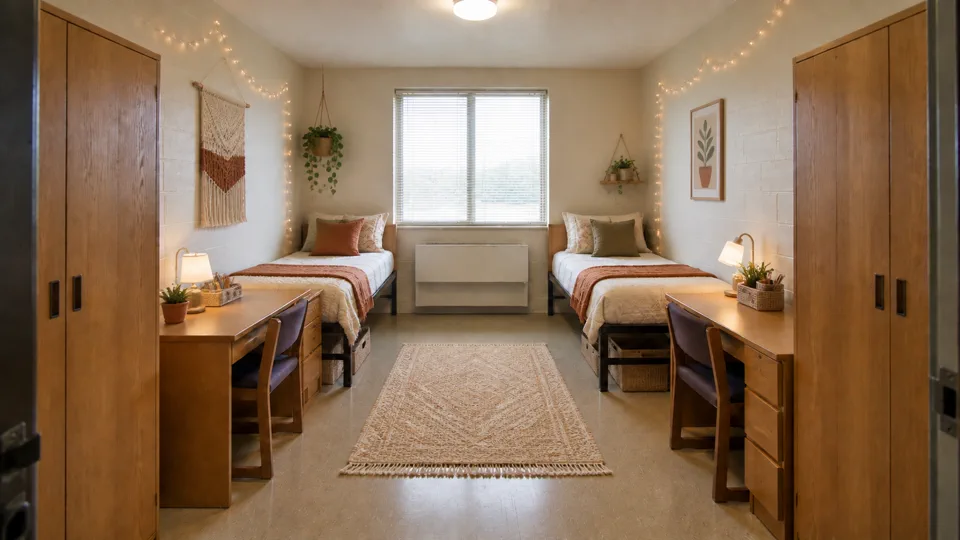
Boho Dorm — Layered earth tones, soft textiles and practical woven storage. 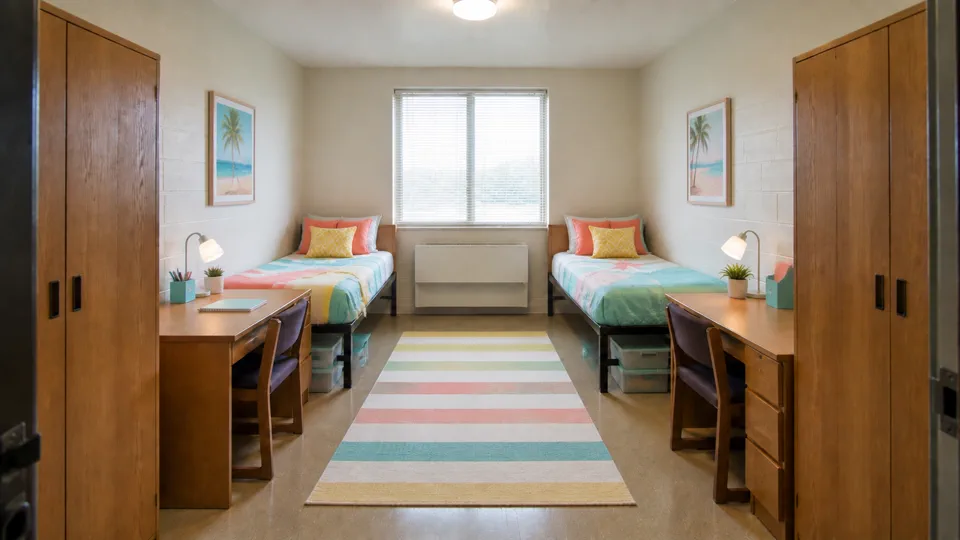
Beach Dorm — Brighter aqua and coral accents with an easy sun-washed mood. 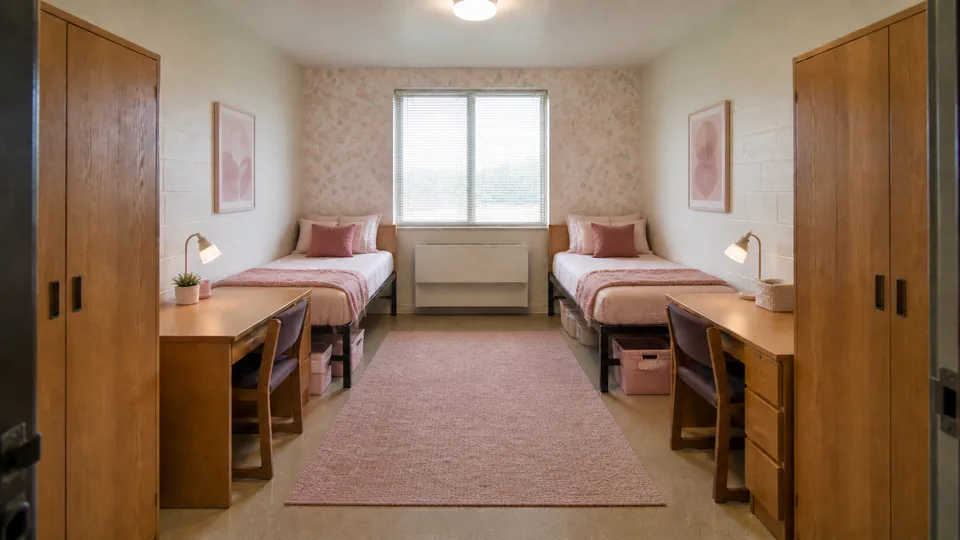
Pink Dorm — A grown-up blush palette balanced with cream and warm wood. 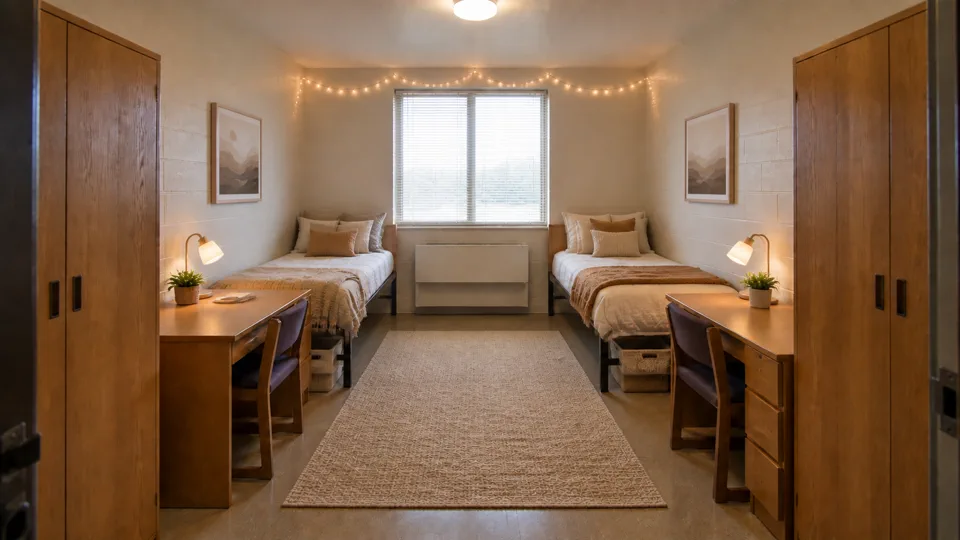
Cozy Dorm — Warm neutrals, layered bedding and safe ambient task lighting. 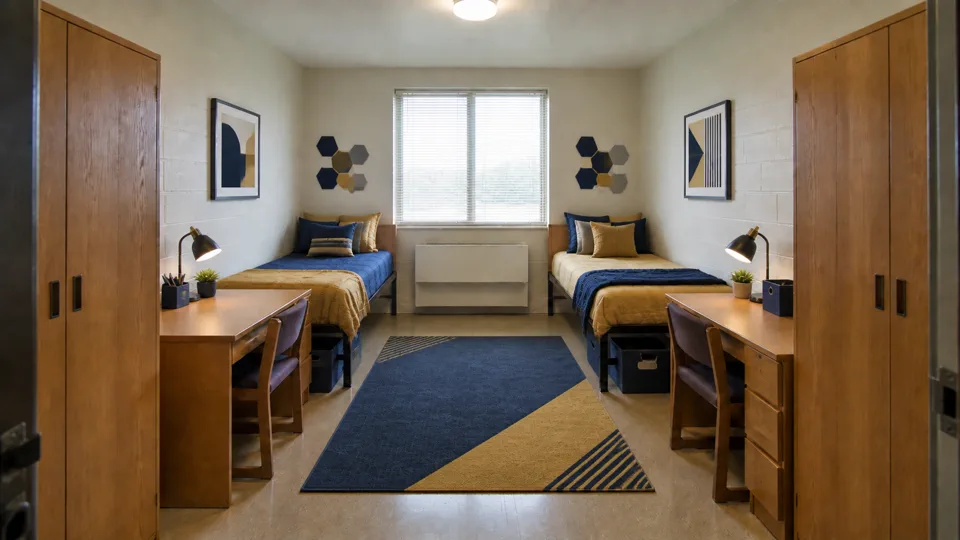
College Team Colors — A generic two-color palette without school names, logos or mascots.
How Design your dorm room with AI works
Upload a straight, well-lit photo that shows the bed, desk, wardrobe, doors, windows and safety fixtures. PrimeArt uses that real room as the visual reference instead of inventing a different floor plan.
Choose Coastal, Boho, Beach, Pink, Cozy or generic College Team Colors. The result is a generated 2D visualization for planning inspiration, not a measured or navigable 3D model, shopping guarantee or approval from your residence hall.
What you can create
- The same dorm, newly styled — Keep the room envelope and fixed furniture recognizable while changing removable decor, textiles, lighting and storage.
- A focused decor direction — Compare six distinct palettes without mixing unrelated themes or relying on school and brand logos.
- A preview before you buy — Use the image to narrow your ideas, then verify dimensions, housing rules, product details and fire-safety requirements.
Popular use cases
- Move-in planning — Explore a complete visual direction before buying bedding, lamps and removable decor.
- Small-space storage — Preview freestanding organizers and under-bed storage without changing the room structure.
- Roommate coordination — Compare a shared palette while keeping both sides of the room practical and visually balanced.
- Back-to-school refresh — Test a new seasonal look while respecting residence-hall restrictions and existing furniture.
Start with a photo that explains the small space
A straight, wide image with the full room depth gives the generator useful geometry. Show fixed furniture and openings rather than hiding them behind a close crop, and avoid panoramas that bend walls or make scale difficult to judge.
If two people share the room, include both usable zones and state which pieces cannot move. The goal is to style the assigned room, not replace it with a larger invented interior.
- Straight camera and even light
- Doors, windows and floor visible
- Fixed furniture included
- Safety fixtures unobstructed
Build a dorm look with removable, practical layers
Coastal is calm and restrained; Beach is brighter and more playful; Boho adds woven earth tones; Pink uses a polished blush palette; Cozy relies on warm texture; College Team Colors uses only a generic two-color scheme. None of the directions needs logos, school names or permanent alterations.
Prioritize bedding, washable rugs, freestanding organizers, removable abstract art and non-permanent task lighting. Keep desks usable, circulation open and storage plausible for the room shown.
Treat the image as inspiration, then verify reality
The result is a 2D generated visualization, not a measured or navigable 3D model. AI can alter perspective, scale, furniture details and fixture placement, so compare the output with the source before relying on any idea.
Before purchasing or installing anything, measure the room and products and review current residence-hall rules, accessibility needs and fire-safety guidance. Never assume a generated placement is permitted or safe.
- Measure clearances and product dimensions
- Check housing and fire-safety rules
- Keep exits and ventilation clear
- Confirm fixed furniture did not move
How to get started
- Photograph the real dorm from a useful angle — Take a straight, wide photo in even light. Include the bed, desk, wardrobe, doors, windows, outlets, vents and visible fire-safety equipment so the existing constraints stay clear.
- Choose one decor direction and list what must stay — Select Coastal, Boho, Beach, Pink, Cozy or two generic team-inspired colors. State which furniture is fixed, note any known dimensions, and request removable decor only.
- Audit scale, rules and safety before buying — Compare the visualization with the source, measure the real room and products, and check residence-hall rules. Confirm that exits, vents, sprinklers, detectors and outlets remain clear.
Frequently asked questions
- Does the AI Dorm Room Designer create a measured or navigable 3D model?
- No. It creates a generated 2D visualization from your photo. It is useful for exploring a look, but it does not provide a measured floor plan, navigable 3D scene, construction drawing or proof that an item will fit.
- Can I use the result to choose furniture and storage sizes?
- Use it to narrow the visual direction, then measure the real room, door clearance, under-bed space and every product. Perspective and generated object scale can drift, so purchasing decisions need actual dimensions.
- Will every dorm allow the decor shown?
- No. Residence-hall policies and local fire-safety rules vary. Check restrictions on wall mounting, lights, extension cords, lofting, rugs, appliances and fabrics, and never block exits, vents, sprinklers or smoke detectors.
- How does the prepared Design your dorm room with AI workflow continue in Studio?
- Take a straight, wide photo in even light. Include the bed, desk, wardrobe, doors, windows, outlets, vents and visible fire-safety equipment so the existing constraints stay clear. PrimeArt carries this page's selected direction and format into Studio so you can begin with that specific setup instead of an empty prompt.
Open the prepared Design your dorm room with AI setup
Take a straight, wide photo in even light. Include the bed, desk, wardrobe, doors, windows, outlets, vents and visible fire-safety equipment so the existing constraints stay clear. Continue to Studio with this page's specific direction and format already selected.