Create with PrimeArt
Replace a photo background with AI
Move a person or product into a cleaner studio, lifestyle or outdoor setting with believable perspective, lighting and contact shadows.
- AI background changer
- replace photo background
- AI backdrop
- background generator
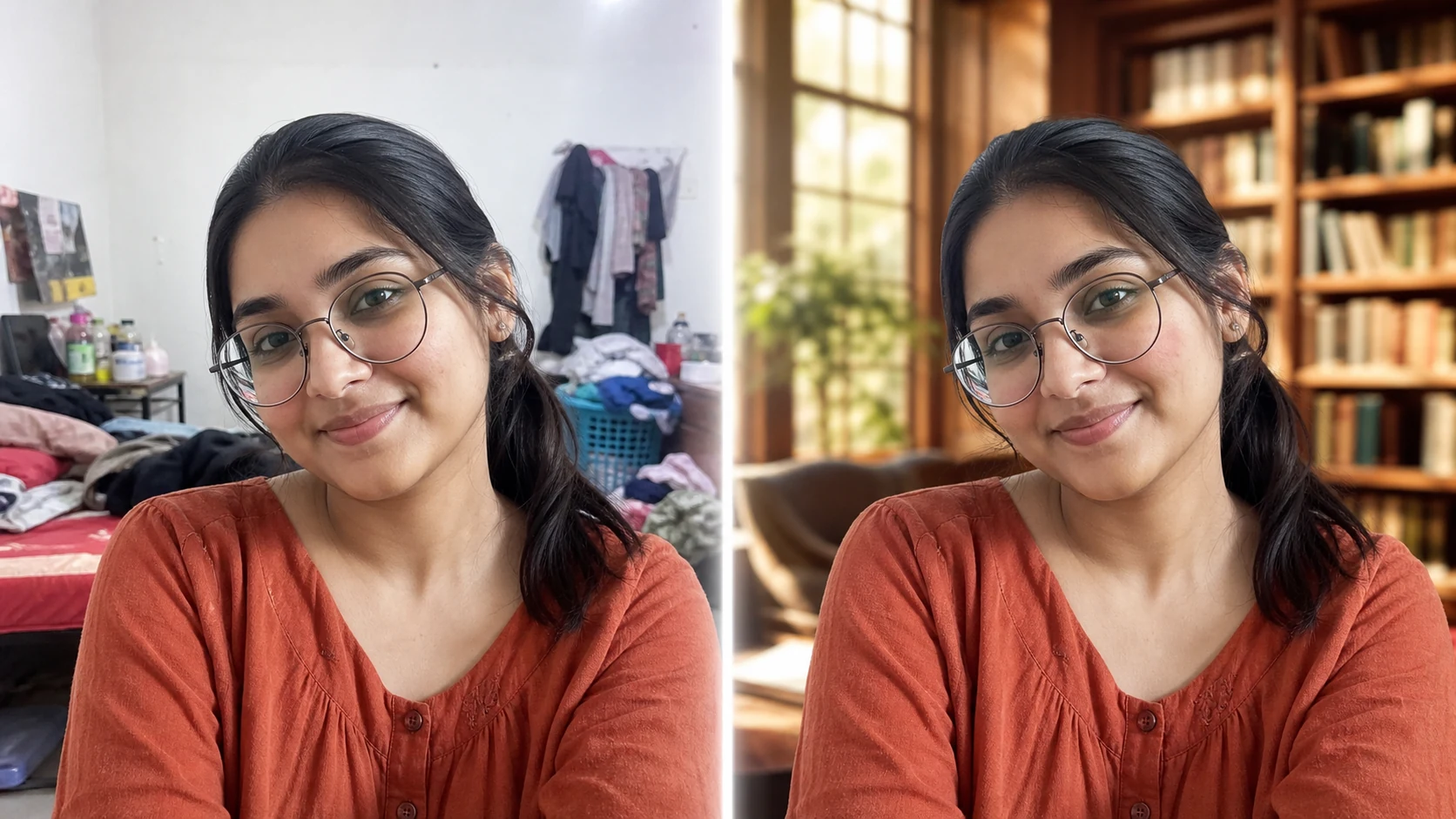
Example directions you can create

Elegant interior — Replace clutter with a bright refined interior. 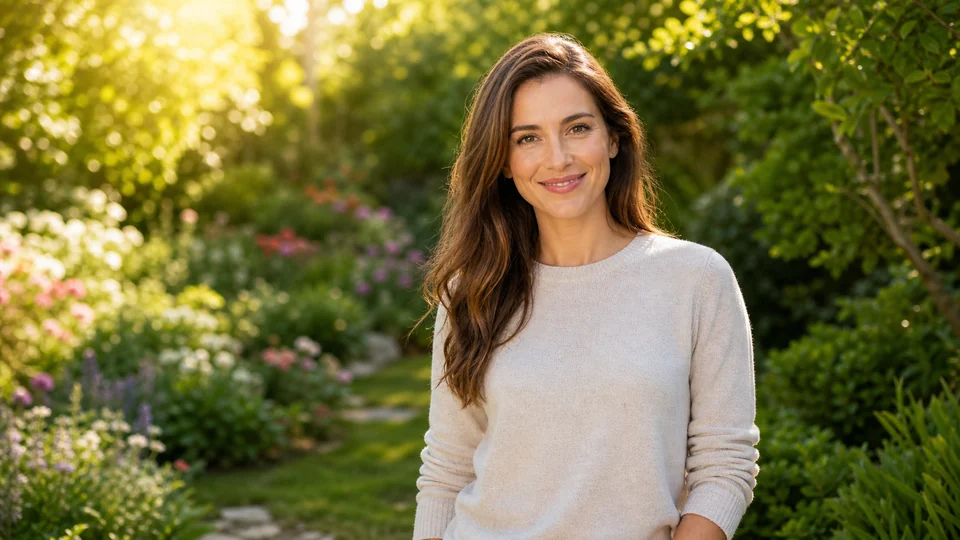
Sunlit garden — Natural greenery and soft outdoor depth. 
Modern office — Clean professional setting with realistic window light.
How Replace a photo background with AI works
Describe the new environment and state exactly what must remain unchanged. Fine hair, transparent materials and reflections need the closest review.
PrimeArt loads a background-only editing instruction and horizontal working format before Studio opens.
What you can create
- Subject preserved — Keep the person, product, pose and important foreground details unchanged.
- Believable integration — Match perspective, light direction, shadows and color temperature.
- Purpose-built scene — Create a backdrop for a profile, listing, campaign or product visual.
Popular use cases
- Portrait backdrop — Replace a distracting room with a clean studio or lifestyle environment.
- Product scene — Place an object on a more useful surface or in context.
- Campaign setting — Match a visual to a planned palette and format.
- Listing cleanup — Create a tidier, more consistent background for presentation.
Inputs that separate subject from background
Sharp edges, even exposure and enough resolution help the model understand what must remain. Avoid a subject and backdrop with nearly identical color when possible.
- Keep the subject in focus
- Retain the full silhouette
- Use visible edge contrast
A new background changes the lighting problem
The scene may be replaced convincingly while shadows, color spill or reflections still belong to the old environment. Transparent and reflective materials expose these mismatches most clearly.
Check the composite at the boundary
Inspect hair, fingers, fabric gaps, glass, jewelry and product edges at full size. Confirm that contact shadows, scale, horizon and light direction fit the replacement scene.
- Zoom in on fine edges
- Match shadows and reflections
- Confirm scale and perspective
AI Background Changer ideas for real projects
This prepared workflow is useful for portrait backdrop, product scene, campaign setting, listing cleanup. Choose the final aspect ratio and destination early so the composition has the right framing and usable space.
The three example sessions on this page show distinct starting points for the same topic. Open one to carry its direction into Studio, then adapt the prompt and source image to your own project.
- Portrait backdrop: Replace a distracting room with a clean studio or lifestyle environment.
- Product scene: Place an object on a more useful surface or in context.
- Campaign setting: Match a visual to a planned palette and format.
- Listing cleanup: Create a tidier, more consistent background for presentation.
How to get started
- Choose a source with readable edges — Use a sharp subject that is visually separated from the existing background. Fine hair, glass and motion blur need extra review.
- Describe the replacement environment — Set location, surface, light direction, depth and framing while asking to preserve the subject and camera perspective.
- Inspect the transition around the subject — Zoom in on hair, hands, transparent objects, shadows and reflections. Refine the scene if the new light does not match.
Frequently asked questions
- Can the background change without altering the subject?
- The instruction can prioritize subject preservation, but generative editing may still change edges, clothing or product detail. Compare with the source.
- Why are hair, glass and reflections difficult?
- Those boundaries mix foreground and background information. The model may erase strands, fill transparency incorrectly or create mismatched reflections.
- Can I replace a product background with white?
- Yes. Ask for a clean white or neutral studio environment, then inspect the product outline, contact shadow, packaging and color accuracy.
- Will PrimeArt prepare the ai background changer workflow automatically?
- Yes. When you continue from this page, Studio opens on the Image tab with a matching prompt and aspect ratio already selected. The setup is retained while you continue through registration or sign-in.
Start your ai background changer project
Continue to Studio with the matching prompt and format already prepared, then upload a source image or generate from text.